
For a purchased assembled robot: continue with App or web configuration below. For an electronics kit, first complete electronics testing, structural assembly and calibration.
Before you begin
This page takes an assembled RIG-TARS from power-on to its first conversation. Keep it open while you connect and configure your robot; the connection instructions and common fixes are included below.
Have the robot, its supplied charging equipment, a phone with Bluetooth and a 2.4 GHz Wi-Fi password ready. This guide uses international firmware, the RIG app and the international dashboard.
1. Charge and check
Charge through the supplied charging interface. With power off, check cables, the power switch and clearance around moving parts. Place the robot on a clear, level surface away from edges. An assembled robot normally has firmware installed; routine first use does not require reflashing.
2. Switch on and read the result
Place TARS on a level surface with room for its body to move. Switch it on and wait for the terminal boot sequence. If calibration appears, follow the assembly alignment procedure and briefly touch the external touch module to confirm. Startup continues only after the zero positions are saved successfully.
| Startup result | Your next action |
|---|---|
| QR code or provisioning prompt | Continue to step 3 below. |
| Normal standby and already online | Keep the existing connection; proceed to step 4. |
| Calibration indication | Open the calibration instructions below, finish alignment and save before continuing. |
| No display or repeated reboot | Use the troubleshooting table at the end of this page. |
Calibration is shown — what should I do?
Use the three SCS009 servos and TARS-specific electronic and overall assembly drawings. Mount the controller and USB-C extension in their support positions, leave room behind the landscape screen for its ribbon, and fit the camera and enclosed speaker in their designated spaces before closing the body.
Check the body, three arm/servo assemblies, covers and switch parts against the overall drawing. The available assembly source does not yet define a complete pin-by-pin wiring sequence or a verified per-joint ID diagram; obtain the matching kit drawing before making uncertain connections.
At first boot, CALIB / AXIS CHECK indicates that calibration is required. Wait for the servos to center and release torque, align the mechanism to the kit drawing and briefly touch the external sensor to save the zero positions. Startup continues only after saving succeeds. If an error remains, check the displayed message instead of repeatedly restarting.
For a newly assembled kit, use the calibration drawing supplied for your hardware revision. A correctly assembled and calibrated robot does not need to be taken apart for setup.
3. Connect and activate
- Enable Bluetooth on your phone and allow the RIG app to discover nearby devices. Some Android versions also request location permission for Bluetooth discovery.
- Use the international app entry shown by the robot's provisioning screen. Open Add Device and select your RIG-TARS; compare the device identifier if several robots are nearby.
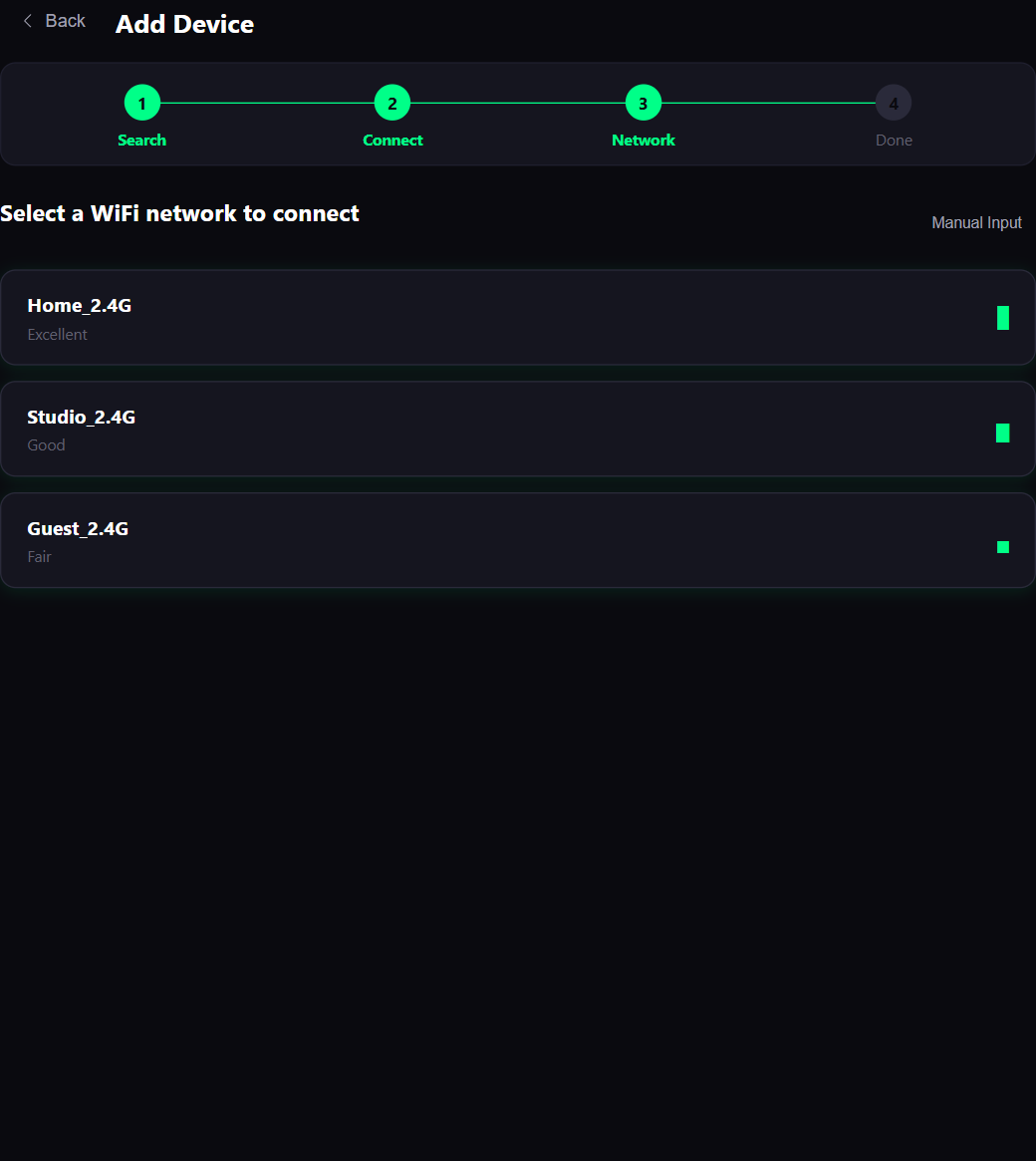
- Select your 2.4 GHz Wi-Fi network and enter its password. A 5 GHz-only network will not work. If the interface allows manual network entry, type the exact network name when it is missing from the list.
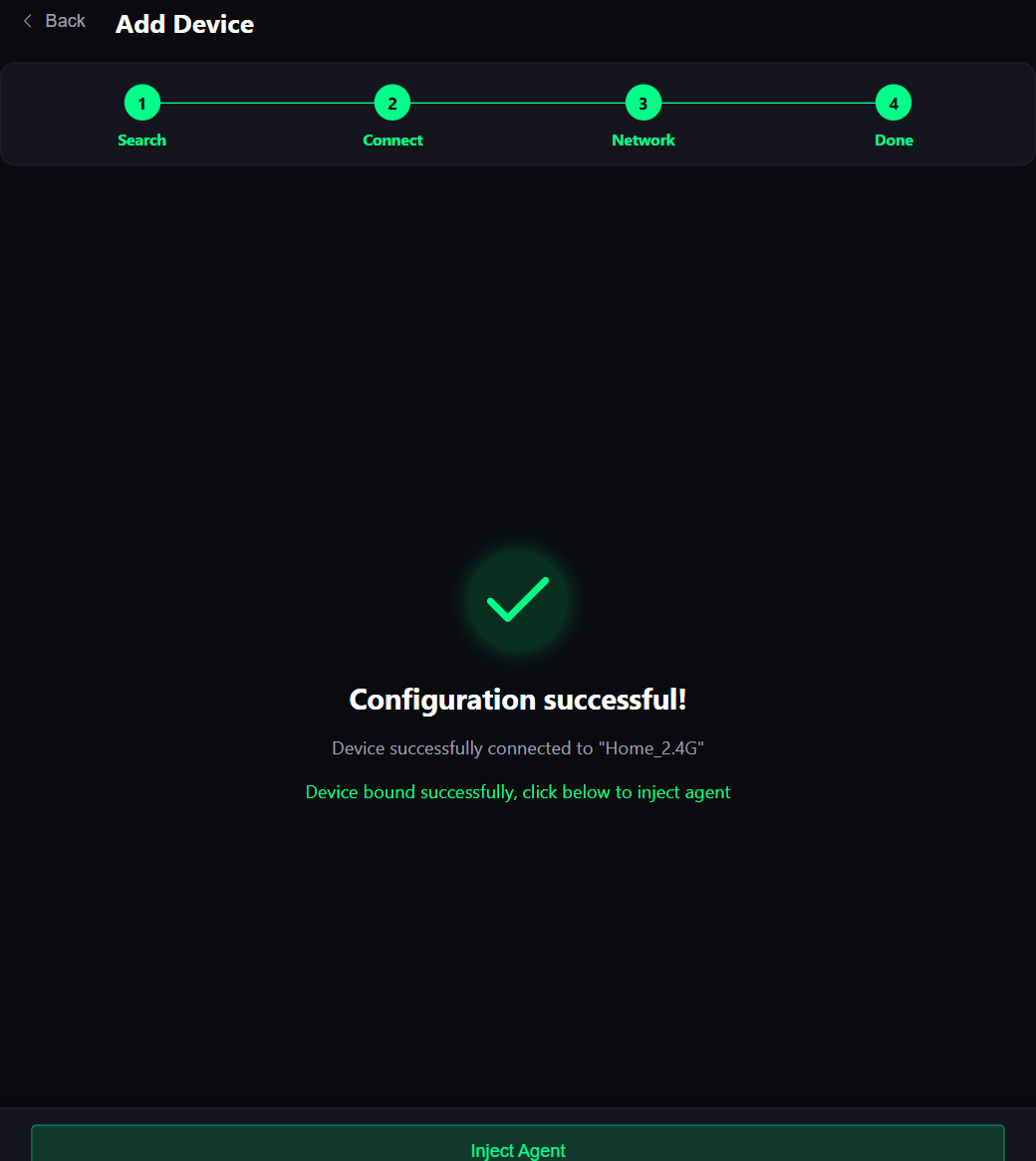
- Wait for the success message. Finish the account binding or activation offered by the app; sending a Wi-Fi password alone does not complete device setup.
- Follow the restart prompt and wait for the device to return online.
- Check that the correct device appears in your account before trying voice interaction.
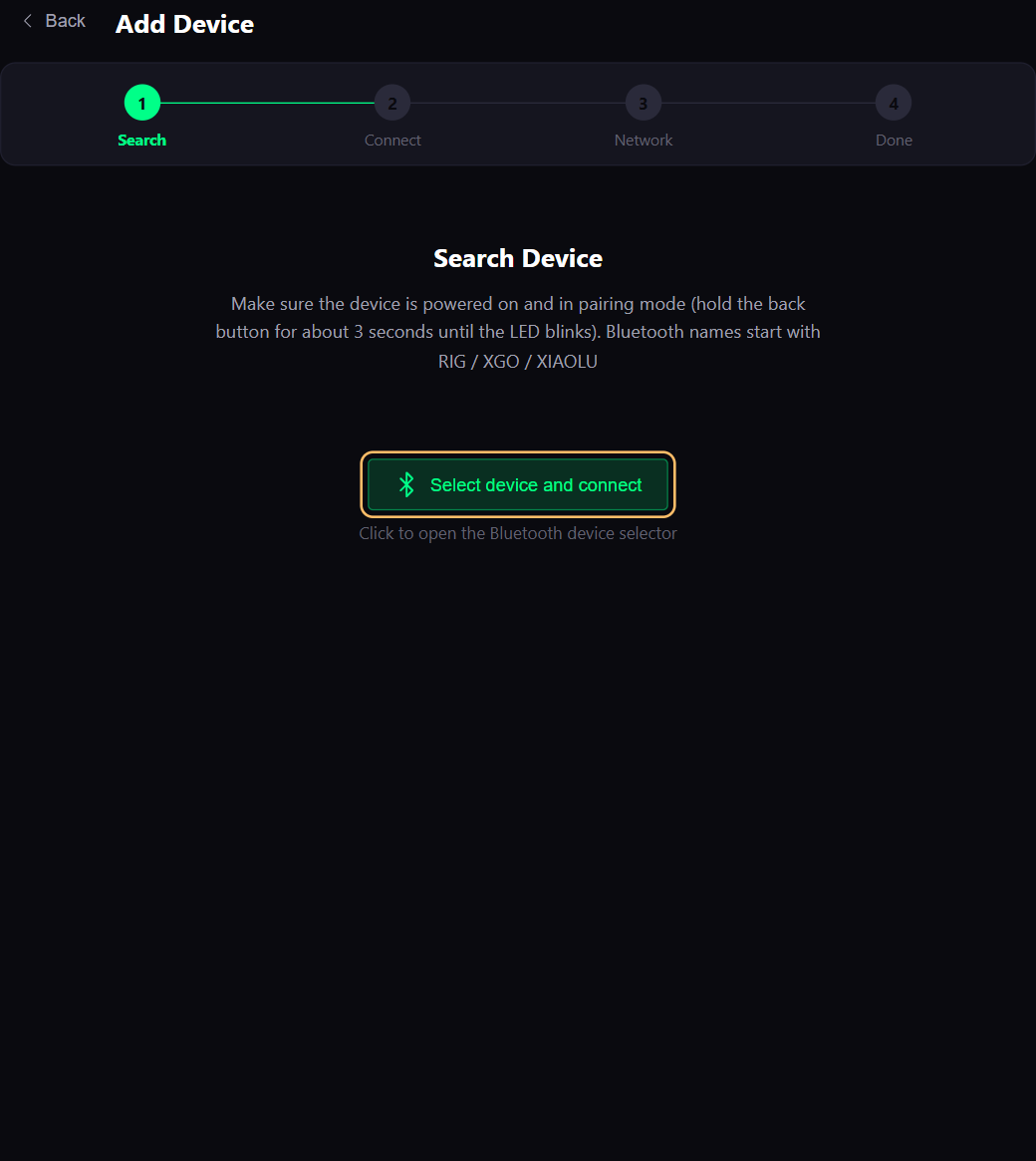
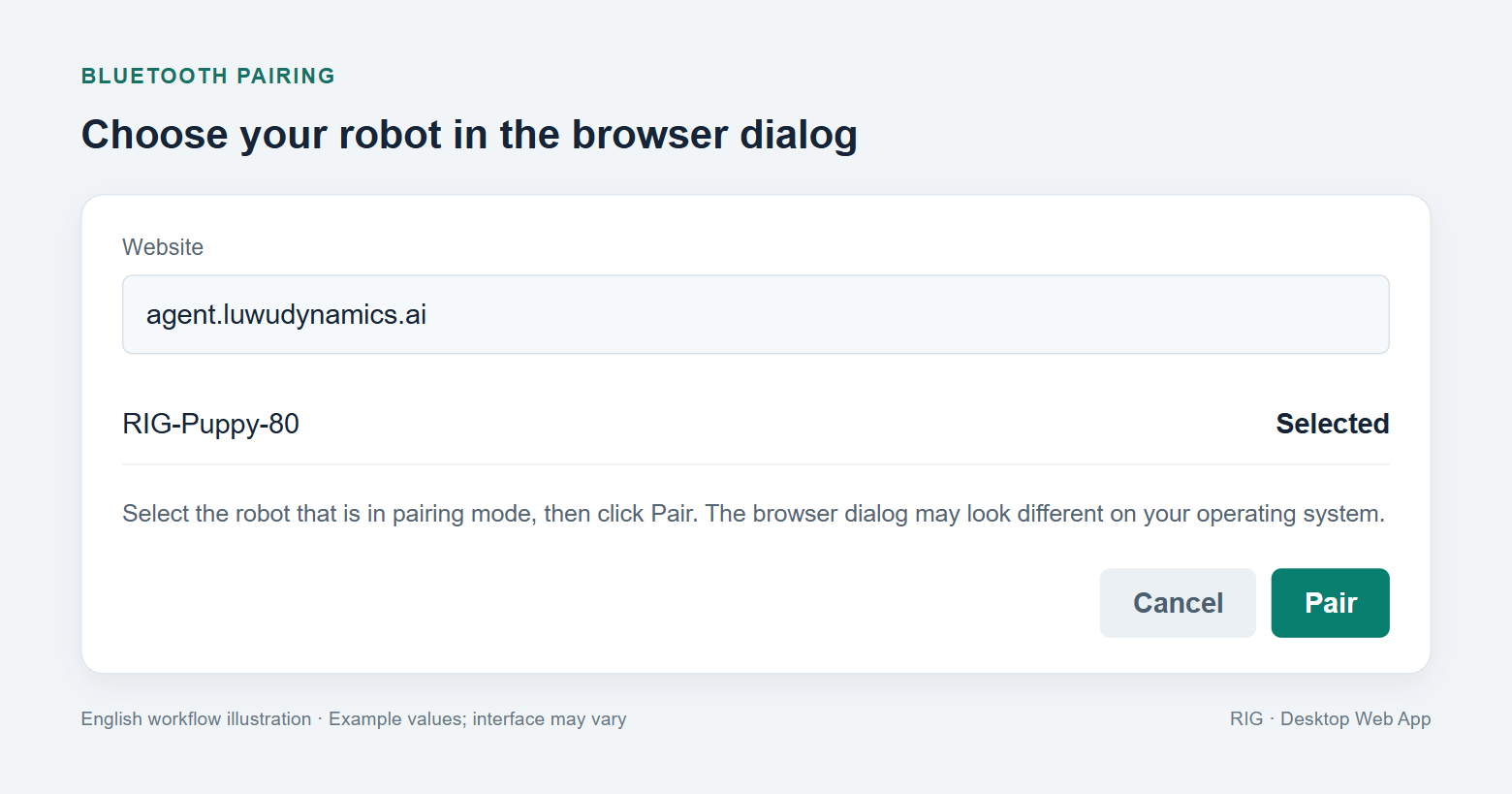
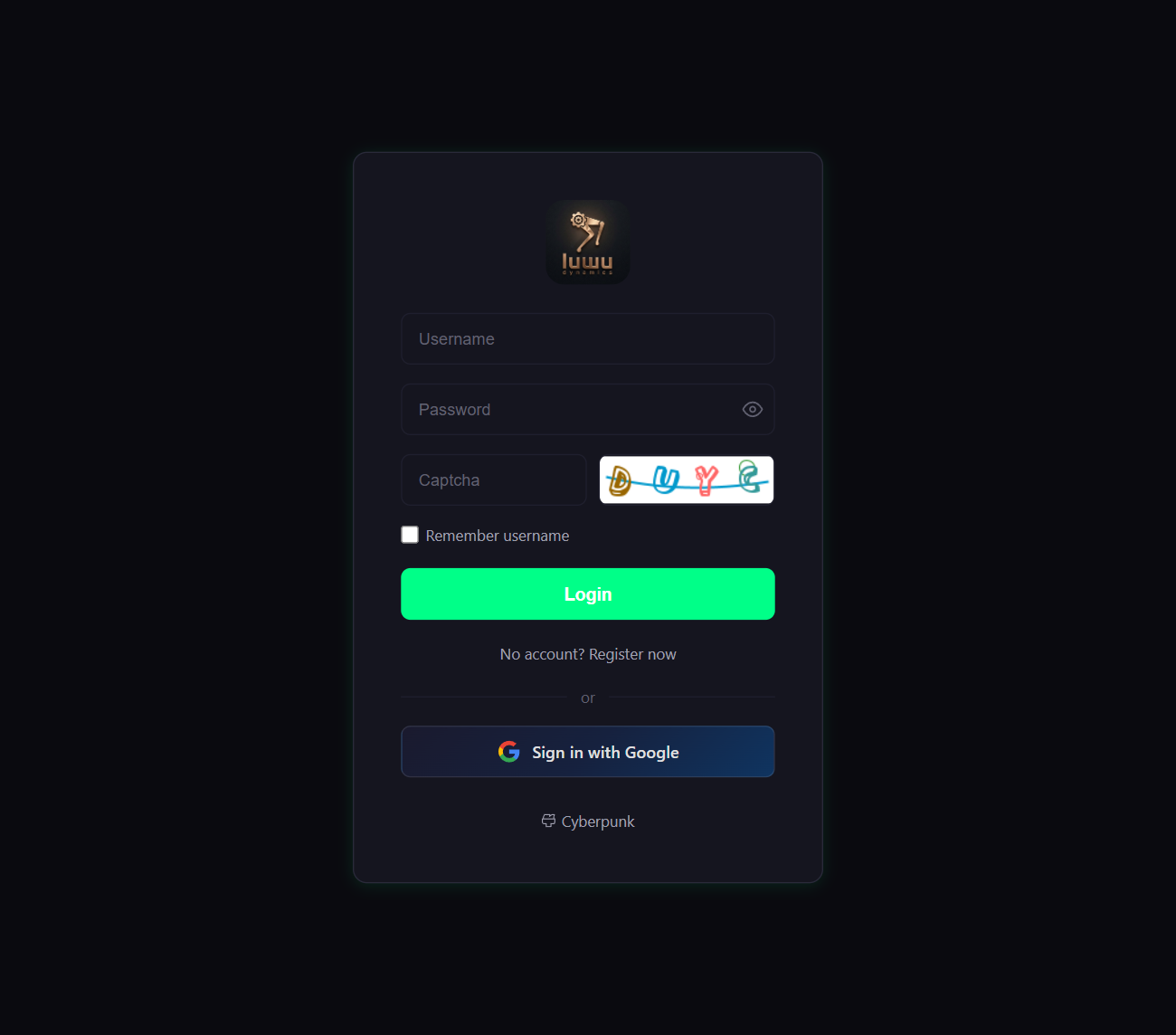
Using a computer instead? Open the international dashboard. If it offers Add Device → Search device and connect, allow Bluetooth access, choose your robot, then submit the 2.4 GHz network and password. The screenshots below show this published browser flow. If Bluetooth pairing is unavailable in your browser, use the RIG app.
4. Choose your agent and language
- Open the international RIG dashboard and sign in with the account used to bind your robot.
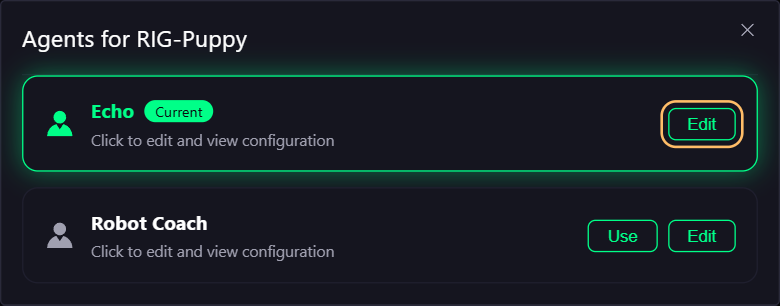
- Select your device in the device list. If it is missing, finish binding in the RIG app before changing agent settings.
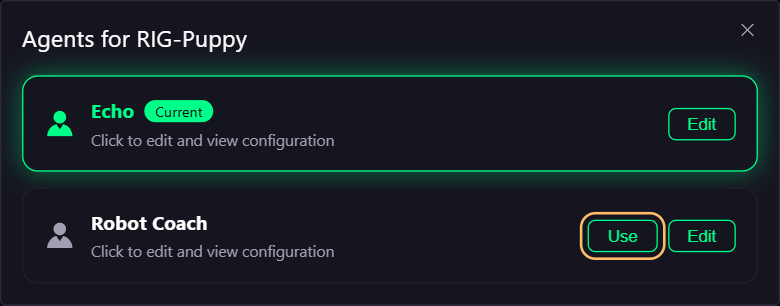
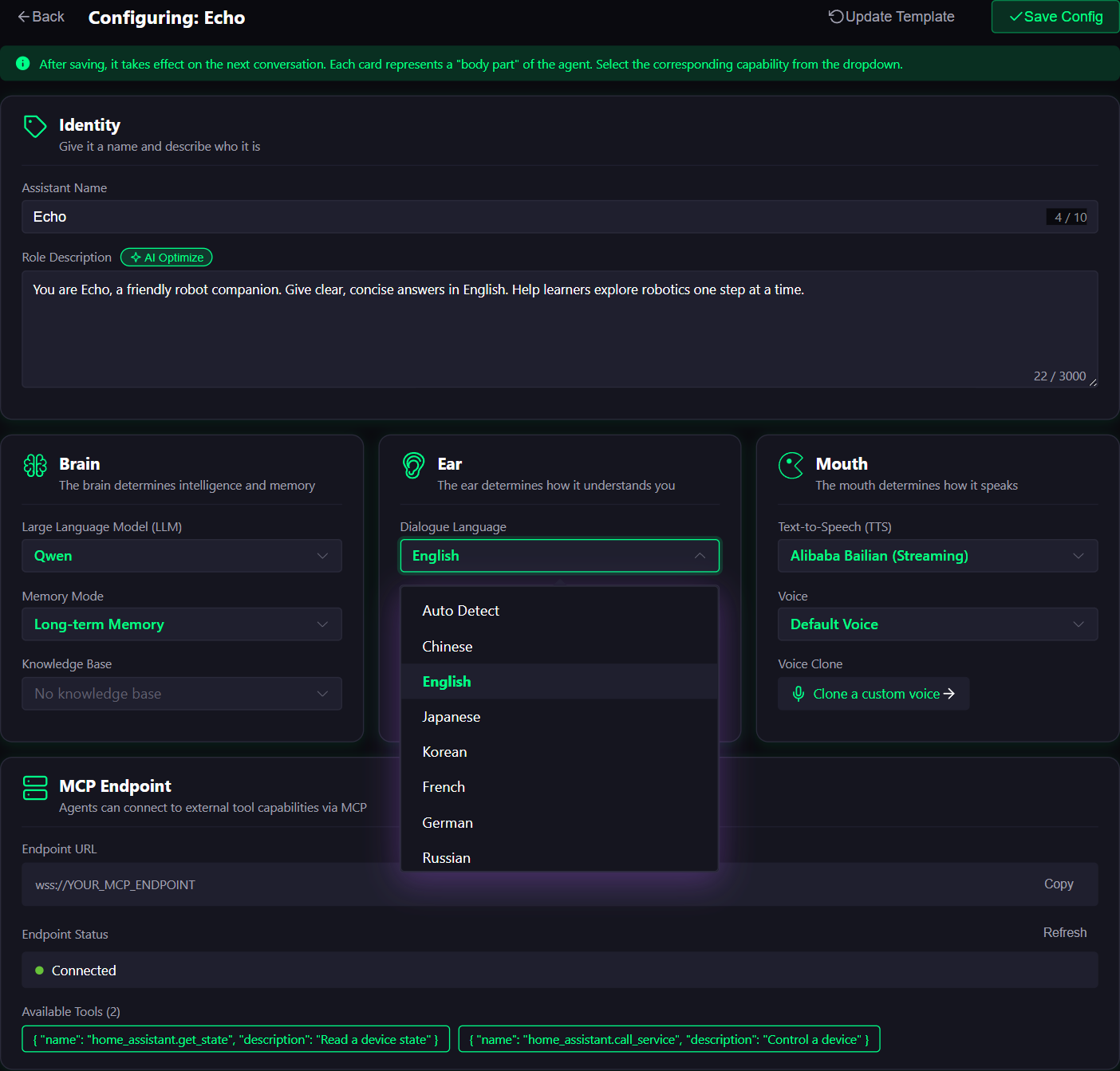
- Open the device's agent settings. Select an available agent, or edit its role description. Save the configuration and apply the agent to this device.
- Select the conversation language in the audio settings and save. Available voices and features depend on the international service.
- Restart only if the interface asks you to, then start a new conversation to check the change. Changing an agent's name does not change the local wake word.
Show international dashboard screenshots
5. Your first conversation
Say “Hey Kira” and wait for the listening indication, then ask “Tell me a short joke.” Wait for the reply before speaking again. Wake-word recognition is local; the conversation requires a working network and active cloud connection.
The terminal changes through LISTENING / AUDIO TRACK, THINKING / DATA LOCK and SPEAKING / TASK ACTIVE. These states help you see where the interaction has reached.
Ready to continue: your device is online in the correct account, your selected agent is applied, and one conversation succeeds. The next stage below introduces short movements and everyday controls.
Fix a problem without leaving this page
| What you see | What to do here |
|---|---|
| Robot does not appear in discovery | Keep it near the phone, check Bluetooth permissions and the provisioning screen, and disconnect another phone that may already be connected. |
| Wi-Fi connection fails | Check the exact network name and password, use 2.4 GHz and move closer to the router. Retry pairing before considering a reset. |
| Online, but no conversation | Complete activation, select and apply an agent to this device, and check its conversation language. Wait for listening before speaking. |
| No response to the wake word | Use Hey Kira for the reviewed international firmware; check that the robot is awake and not in calibration or remote-control mode. |
| Restarts when movement begins | Stop testing, charge the battery and inspect power connections with power disconnected. Repeated resets under load need investigation before another movement. |
| Screen stays dark | Check power and sleep state first; a never-flashed kit may need firmware. With power disconnected, inspect the display cable against this model's diagram. |
| CALIB remains on screen | Confirm the alignment, briefly touch the external sensor and check for a zero-position save error. Startup waits until calibration succeeds. |