
Beginner workshop · RIG-Arm
Start with a working robot and finish with a firmware change you can see in the log. All required steps are on this page; the second exercise is optional. Source: public RIG-Omni repository.
Your route: tools → source → model settings → original build → USB connection → first flash → first edit → optional tool → recovery.
Vibe Coding: turn your idea into a small experiment
You describe the result; an AI coding assistant helps you make the change. You still check what changed and try it on your own robot. You do not need to start by learning every C++ concept. Start with one visible result and let the assistant explain the few lines involved.
Start here: choose how you want to learn
- I want a quick result without installing developer tools: try the personality exercise below. You only need your working robot and its international agent settings.
- I want AI to help me change the firmware: prepare the AI helper, then complete the original build before making one greeting change.
- I already built and flashed the original code: start with the greeting prompt, review the edit, then build and test it.
These links move within this page. You can finish one small project without reading all the optional ideas.
Choose your first win:
| Try this | What you will experience | Firmware needed? |
|---|---|---|
| A space-explorer personality | Your robot asks playful questions in a new conversational role. | No; use the international agent's role settings where available. |
| A personalized startup greeting | Your own message appears in the computer's robot log. | Yes; a small change after the original build works. |
| A robot dice game | Ask for a dice roll and check the tool's result. | Yes; after the hello-tool exercise. |
| A celebration action | One existing model-specific action on an explicit request. | Advanced; verify the actual action and stop behavior first. |
First firmware experiment? Use the tool installation and original-build steps below first. Then use the startup-greeting prompt instead of inventing your first edit. The assistant helps with the same workshop; it does not bypass setup, model selection or the first successful build.
Get your AI helper ready
- Open your downloaded rig_omni project in an AI-enabled code editor or a coding assistant that can read local files. Use a local experiment branch as shown in the source-download step below.
- Check that the assistant is looking at this project, rather than an empty folder. Ask it to name the root build file and your model's board file before editing.
- If you use a chat assistant without file access, provide the relevant function and its surrounding definitions. A repository URL alone does not guarantee that the assistant can read the code. Ask for an exact insertion location and a patch you can review.
- Paste the context below once, then choose one of the project prompts. Replace any personal details before sharing logs; do not paste passwords, account tokens or private device credentials.
Copy this project context:
I am a complete beginner working with RIG-Arm.
Use the public repository https://github.com/LuwuDynamics/rig_omni.
Read the files in my downloaded project before suggesting code.
My firmware target is RIG-Arm, ESP32-S3, Overseas region, with ESP-IDF 5.5.2. Inspect main/boards/arm/arm_board.cc and its existing InitializeTools function.
Explain unfamiliar terms in plain English. Change one small thing at a time.
Use existing APIs you can find in the source. If something is missing, say so.
Do not change pins, servo IDs, calibration, partition layout, networking credentials or dependencies.
Before editing, show the files and a short plan. After editing, show the diff, how to test, the expected result and how to undo only this change.
Do not flash, erase or command movement automatically. I will identify the port and perform hardware steps myself.
Start without flashing: a space-explorer personality
This is the quickest creative exercise. It changes conversational instructions, not the robot's firmware. In the international dashboard, select your bound robot and open its agent's editable role/personality settings, if provided. Save a copy of the existing role before changing it. Paste this as a starting role and save/apply it to that device:
You are the friendly space-explorer companion on my RIG-Arm.
Speak in short, clear English. Ask one question at a time.
When I say "start a mission", offer a short imagination game that can be played by conversation alone.
When I say "mission report", summarize what we discovered in two sentences.
Do not claim to have seen objects or moved hardware unless a connected tool actually provided that result.
Do not call motion tools for this game.
Say “Start a mission”, answer one question, then say “Mission report.” Check that the conversation follows your role. Change one sentence in the role and try again. If your dashboard does not offer editable roles, try the role as a temporary conversation request; it may not persist across sessions. Restore the saved role to undo the change. This does not change the wake word, startup sound or physical movement.
Your first AI-assisted firmware change: a personal greeting
After the unchanged firmware works, give the assistant this prompt. It matches the first-edit exercise below and adds no new motion.
Using the project context above, add exactly one informational startup log:
"Mission control: RIG-Arm is ready for my experiments!"
Insert it inside the existing InitializeTools() in main/boards/arm/arm_board.cc, using the existing logging facilities. Keep all current registrations and behavior.
Explain where the message appears and why it is not spoken or shown on the robot screen.
If I already added the startup-message exercise, replace only its message text instead of adding a second log line.
Show the smallest diff. Give me the build step first, then explain the manual flash/monitor step with a clearly marked example port.
Stop if the unchanged project cannot build. Tell me how to remove just the added line.
Follow this small checklist:
- Paste the project context and greeting prompt into the same AI conversation. Wait for the assistant to identify the existing function and explain its proposed edit.
- Review the diff: for this exercise, expect one added log line or one changed message in your model's board file. If you cannot tell what changed, ask: “Show the old and new lines side by side and explain each difference.”
- If your assistant edits local files, save and inspect the actual file. If it only replies in chat, apply the specific line at the verified insertion point. Do not paste an entire replacement file over your source.
- Build in the ESP-IDF terminal. If the assistant reports a successful build, ask which command it ran and read the actual result. If it could not run the build, run it yourself using the workshop below.
- After the build succeeds, flash using your verified port and open the monitor. Look for the exact Mission control sentence from your prompt.
- Check normal startup. Record the successful change, or remove only this edit and rebuild/reflash to undo it.
This is an alternative to the manual startup-message exercise below. Do it once: if you choose the personalized wording, expect that wording in the log instead of the manual exercise's default message.
Try it: review the changed file, save, build, then use your verified port to flash and monitor. Find your exact sentence in the log and check normal startup. Do not accept “done” from the assistant as the test result. Once it works, change only the text to give your robot a nickname.
Keep the loop small: describe → review → build → try → keep
| Your step | What to ask or check |
|---|---|
| Describe | “When I do X, I want Y. For this experiment, do not change Z.” |
| Review | Ask for a list of changed files and a plain-English explanation of the diff. Pause if unrelated files or settings changed. |
| Build | Run the build in the activated ESP-IDF environment. Continue only when it succeeds. |
| Try | Flash manually for the matching model, observe the stated result, then check normal behavior. A compiled program can still behave incorrectly. |
| Keep or undo | Save a note of the working source/configuration, or remove only this experiment's changes and rebuild/reflash. |
Ask the assistant to explain one unfamiliar line at a time. You can say “Use simpler words and tell me what I should see before I continue.” Do not stack three new features on top of an untested first change.
Project 2 · Build a dice game with a tool result
First finish the non-moving hello tool exercise on this page. Then ask for one new tool:
Using the same model and project context, add a non-moving MCP tool named self.robot.roll_dice.
It accepts no arguments and returns one integer from 1 through 6.
Inspect the project's MCP ReturnValue and existing registrations before choosing the implementation.
Use an available ESP-IDF random-number API, include its required header, and do not add a new library.
Log the returned number so I can compare it with the client result.
Do not implement speech or motor movement inside this tool. Let the connected agent describe the returned result.
Show a minimal diff, explain how the range is enforced, and give tests for repeated calls and removal of the tool.
If my model has no public source support, instead show a clearly labeled computer-only prototype, without pretending it runs on the robot.
How to play: after building, flashing and refreshing the client's tools, invoke the new tool using an empty argument object {} if your client offers a tool inspector. Compare the returned integer with the serial log. Ask the connected assistant to roll the dice and tell you the result. Try a guessing game: choose a number before the roll.
What counts as working: each invocation returns a number between 1 and 6; the log and tool result agree; the robot does not move. Repeated values are possible. Several successful calls check integration and range, not statistical fairness. A spoken number with no tool invocation is just conversation, not a successful firmware test.
Undo: remove only the new registration and any include added exclusively for it. Rebuild, flash and refresh the tool list. Keep your original hello exercise if you still use it.
More play ideas · Start with one small feature
| Idea | First version | Evidence to check |
|---|---|---|
| Robot quiz host | Put a one-question-at-a-time quiz role in the international agent settings. | It waits for your answer before giving the next question. No firmware required. |
| Mission counter | Add a tool that increments an in-memory counter and returns it. Start at zero on reboot; avoid flash storage for the first version. | Successive explicit calls return 1, 2, 3; restart returns to the documented initial state. |
| Mood reporter | Add a tool returning a fixed text label such as “curious”; let the agent use it in conversation. | The result is returned by the tool. It does not automatically change an animation. |
| Custom expression | First ask the assistant to locate an existing supported display expression and its calling pattern. | It cites actual files and APIs before proposing a change; no invented asset names. |
For any idea, start with: “Make the smallest version of this idea for my model, explain the files first, and give me one observable acceptance test.” Add persistence, graphics or multiple states only after the small version works.
Later · Add one celebration action using verified model code
This is a later experiment, after normal movement and recovery work. For Arm, clear the working area and verify joint limits and the stop path before any action.
Begin with a read-only investigation, not a generated movement patch:
Inspect this model's existing motion tools. Do not edit files or run the robot yet.
Find one short, bounded celebration action already implemented for this exact model.
Show the actual registration and implementation locations, arguments and units, valid ranges, duration, and how to stop or recover.
Explain whether it blocks other work and whether repeated requests can overlap.
If no suitable bounded action or reliable stop path exists, say so and suggest the non-moving dice game instead.
Propose a dry-run version that only logs the intended action. Wait for that test to pass before proposing any physical action.
Review the evidence and try the logging-only version first. For a later physical version, require an explicit user request, one action per request and the established stop mechanism. Do not trigger a motion automatically at boot or on every assistant reply. Never copy a movement function from another model merely because the compiler accepts it.
Something isn't working? Ask for a diagnosis, not a rewrite
Copy the first relevant error and a small amount of surrounding output. Use this prompt:
My last working version passed the original build/startup test.
My one intended change was: [describe it].
The command I ran was: [command].
The first relevant error or observed behavior is: [paste sanitized output].
Inspect the actual changed files. Explain the most likely cause and the smallest fix.
Do not upgrade dependencies, change the board/region, erase flash or rewrite unrelated code.
If you cannot identify the cause, tell me the one missing observation you need.
After the fix, give the same acceptance test and an undo step.
No error, but nothing happens? Check whether the expected output belongs in the serial log, tool result, spoken conversation or screen. These are different paths. Confirm the latest build was actually flashed and the connected client refreshed its tools before asking the assistant to add more code.
Your first Vibe Coding milestone: one idea, one small reviewed change, one result you observed yourself, and one way to undo it.
1. Understand what you are about to do
You do not need to understand the whole program. Your first goal is to add a message to the robot's startup log, then read that message on your computer. This proves that your own source was compiled, transferred and started. The new line does not request movement; the robot's existing startup behavior still runs.
| Word | What it means here |
|---|---|
| Source code | Editable text files describing how the robot works. |
| Firmware | The compiled program stored on the robot. |
| ESP-IDF | Espressif's tools and libraries for building ESP32 firmware. |
| Terminal | A window where you type commands and read their results. |
| Build / compile | Turn source files into firmware on your computer. This does not write to the robot. |
| Flash | Write firmware from your computer to the robot. |
| Serial port | The computer's connection to the controller, such as COM5. |
| Monitor / log | Live text printed by the running firmware. |
| Board target | The robot model whose hardware and behavior will be built. |
Before continuing: finish assembly, calibration and normal first use. Have a USB data cable, a computer with Internet access and a charged robot. A charge-only cable can power a board without connecting it to your computer. Identify the correct controller connector from your kit instructions.
Record the robot model, controller revision, working firmware version and how to obtain its matching official firmware again. Flashing writes firmware; changes to partitions or a full erase can also remove settings. Keep account details and calibration notes available. Do not begin with an unknown model or an unidentified recovery image.
2. Install the tools and open the right terminal
Use ESP-IDF 5.5.2 as the initial tutorial environment. The project's README specifies 5.5.2 or newer, but that is not a promise that every future major version works. Avoid changing both your program and the toolchain during your first exercise.
Windows: start here
- Install Git from Git for Windows. Git downloads and tracks the source files. The standard installation is sufficient for this exercise.
- Open Espressif's ESP-IDF installation instructions. Use its Windows installer or Installation Manager. In the version selection, choose 5.5.2 and install the tools for ESP32-S3. Let it finish downloading its Python environment, compiler and build tools.
- Open the ESP-IDF terminal / PowerShell environment supplied by the installation. If the manager offers an environment launch action, launch the installed 5.5.2 environment there. An ordinary PowerShell window may not know where these tools are.
- Install a text editor such as Visual Studio Code. Use it to open and edit files. You can keep the ESP-IDF terminal in a separate window; an editor extension is optional for this walkthrough.
- In the ESP-IDF terminal, run these checks, one line at a time:
git --version
python --version
idf.py --version
Expected result: each command prints a version. The last command identifies ESP-IDF 5.5.2. If a command is not found, fix this before downloading or compiling the project. Reopen the ESP-IDF environment after installation; reinstalling the robot firmware cannot fix a missing computer tool.
Using macOS or Linux instead?
Use the macOS or Linux instructions in the same official ESP-IDF guide and select the same IDF version. Activate the installed environment in every new terminal. For a traditional ESP-IDF checkout, activation is usually performed from its installation folder with:
. ./export.sh
That command belongs in the ESP-IDF installation directory, not in the robot project. If you used an installation manager, use its environment launcher instead. Run the three version checks above before continuing. The Git and IDF commands below are otherwise the same; use your own project directory and serial port.
3. Download the public code and find the project folder
Create a simple working folder such as C:\rig-work using File Explorer. Avoid a synchronized cloud folder for the first build. In your ESP-IDF terminal, move into it and download the project:
cd C:\rig-work
git clone --branch main https://github.com/LuwuDynamics/rig_omni.git
cd rig_omni
On macOS/Linux, create a working directory in your home folder and run the same clone command there. The last command enters the newly downloaded project. Do not copy the Windows path on those systems.
Open the rig_omni folder in your editor using File → Open Folder. You should see CMakeLists.txt, main and sdkconfig.defaults at the project root. If you only see a single folder named rig_omni, open that inner folder. Keep the terminal at the same project root for all remaining IDF commands.
If Git says the destination already exists: use the existing checkout if it is yours, or choose a new empty working directory. Do not delete another project to make the command work. A GitHub ZIP also contains source, but Git history commands in this tutorial will not work in a ZIP download.
Make a branch for your work and record which source you downloaded:
git switch -c my-first-rig-change
git rev-parse --short HEAD
git status --short
The first command creates a local workspace branch; it does not publish anything. Save the short identifier in your own notes. An empty status output means no tracked file changes. If the branch name already exists, use a new name or switch to your own existing branch without the -c option.
Something isn't working? A download failure is a computer/network issue. Confirm the public repository opens in your browser and read the Git error. Do not substitute an unrelated robot repository.
4. Select the chip, robot and international firmware
Run these commands at the project root. Set the chip target once for this new workspace, before making menu settings:
idf.py set-target esp32s3
idf.py menuconfig
The configuration screen runs inside the terminal. Use the arrow keys and Enter to open menus; use Space or Enter to select an option as indicated by the on-screen help. Open RIG-Omni, select Board Type → RIG-Arm, then Firmware Region → Overseas. Save to the default sdkconfig file and exit using the on-screen Save/Exit actions.
Keep the other settings at their defaults for the first build. In particular, do not enable optional Bluetooth remote-control features just to connect a USB cable. Do not enter a custom update-server address. Overseas selects the international firmware configuration; it does not create an account or bind the robot for you.
Checkpoint: reopen menuconfig and verify the selected model and Overseas region are still selected. A chip target of ESP32-S3 alone does not identify the robot. If your exact model is absent, stop before flashing. Running set-target again can regenerate configuration, so recheck the settings if you use it later.
5. Build the original program before editing anything
idf.py build
The first build may download managed components and take noticeably longer than later builds. Leave the terminal open. Compilation produces many normal status lines.
Expected result: the command finishes successfully and prints instructions for flashing. A build directory appears in the project. No robot is needed for this step. A generated binary alone is not sufficient proof of success; check that the command finished without an error.
If it fails, find the first meaningful error, not just the final “build failed” line. Save the surrounding output. Do not edit unrelated source files or randomly upgrade dependencies. See the troubleshooting table at the end of this page.
Before the first flash, save a copy of sdkconfig and a note of the source identifier, IDF version, model and region outside the build folder. Keep a copy of the successful build folder if you want a recovery artifact, including its generated flashing arguments. A single application .bin is not necessarily a complete firmware image.
6. Identify the robot's serial port
- Disconnect the robot's USB cable.
- On Windows, open Device Manager → Ports (COM & LPT) and note the listed ports.
- Connect the robot using the correct data connector and a USB data cable. Look for the newly appearing port, for example COM5.
- Disconnect and reconnect once to confirm that this is the robot's port. The number can change after reconnecting or entering download mode.
- Close other serial monitors, web flashing tools and editor serial sessions. Only one program should hold the port when flashing.
On macOS, compare the devices matching /dev/cu.* before and after connecting. On Linux, compare /dev/ttyACM* and /dev/ttyUSB*. Use the actual new device name, not a guessed example. If Linux reports permission denied, follow your distribution's serial-device access instructions and log in again after any group change.
No new port? Try a known data cable and a direct computer USB port. If no port is detected, follow the prompt on Luwu Tools to try installing the CH340/CP210x USB-serial drivers. After installation, reconnect the USB cable and check Device Manager for the port again. If the controller requires manual download mode, use the procedure for its hardware revision; normal long-press controls may reset user settings.
7. Flash the unchanged build and read its startup log
Secure the robot before power-up. Keep joints and wheels clear; the original firmware may move during startup. Support Hover so it cannot fall or drive off a table. Keep an arm's working area empty. Supply power as specified for your kit; a USB connection is not proof that the motors have adequate power.
Replace COM5 in this example with the port you just identified:
idf.py -p COM5 flash monitor
This writes the project's configured flash images and then opens the live log. Do not disconnect during writing. Wait for the write to finish and for startup output. A successful transfer does not prove that the selected hardware model is correct.
Complete RIG-Arm calibration after flashing
After flashing the firmware, RIG-Arm enters calibration mode. For an electronics kit, first finish the electronics test, power off, disconnect the components and install them following the assembly video. Perform the steps below only with the arm structurally assembled, before configuring the connection:
- Following the calibration diagram, position the arm vertically upright in the illustrated alignment.
- Briefly touch the touch button on the arm's head to complete calibration.
- The arm's display then shows a QR code.
- Scan the QR code to download the RIG app and configure the arm, or configure it through the international RIG dashboard.
Use a brief touch to confirm calibration; do not hold the touch button.
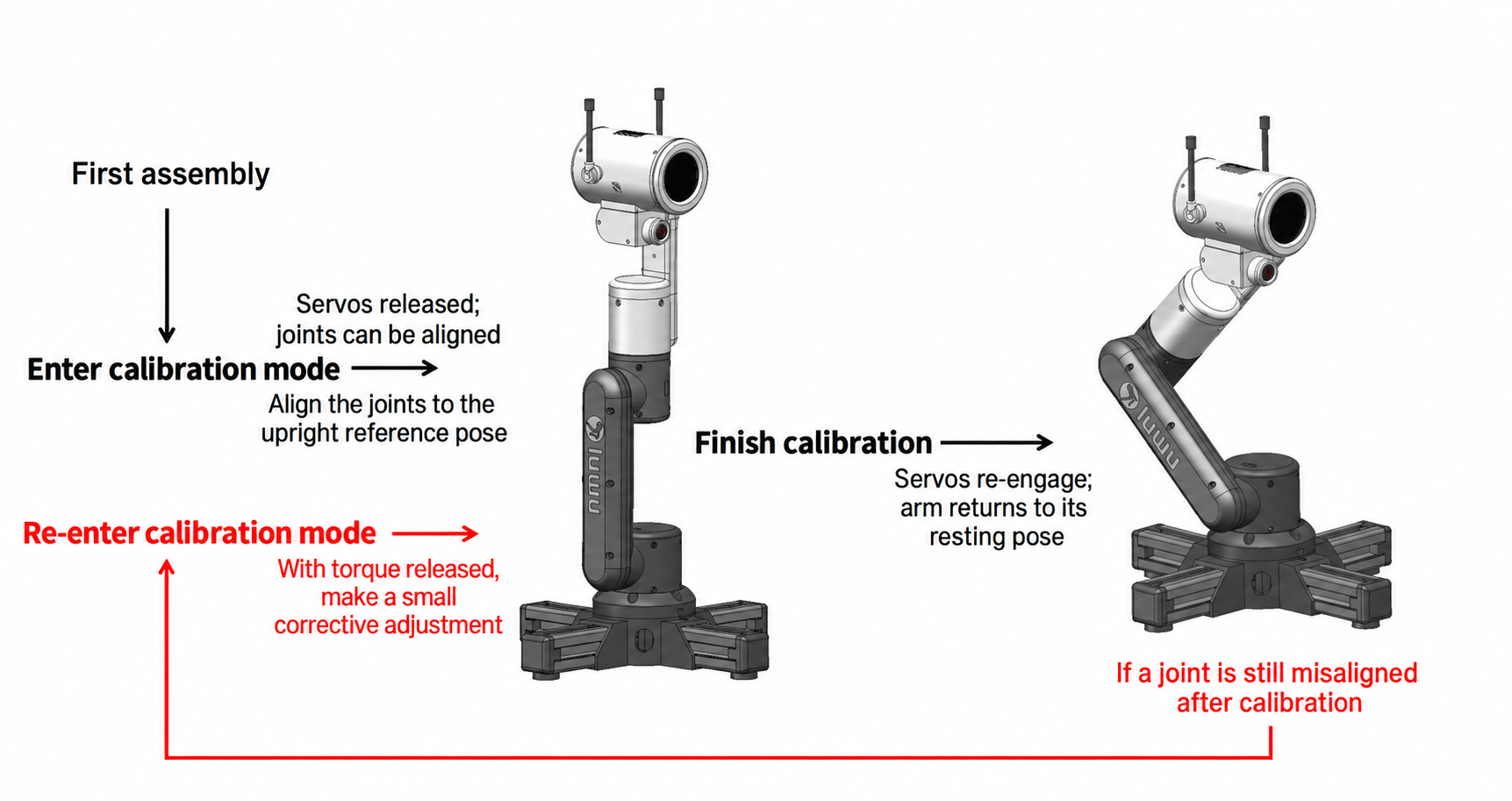
Checkpoint: confirm normal screen startup and the same basic behavior you tested before development. Reconnect to the international service if provisioning is requested, then check one conversation. If the robot behaves incorrectly, stop here and use the recovery section instead of adding your changes.
The monitor can keep printing indefinitely; that is normal. Press Ctrl + ] to leave it and return to the command prompt. To watch again without rewriting firmware:
idf.py -p COM5 monitor
An I log line is informational, W is a warning and E is an error. Look at the message and what happened immediately before it. A Wi-Fi connection error after a successful flash is not a compiler error. Opening a monitor may reset some boards; keep the robot supported.
8. Make your first change: a startup message
In your editor, open main/boards/arm/arm_board.cc. Use Find to locate void InitializeTools(). Find the opening brace immediately after this function name. Add this one line on the next line, inside the function:
ESP_LOGI(TAG, "My first RIG firmware is running");
Keep every original line below it. Do not create a second InitializeTools function, remove its closing brace, or paste this line outside the function. The file already uses the ESP logging facilities and its board TAG.
Here is how to read the new line: ESP_LOGI prints an informational message; TAG identifies the source of the log; the quoted text is your message; the semicolon ends the instruction. Keep ordinary straight quotation marks. You can change the words inside the quotes later.
Save the file (Ctrl+S, or Cmd+S on macOS). In the terminal, check exactly what changed:
git diff -- main/boards/arm/arm_board.cc
The added line is shown with a plus sign. That plus sign belongs to the comparison display; do not type it into the source. If many unrelated lines changed, check the editor's line-ending/formatting settings before proceeding. Press q if Git opens a scrollable comparison viewer.
Exit any open monitor with Ctrl + ], then run:
idf.py build
idf.py -p COM5 flash monitor
Run the second command only after the build succeeds, with your actual port. Look for My first RIG firmware is running in the startup log. The timestamp and board label around it can differ. This message appears in the terminal, not on the robot's display and not as spoken audio.
Success means: you see your exact message, the robot finishes normal startup, and its existing basic functions still work. If you missed the startup output, reopen the monitor and restart using the documented normal power/reset procedure. Do not use a long press whose purpose is factory reset.
Message missing? Check that the file was saved, that you edited this model's board file, that the build and flash both succeeded, and that you are watching the correct robot's port. Verify the log verbosity includes informational messages. Do not assume a successful build automatically updated the robot.
9. Optional second exercise: add a tool that does not move the robot
MCP in everyday words
Think of a tool as one named button the connected assistant can press. Its description explains when to use it; its arguments are the settings supplied for that press; its callback is the firmware code that runs; its result reports what happened. Saying “hello” in conversation does not prove that a hello tool ran.
The route: your request → the connected assistant chooses a tool → the device receives a call → its callback runs → a result returns to the assistant. The assistant can then explain the result. A log message appears on your computer; a returned result goes to the client. Neither automatically speaks or changes the screen.
Before the example: keep your existing international account/device connection working. A USB serial connection is used here to flash and read logs; it does not automatically connect an arbitrary desktop AI app to the robot's MCP tools. Use the tool connection supported by your international service/client. Do not paste an invented server address into a client.
An MCP tool is a named function the connected assistant/client can ask the robot to run. It is different from a startup message: its callback runs when invoked. First prove that the startup-message exercise works.
In the same InitializeTools() function, locate the existing line that gets McpServer::GetInstance() and assigns it to mcp_server. Immediately after that line, insert the following registration. Keep the original registrations underneath it:
mcp_server.AddTool(
    "self.robot.hello",
    "Run the hello test without moving the robot.",
    PropertyList(std::vector<Property>{}),
    [](const PropertyList&) -> ReturnValue {
        ESP_LOGI(TAG, "Hello tool called");
        return true;
    });
| Part | Why it is there |
|---|---|
| self.robot.hello | A unique tool name. Register it only once. |
| Description | Tells the client what the tool does. It does not run the tool. |
| Empty PropertyList | This exercise accepts no arguments. |
| Callback between braces | Code that runs on invocation. It prints one message. |
| return true | Reports a successful result to the tool caller. It does not make the robot speak. |
- Save, inspect the diff, build, then flash and monitor using the same commands as before.
- Let the robot connect normally. Reconnect or refresh the connected international agent/client so that it retrieves the current tool list.
- If your client has a tool inspector, look for self.robot.hello. Invoke it with an empty argument object {}.
- Otherwise ask the connected assistant to run the hello test tool. A natural-language request does not guarantee tool invocation; inspect the client result and serial log.
- Confirm Hello tool called appears in the log when invoked. A spoken greeting without that log message is not evidence that your code ran.
Connect and refresh the tools
- Power on the correct robot and confirm it is online in the international account you normally use. Confirm ordinary conversation works before diagnosing a custom tool.
- After flashing, reconnect the existing robot conversation/client session so it can discover the updated tools. If your interface has a refresh-tools action, use it. Interface labels vary; this tutorial does not assume a hidden developer panel exists.
- If a tool list is available, look for the exact name self.robot.hello. Tool discovery is different from invoking the tool: seeing its name means it was advertised, not that its callback ran.
- If the client provides a tool inspector, select that name and use {} as the arguments. This means “no arguments.” Do not paste C++ or a shell command into the argument field.
- Otherwise ask the connected assistant: “Call the self.robot.hello tool once and tell me its result.” Watch the serial log for Hello tool called. The client may not expose manual invocation; a voice request still depends on its tool support and selection.
Using a separate desktop AI client? Only proceed if your international service supplies a compatible MCP connection method for that client. Use its actual endpoint, transport and authentication instructions. The robot's Wi-Fi address, GitHub URL and serial-port name are not interchangeable MCP endpoints. If no compatible connection is provided, use the existing robot assistant and keep desktop-client setup as a separate task.
What success looks like: the callback message appears when you make the request and the tool returns success. In this firmware, a boolean result is represented as text in the MCP response; a client may display true rather than a spoken sentence. A friendly spoken reply alone does not prove a device tool was called.
Cannot find the tool? Confirm the new firmware's startup message first. Then check the device is online, you are using the correct bound device, and the client refreshed its tools. Availability depends on the international service/client. You do not need to expose a new public network port or add a domestic service to complete this firmware exercise.
If the tool registers but is never invoked, keep the local logging exercise as your completed milestone and diagnose the client connection separately. Do not attach motor movement to a callback you have not yet observed running.
10. Understand the files before changing behavior
| File or folder | What to look for |
|---|---|
| main/boards/arm/arm_board.cc | Model initialization, input handling and tool registration. Start here. |
| main/boards/arm/ | Model-specific hardware and motion implementation. Follow the functions actually called by the board file. |
| main/Kconfig.projbuild | The menu entries you used to select the model and region. |
| main/application.cc | Shared application behavior. Changes can affect several models. |
| main/mcp_server.h and main/mcp_server.cc | Tool arguments, registration and request handling. |
| sdkconfig | Your local generated build settings. It is not a source file to copy blindly between models. |
| build/ | Generated build output. Edit source files, not generated files here. |
For a first behavior change, use the editor's Go to Definition or project search to follow one existing tool from its registration to the function it calls. Identify its argument types, allowed ranges, units and stop condition. A value named time may use milliseconds; confirm the implementation before changing it.
Arm: keep servo IDs, zero positions, joint limits and coordinate conventions unchanged at first. Trace an existing action before trying a new position; clear the gripper and working area. Do not reuse Puppy movement arguments for the arm.
Choose one small next task: change your greeting text, return a fixed status from a tool, or add a log around an existing event. For actual movement, use the model's existing bounded action and documented range, keep the stop control available, and test one action at a time. Do not add indefinite movement or blocking loops to the hello callback.
11. Undo your experiment and recover
To remove the startup message: delete only the line you added, save, build, flash and monitor again. To remove the hello tool: delete only the registration block you added. Inspect git diff to confirm the intended change. Removing text in the editor does not change firmware already on the robot; it must be rebuilt and flashed.
If compilation fails: the previously flashed robot firmware is unchanged. Undo the most recent edit in the editor and build again. Check missing semicolons, mismatched braces and quotation marks before changing configuration.
If the new firmware starts but behaves incorrectly: stop the physical test, close the monitor, restore your last working source/configuration and rebuild for the same model and region. If you cannot produce a known working build, use the official firmware and flashing procedure matching your exact hardware. Do not invent flash offsets or use another model's image.
If flashing is interrupted or the port disappears: reconnect a known data cable, identify the port again, and use the controller's documented download-mode procedure if required. Retry the known working build. A full-flash erase is not a routine retry: it can remove Wi-Fi, device configuration and calibration data stored in flash. Do not erase first to diagnose an ordinary serial connection failure.
After recovery, verify calibration, display, network connection and normal operation before continuing development.
Something isn't working? Start with the matching symptom
| Symptom | Check first | Continue when… |
|---|---|---|
| idf.py is not recognized | Open/activate the installed ESP-IDF environment. | idf.py --version prints the intended version. |
| CMakeLists.txt is missing | The terminal must be inside the rig_omni project root. | You can see the root CMakeLists.txt and main folder. |
| Dependency download or certificate error | Check the Internet connection, computer clock and the exact failed download. Do not disable certificate verification. | The original, unmodified project can fetch its dependencies. |
| Compiler error after an edit | Read the first error and inspect the named file/line; undo only your latest change. | The build completes successfully. |
| Port busy / access denied | Close every other monitor and flasher; on Linux check device permissions. | Your terminal can open the identified robot port. |
| Connecting… repeats | Verify cable, actual port, power and the controller's download-mode instructions. | Writing begins and finishes successfully. |
| Flash succeeds but startup fails | Confirm model, controller revision, settings and power; recover the known working build. | Original behavior works again. |
| My new message never appears | Verify saved file, selected model, successful flash and log verbosity. | Your exact message appears after startup. |
| Robot restarts during movement | Stop motion and check battery/power and mechanical load before further software tests. | The unchanged firmware operates reliably. |
| Hello tool is missing | Verify new firmware first, then device connection and client tool refresh. | The client lists your unique tool name. |
When asking for help, include the model/controller revision, OS, IDF version, public source identifier, selected region, command run and the first relevant error with surrounding lines. Remove Wi-Fi passwords, tokens, private account information and device credentials from shared logs.
Your completion checklist
- I can explain the difference between build, flash and monitor.
- I built the original source for the correct model and Overseas region.
- I identified the port instead of copying an example blindly.
- I saw my own startup message and verified normal robot behavior.
- I know which lines I changed and how to remove and reflash them.
- If I tried the optional hello tool, I verified the callback in the log.
Keep your experiment on its local branch. Use git diff before sharing a change; review configuration and logs for credentials. You do not need to publish code or open a pull request to complete this tutorial.
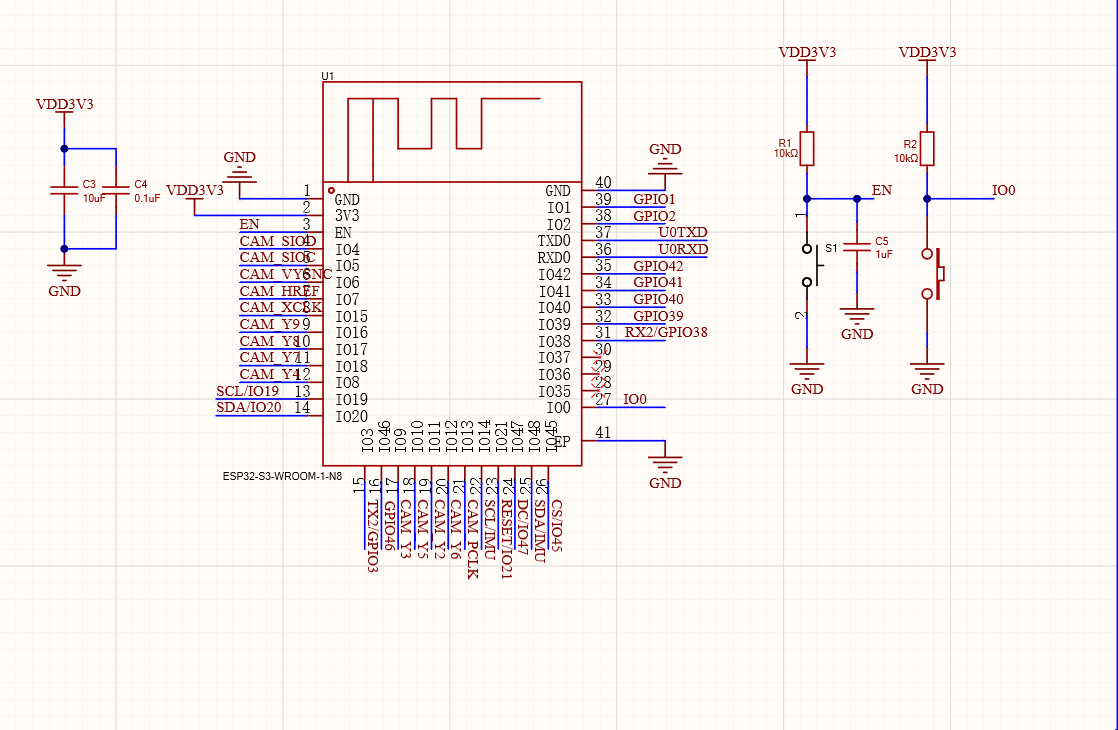
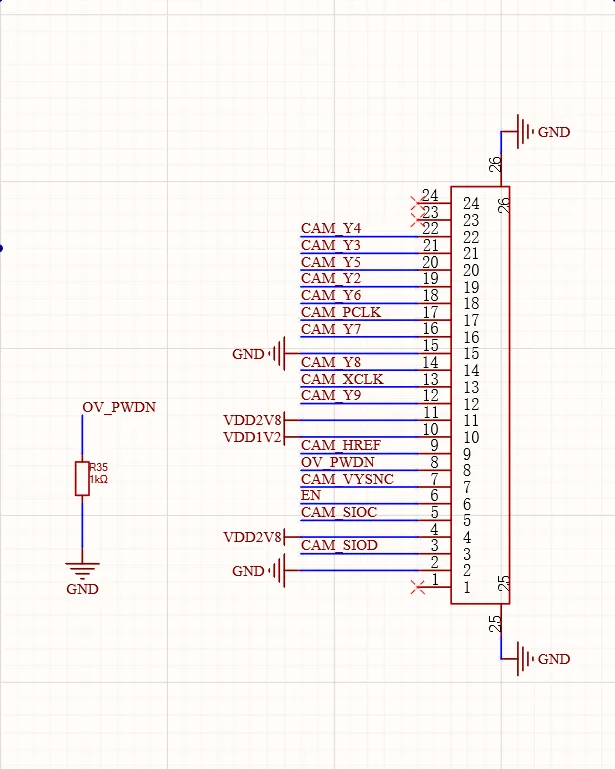
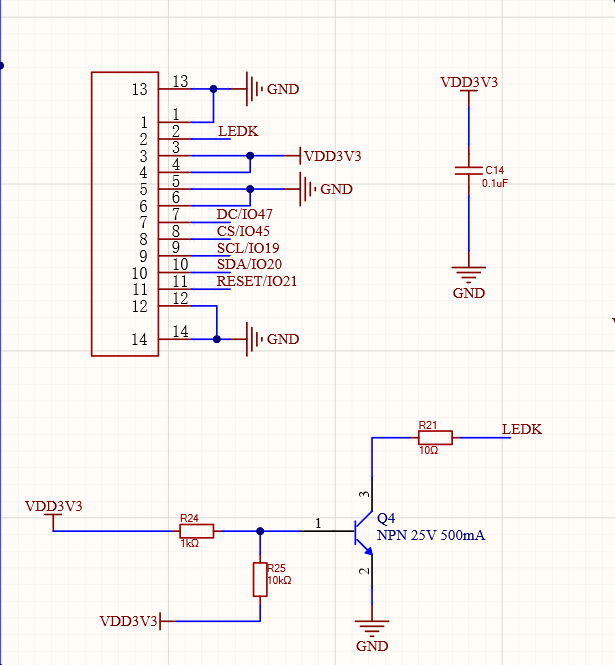
Controller diagrams
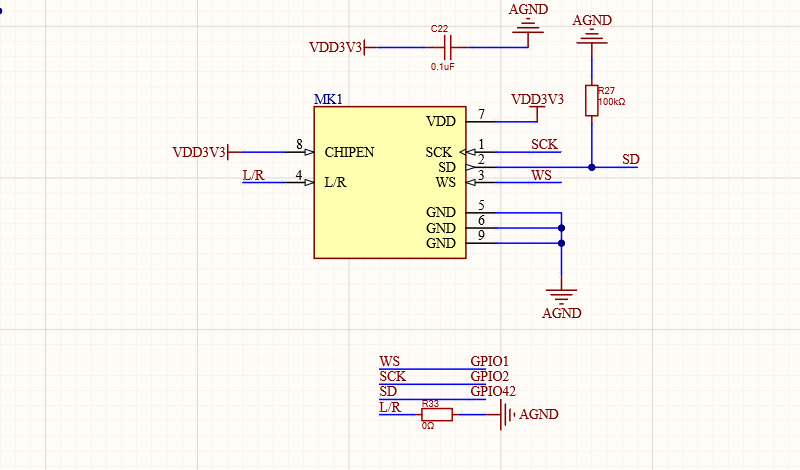
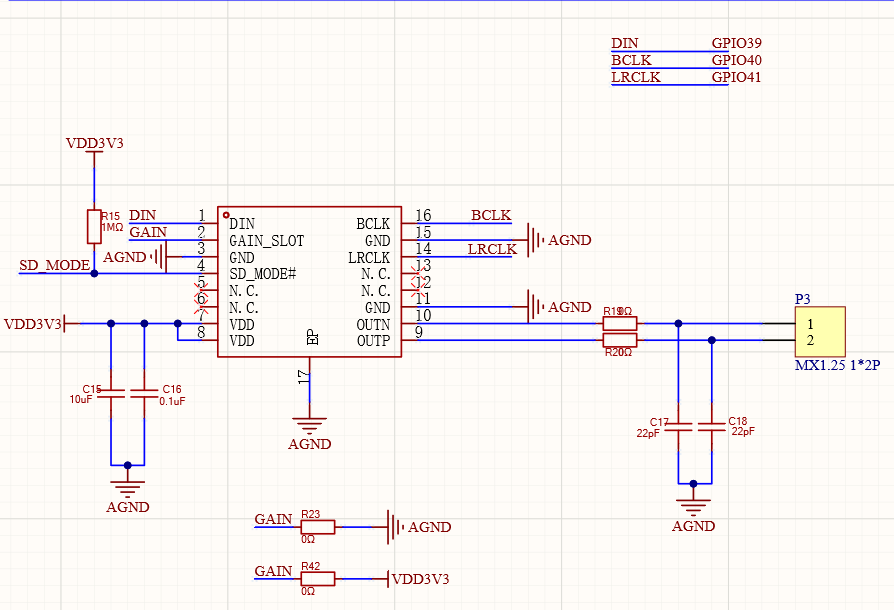
The Chinese development guide includes these hardware drawings. Match the drawing to your board revision before using a pin label. The firmware’s board_config.h and shared configuration define the reviewed software pin assignments. These round-display diagrams are not a wiring guide for the TARS landscape screen. Select an image for a readable full-size view.
View all 5 reference images
Next: connect your RIG tools
Use the RIG-generated MCP configuration for a desktop client, or connect Home Assistant with the LuwuDynamics integration. Use the connection information generated in your international RIG account.