
Electronics kit → tested electronics → structural assembly → calibration → assembled RIG-Hover
Please perform the initial power-on test as soon as your kit arrives. Confirm that the electronics work before installing them in the structure. This test includes connecting the components to the controller and flashing the official firmware.
Already bought an assembled robot? Start with App or web configuration.
1. Check the kit and connect the electronics for testing
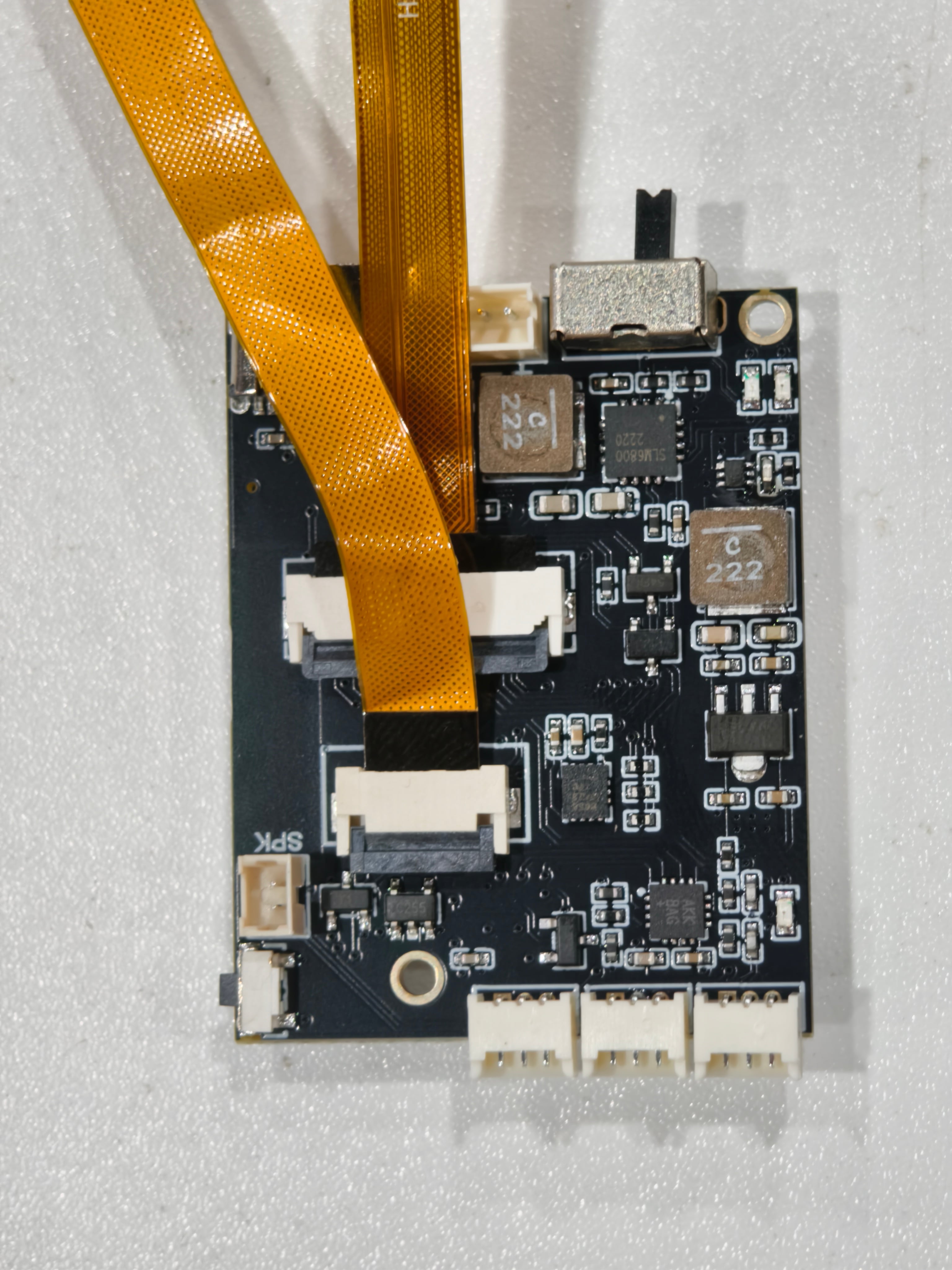
Check the supplied components, quantities and visible condition. With power disconnected, connect the electronic components to the controller according to your kit's wiring diagram. Match connector positions and orientation; secure the connectors before switching on. This is a temporary connection for testing, before installation in the structure.
Use the power arrangement specified for the kit. Keep the loose electronics supported and clear of conductive objects. Do not connect or disconnect components while powered.
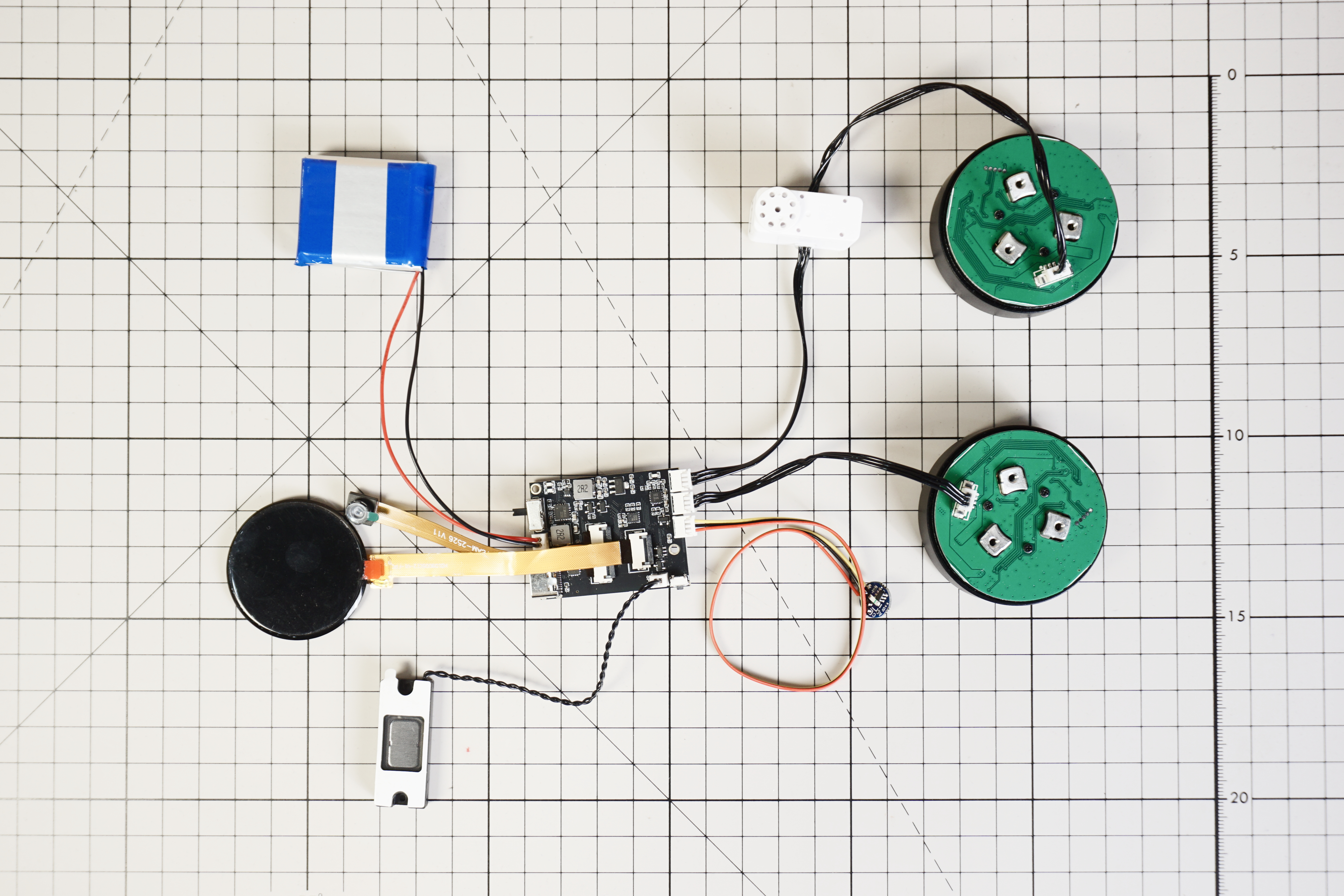
Pre-assembly power-on test: connection reference
Use this model-specific connection photo for the pre-assembly electronics test. Connect the supplied components with power off, matching the board connectors and cable orientation. This is the test wiring arrangement, not the final installed layout or calibration posture.
2. Flash the official RIG-Hover firmware
- Connect the controller to your computer with a USB data cable and power it as instructed for the kit.
- Open Luwu Tools in Chrome or Edge. Select English and RIG-Hover, then select an official released firmware version. The English page flashes international firmware; the Chinese page flashes domestic firmware.
- Select the detected serial port and follow the flashing prompts. Keep power and USB connected until the process finishes.
- Let the controller restart and observe the connected electronics.
No serial port? Follow the flashing webpage's prompt to try installing the CH340/CP210x drivers, reconnect USB and try again. Also check the data cable, browser permissions and whether another program is using the port.
A calibration or initialization prompt after flashing belongs to the setup flow. Complete the electronics test before structural installation. Perform the final model-specific calibration or balance initialization only after assembly.
3. Check function, then power off and disconnect
Check that the connected electronics function normally with the official firmware, using the checks supplied for your kit. Confirm the display starts and note any missing response or reported fault. A successful flash or a lit screen alone does not prove that every component works.
If a component does not work, record the symptom and contact your kit supplier before installing it in the structure. Do not invent a wiring connection or force calibration on loose components to make the test pass.
Once the checks are complete:
- Switch off and disconnect the power sources, including USB power.
- Disconnect the electronic components from the controller.
- Keep the tested components organized for installation in the next step.
Ready to assemble: you have tested the connected electronics with official firmware, confirmed normal function, and disconnected them with power off.
4. Install the components following the assembly video
Follow the official video to install the electronic components into the structure and reconnect them in the demonstrated order. Match the video and drawings to your hardware revision. Complete this work with power disconnected.
RIG-Hover Assembly Guide (Updated) · 8:07
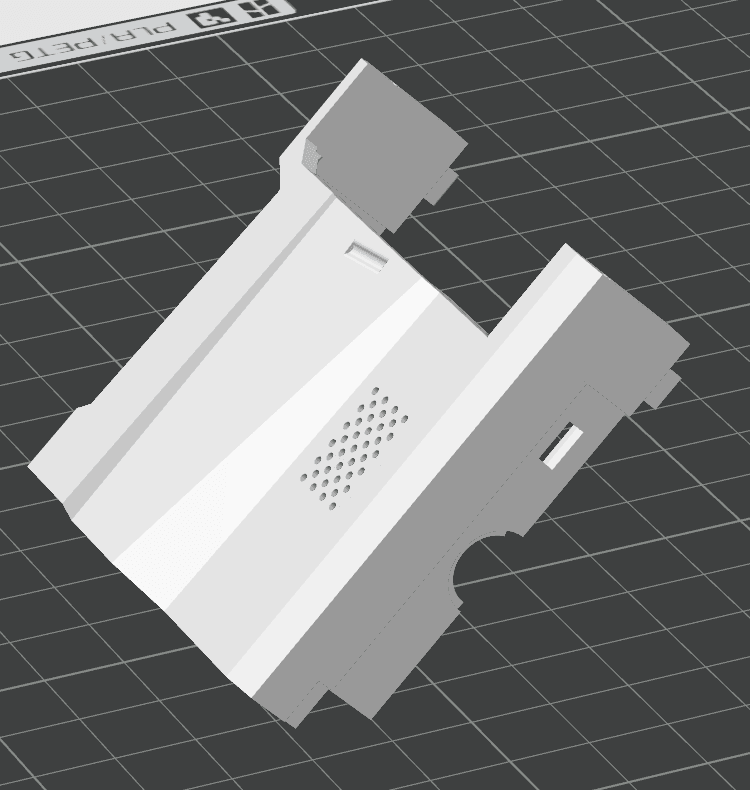
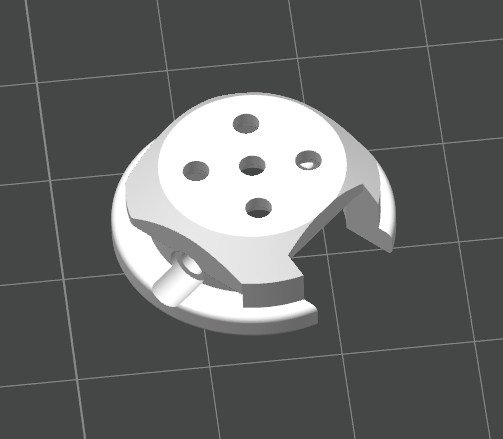
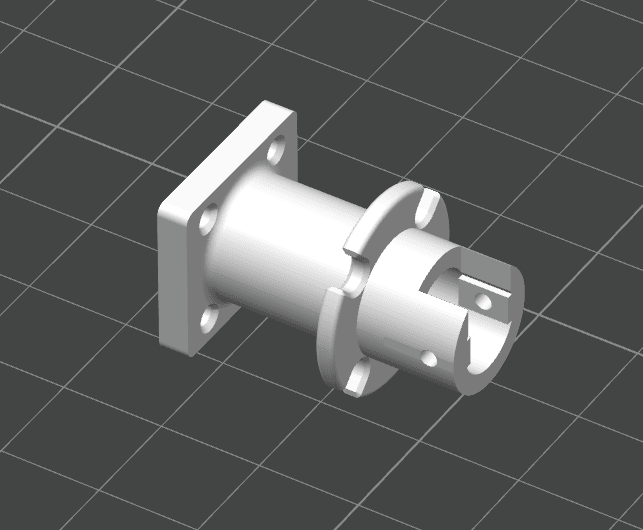
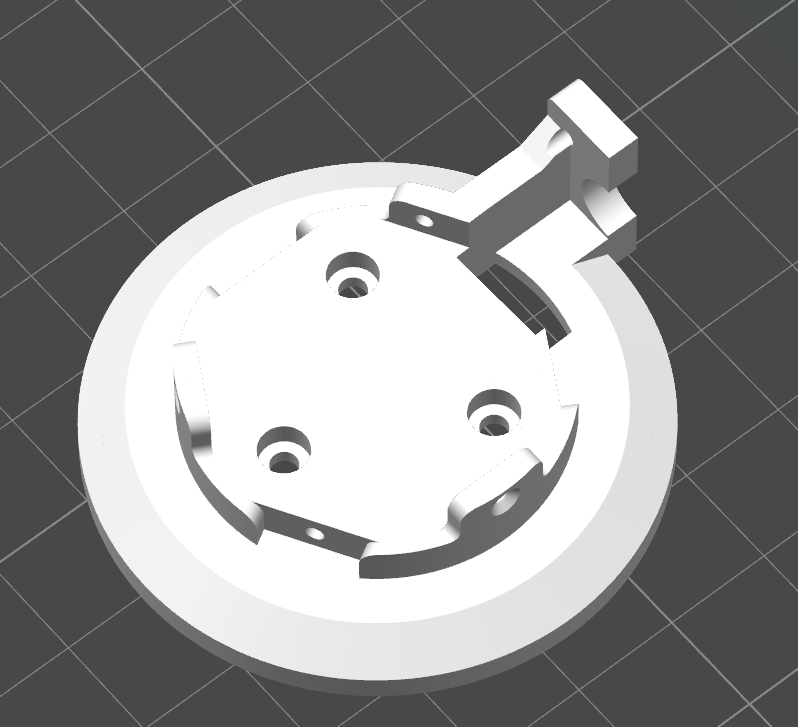
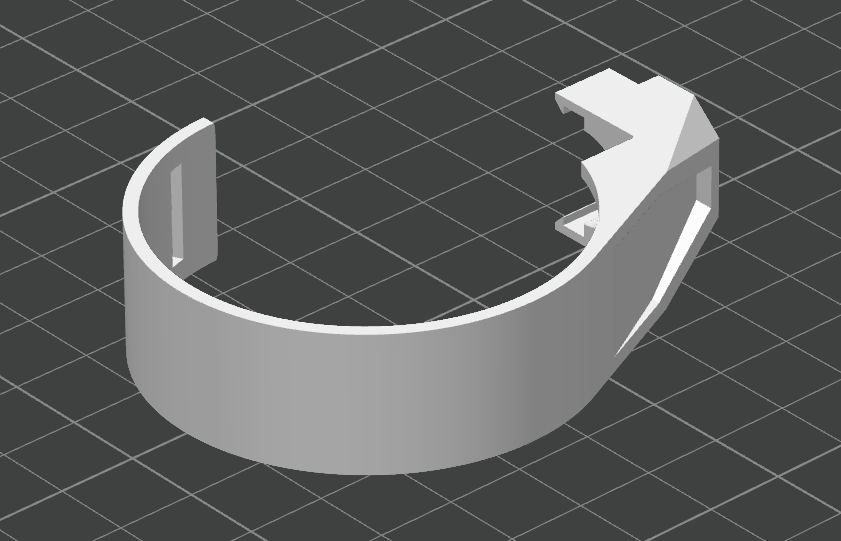
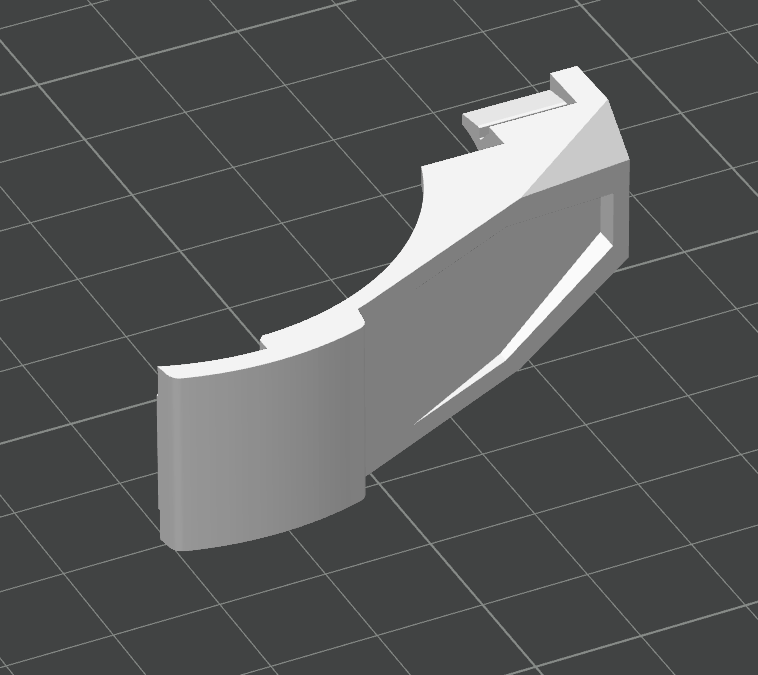
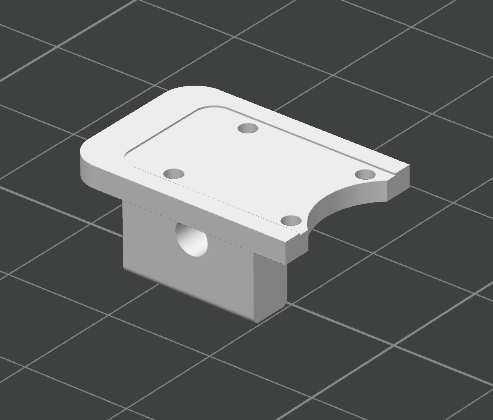
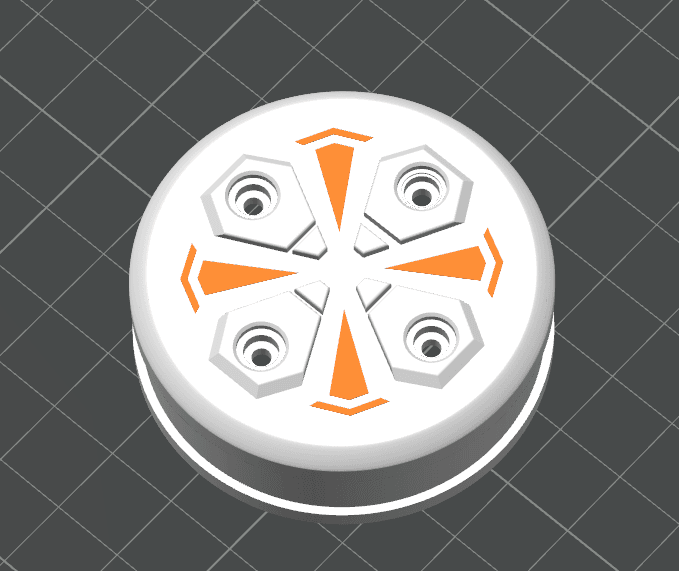
If embedded playback is unavailable, open the official video on YouTube.Follow the assembly video for your exact model and revision. Check screw lengths, cable routing and connector seating before powering on again. Keep the reference illustrations below open while installing the parts.
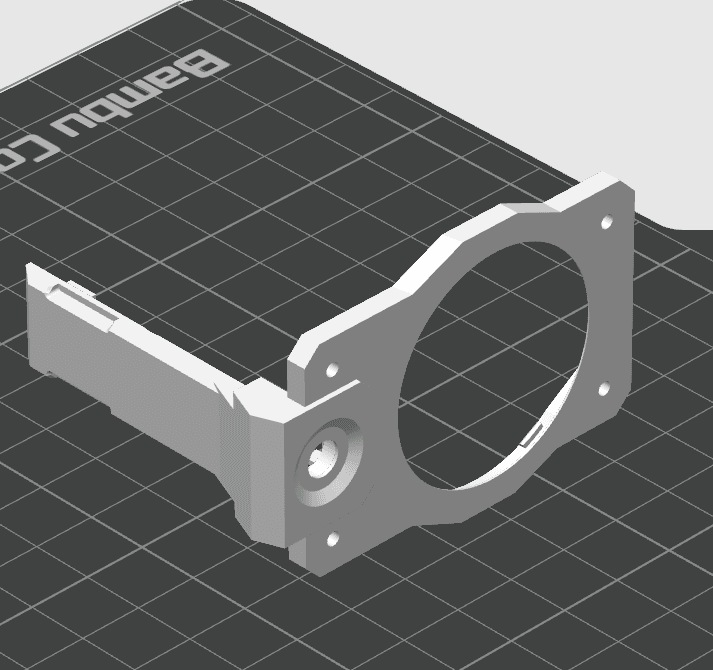
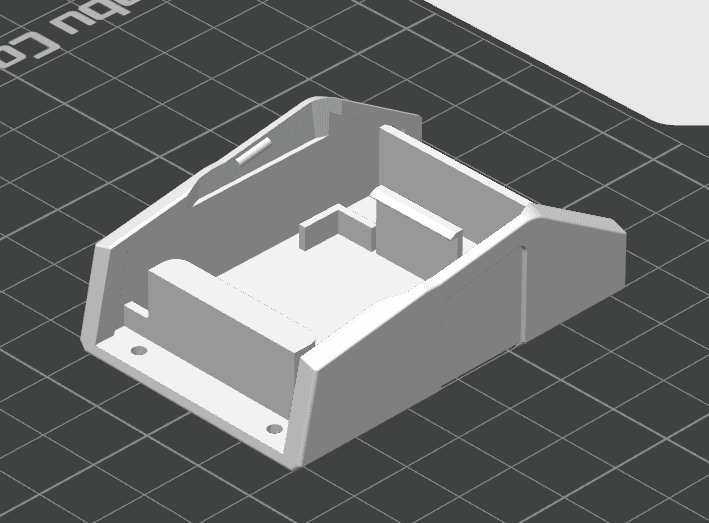
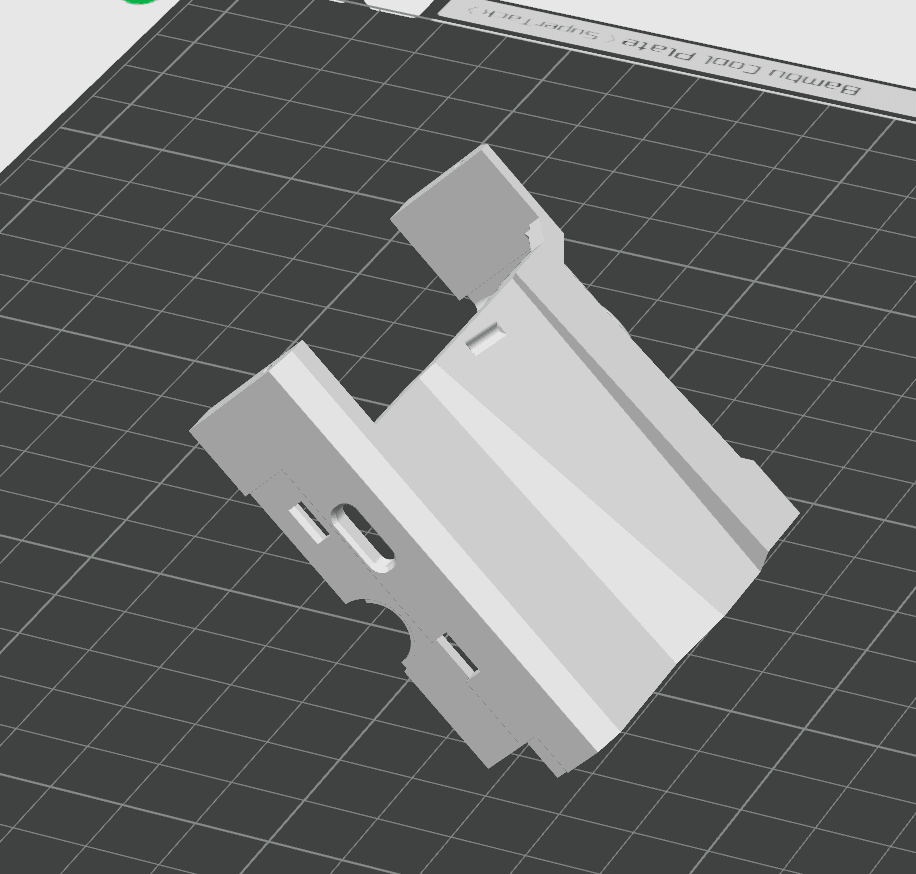
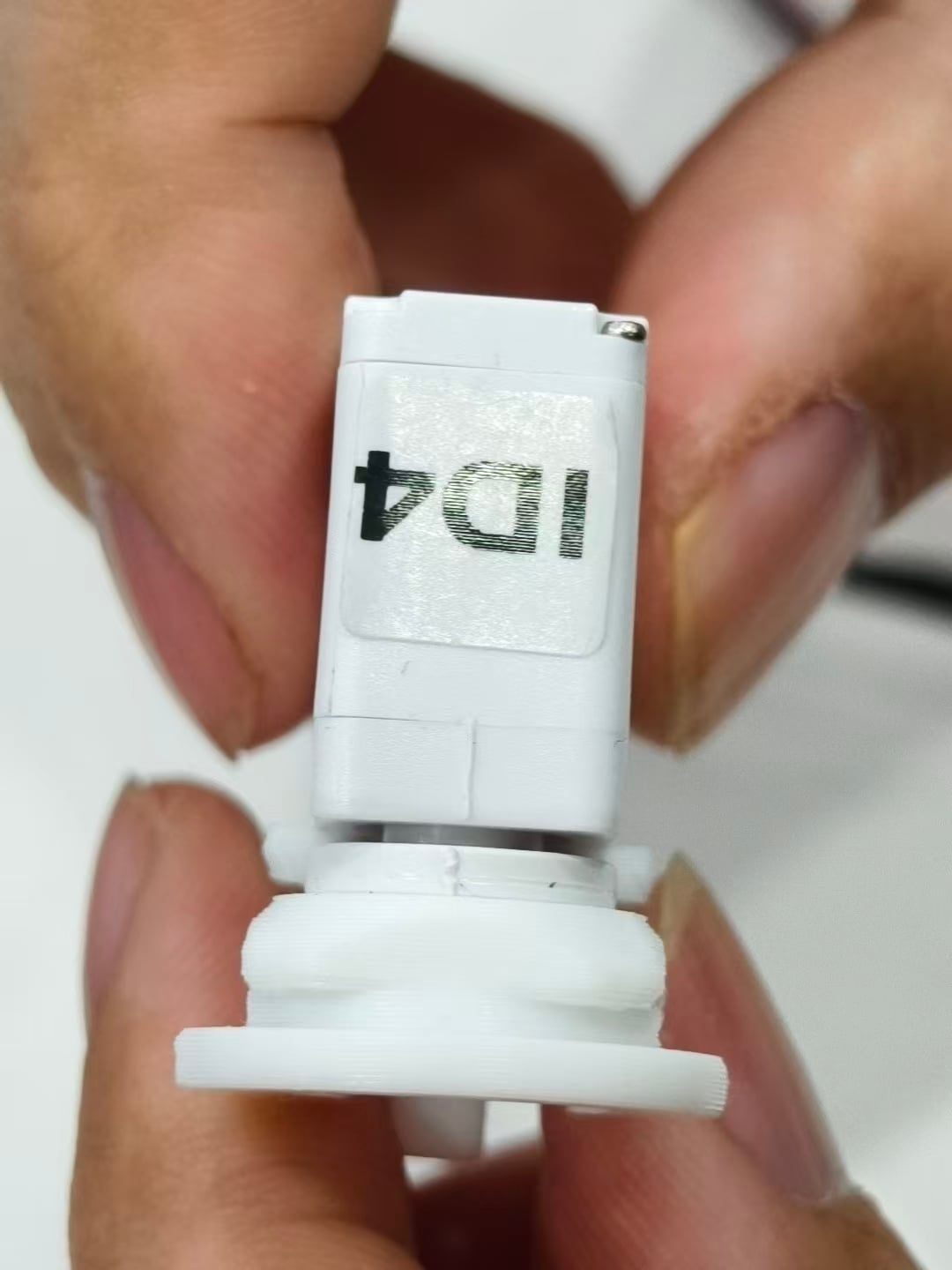
5. Power on and complete upright initialization
The electronics already contain the official firmware used for testing. You do not need to flash again just because you have installed the components in the structure.
Check the head-servo neutral position and wheel connections against the assembly instructions. The head servo uses ID 3; do not change motor IDs by guessing from physical labels.
For the upright initialization and balance check, support the assembled body on a level surface. Switch on and keep it upright and steady during IMU initialization, approximately 2–3 seconds. Release support gradually only after balancing torque is established. If it falls or drives unexpectedly, support it and switch off before checking the assembly.
Repeat this supported startup after configuration or any restart. Hover's upright initialization is model-specific; do not apply Puppy's triple-click or Arm's calibration-confirmation gesture.
After this step, continue with App or web configuration through the international RIG dashboard. Use the QR code or provisioning instructions shown by your robot to obtain the matching App.
6. Your electronics kit is now an assembled RIG-Hover
After successful upright initialization, continue with the same setup path as a purchased assembled robot: download the App or open the international dashboard → configure and connect → try conversation and actions.
Configure my assembled RIG-Hover →
Something isn't working?
| Stage | What to check |
|---|---|
| Electronics test fails | Record the affected component and symptom before structural installation; check the kit wiring with power disconnected. |
| Calibration appears before assembly | This is expected after flashing. Finish the test, power off, disconnect the components, then assemble them following the video. |
| A component stops working after installation | Power off and inspect its reconnection and cable routing. Compare with the wiring used during the successful test. |
| Calibration does not finish | Confirm the assembled robot matches its model-specific instructions and follow the RIG-Hover confirmation procedure above. Do not substitute a long press. |
| QR code appears after calibration | Continue to App or web configuration; this is the next step. |