
1. Try three small interactions
Start after one successful conversation. Keep the robot on a clear, level surface, with its moving parts unobstructed. Say “Hey Kira”, wait for listening, then try one request at a time.
| Try saying | What to look for |
|---|---|
| “Move forward for one second.” | A short step sequence. |
| “Turn left a little.” | A small turn with room around the body. |
| “Set humor to 80 percent.” | HUMOR changes on the screen and is saved. |
These are natural-language examples, not fixed command strings. The selected agent and installed firmware must expose the corresponding tools. Wait for each short action to finish before asking for another. If motion is abnormal, use the power switch rather than relying on a cloud voice command to stop it.
2. Make the conversation yours
- Open the international RIG dashboard and sign in with the account used to bind your robot.
- Select your device in the device list. If it is missing, finish binding in the RIG app before changing agent settings.
- Open the device's agent settings. Select an available agent, or edit its role description. Save the configuration and apply the agent to this device.
- Select the conversation language in the audio settings and save. Available voices and features depend on the international service.
- Restart only if the interface asks you to, then start a new conversation to check the change. Changing an agent's name does not change the local wake word.
Show the settings screens
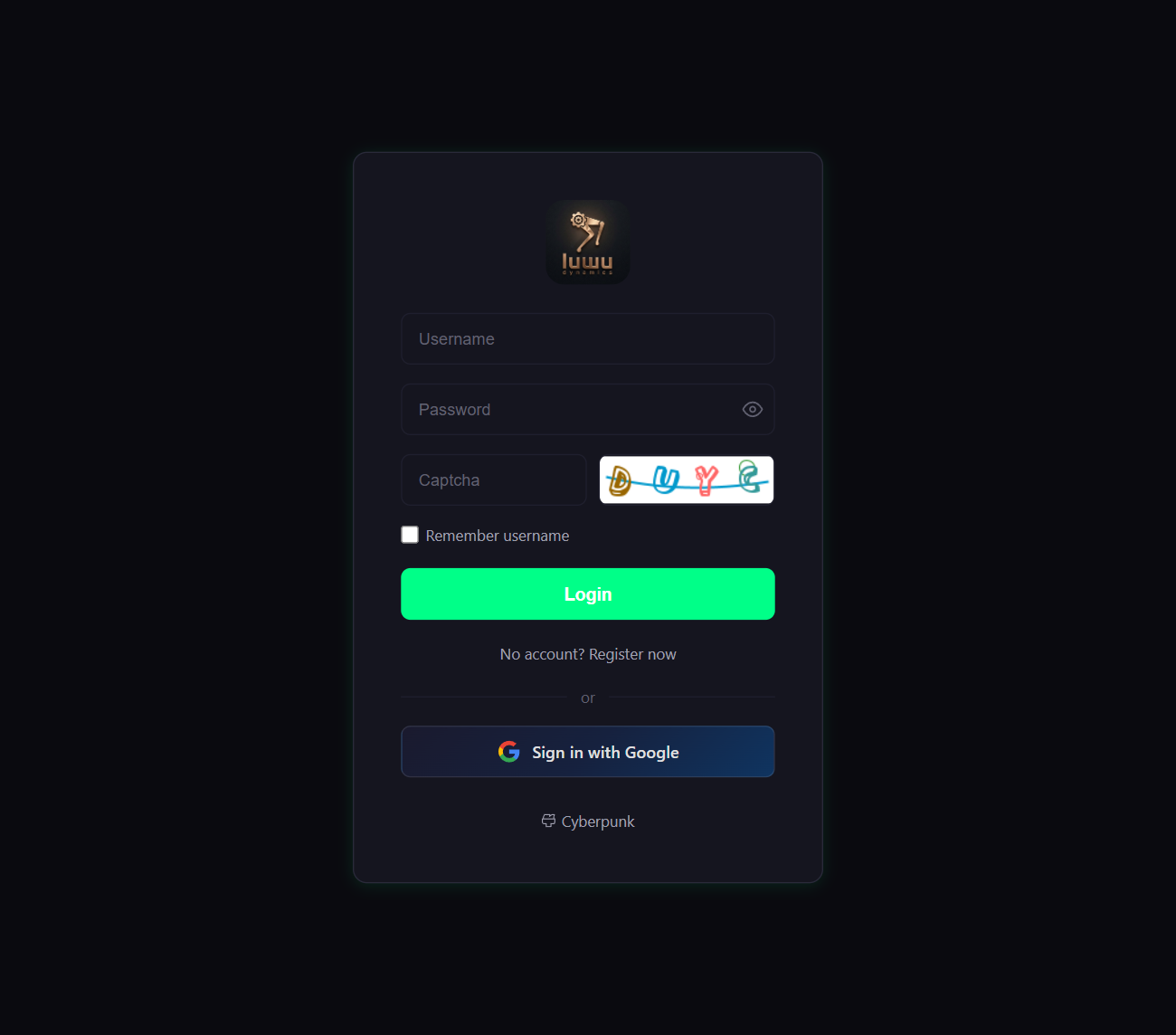
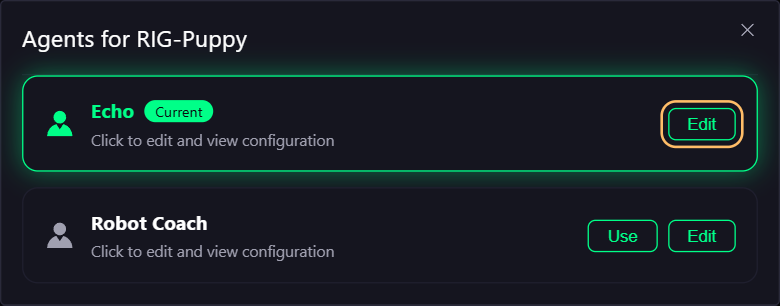
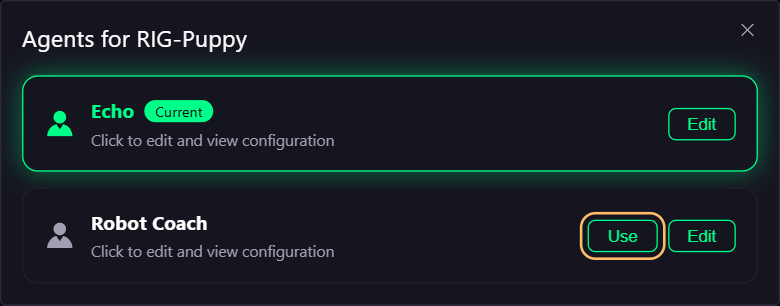
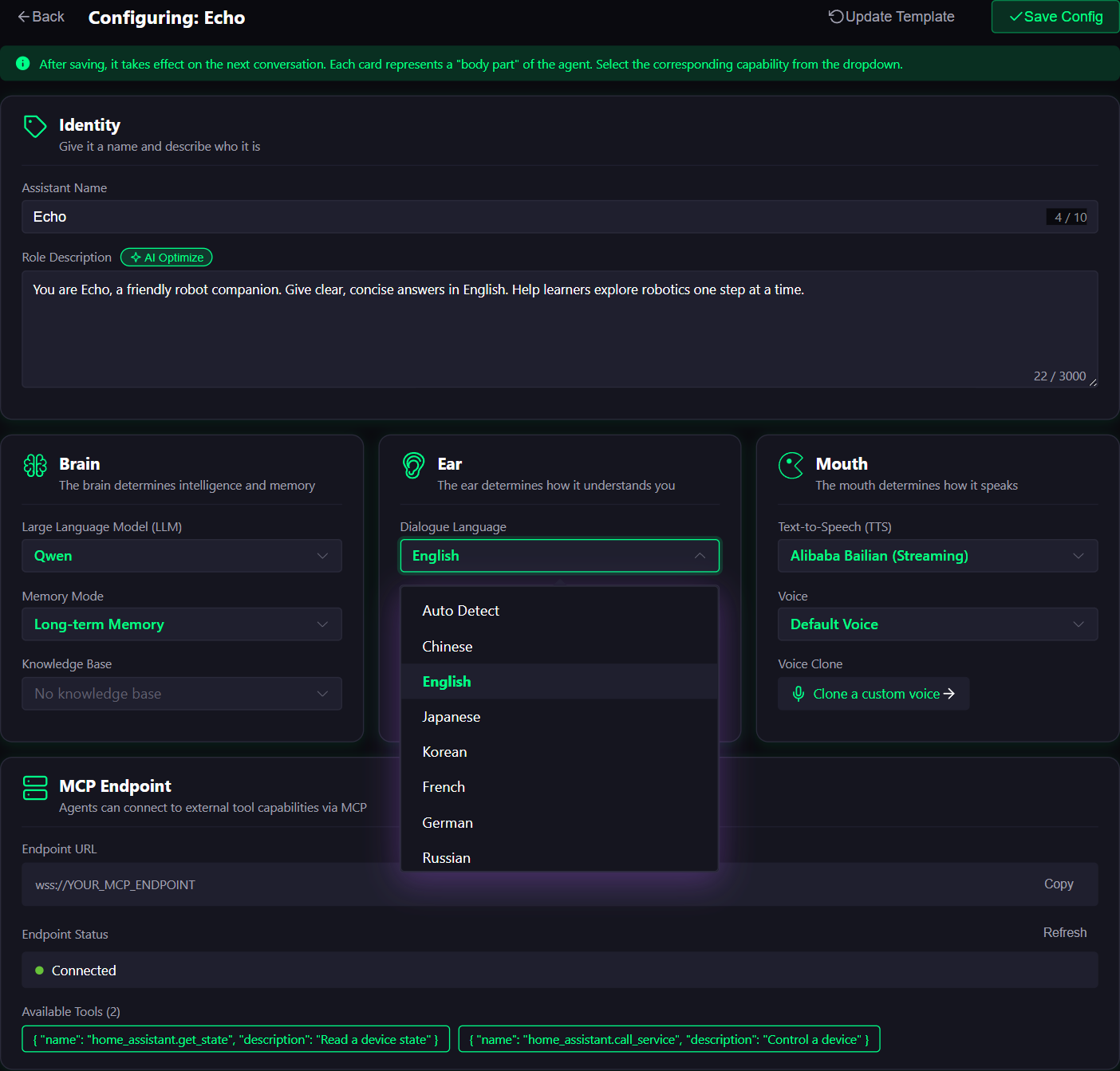
3. Learn the everyday controls
A brief touch in normal operation does nothing; in calibration it saves and exits if successful. Hold the external touch sensor for at least 3 seconds, then release to enter deep sleep: the screen turns off and servos unload. Touch again to wake and reboot. A short BOOT press toggles conversation outside calibration. Holding BOOT for at least 3 seconds and releasing resets saved settings, including Wi-Fi and personality values.
Understand the terminal
ST shows the application state; BAT is battery percentage; V is servo-bus voltage; M1–M3 show feedback angles relative to saved zeros; IMU shows OFF, CAL or OK. NET is a legacy label for power state (CHG, ON or WAIT), not proof of network connectivity.
HONESTY and HUMOR are saved values from 0–100 (defaults 90 and 75). Their effect on responses depends on the connected agent. The scrolling FLIGHT LOG is a repeating presentation, not a diagnostic record proving each subsystem has passed a test.
Optional: Bluetooth remote control
Bluetooth pairing for Wi-Fi setup is separate from remote control. Use remote control only if your installed firmware and international app expose it. Enable the mode, confirm the device's remote indication and connect to the matching robot in the app. Try a small movement before a longer one. Voice or MCP may be suspended in this mode; exit through the available app/device control before returning to conversation. Do not assume a voice command will remain available to exit it.
4. Finish your session
Stop movement, then use the power switch before packing or adjusting the mechanism. Check for loose fasteners and trapped cables after assembly changes. Use the supplied charging arrangement; for long storage, the assembly guides recommend roughly half charge. Recheck calibration after repositioning motion components.
Fix a problem here
| What you see | What to do here |
|---|---|
| Robot does not appear in discovery | Keep it near the phone, check Bluetooth permissions and the provisioning screen, and disconnect another phone that may already be connected. |
| Wi-Fi connection fails | Check the exact network name and password, use 2.4 GHz and move closer to the router. Retry pairing before considering a reset. |
| Online, but no conversation | Complete activation, select and apply an agent to this device, and check its conversation language. Wait for listening before speaking. |
| No response to the wake word | Use Hey Kira for the reviewed international firmware; check that the robot is awake and not in calibration or remote-control mode. |
| Restarts when movement begins | Stop testing, charge the battery and inspect power connections with power disconnected. Repeated resets under load need investigation before another movement. |
| Screen stays dark | Check power and sleep state first; a never-flashed kit may need firmware. With power disconnected, inspect the display cable against this model's diagram. |
| CALIB remains on screen | Confirm the alignment, briefly touch the external sensor and check for a zero-position save error. Startup waits until calibration succeeds. |
You can stop here and enjoy your robot. The next stage is optional development; it is not required for daily use.
Choose your next step
Continue enjoying your robot, try firmware development, or go directly to MCP extensions and Home Assistant. Existing-tool extensions do not require completing the firmware workshop first.