
Connect your international RIG
- Enable Bluetooth on your phone and allow the RIG app to discover nearby devices. Some Android versions also request location permission for Bluetooth discovery.
- Use the international app entry shown by the robot's provisioning screen. Open Add Device and select your RIG robot; compare the device identifier if several robots are nearby.
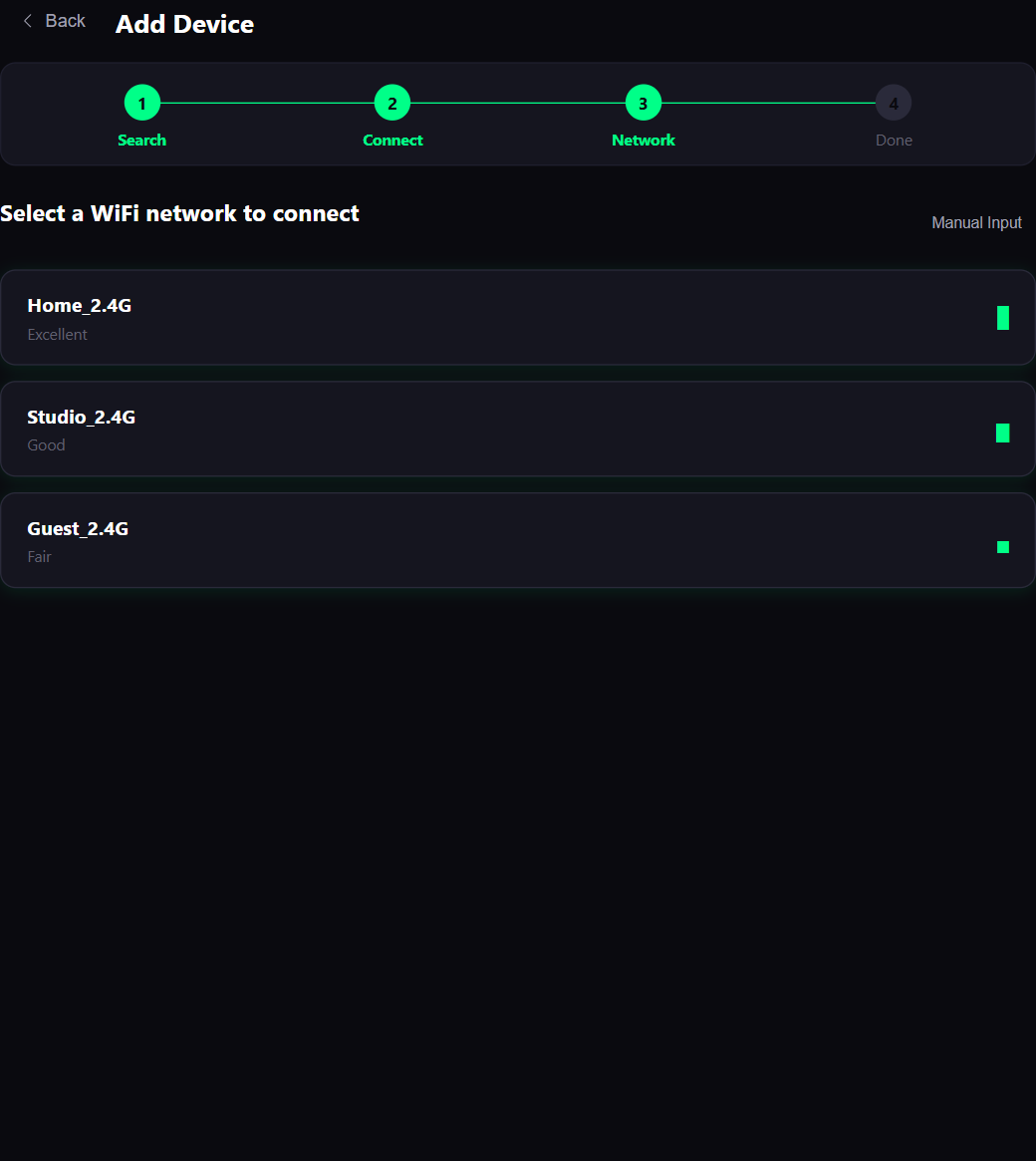
- Select your 2.4 GHz Wi-Fi network and enter its password. A 5 GHz-only network will not work. If the interface allows manual network entry, type the exact network name when it is missing from the list.
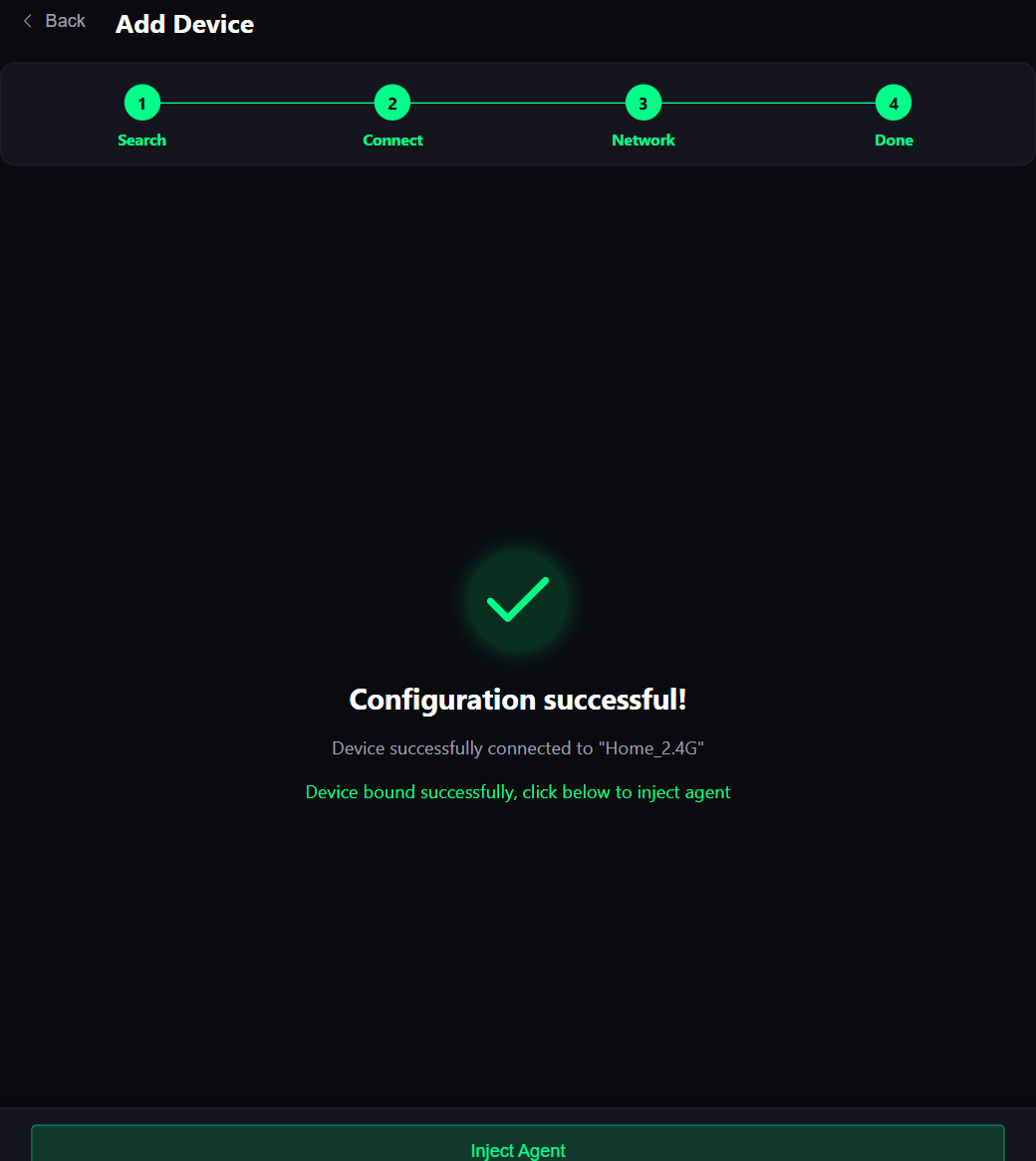
- Wait for the success message. Finish the account binding or activation offered by the app; sending a Wi-Fi password alone does not complete device setup.
- Follow the restart prompt and wait for the device to return online.
- Check that the correct device appears in your account before trying voice interaction.
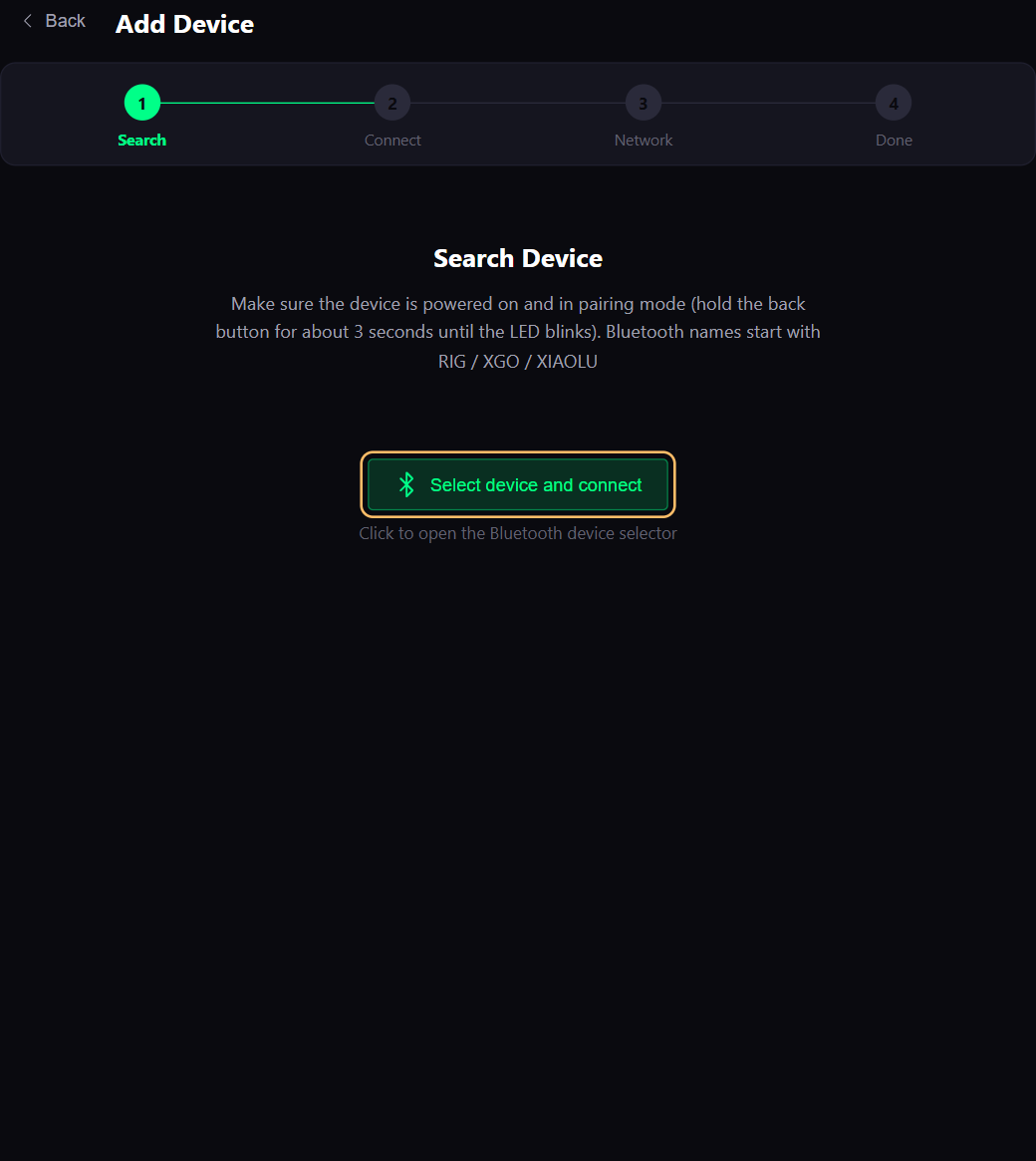
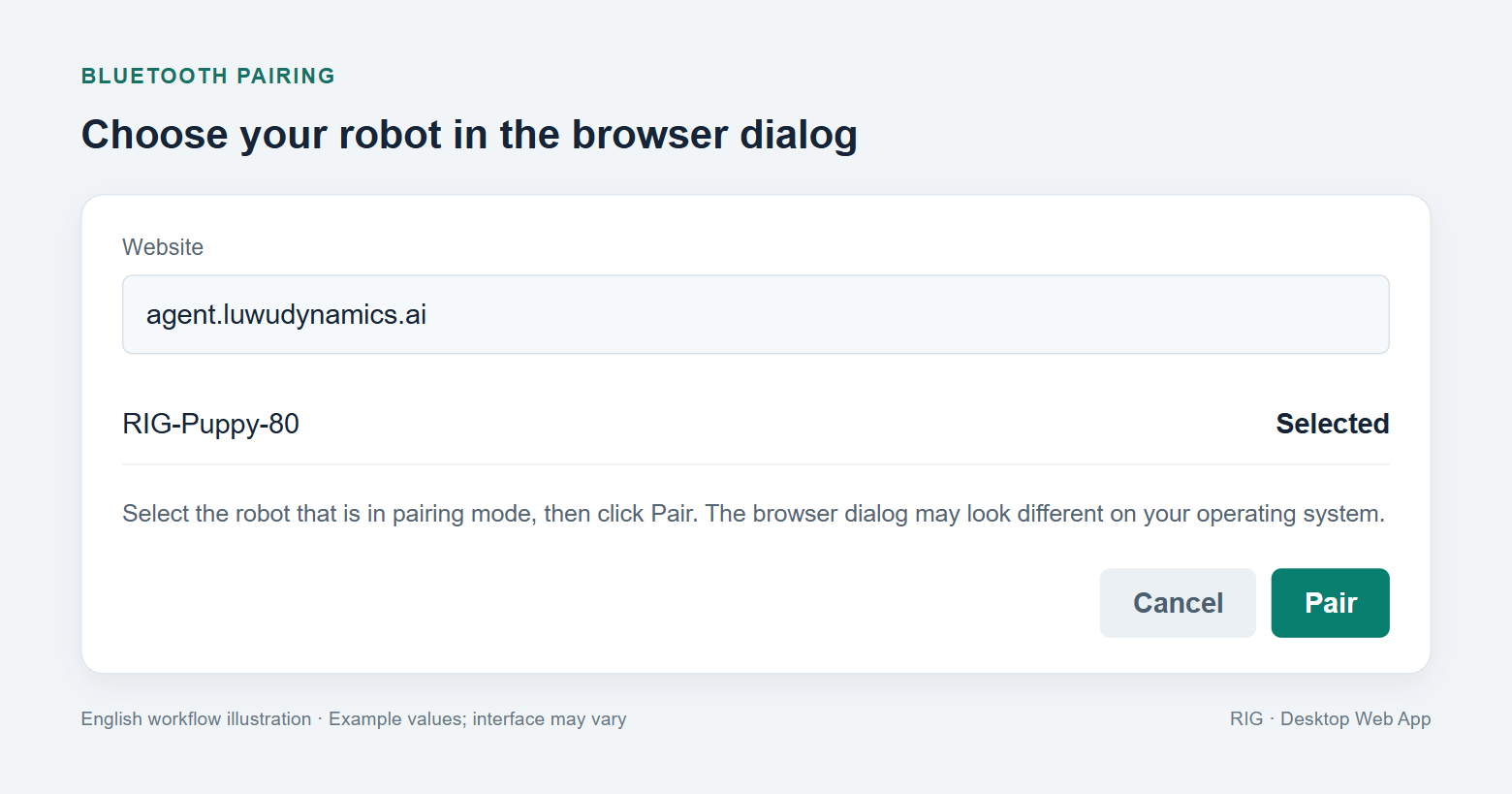
Using a computer instead? Open the international dashboard. If it offers Add Device → Search device and connect, allow Bluetooth access, choose your robot, then submit the 2.4 GHz network and password. The screenshots below show this published browser flow. If Bluetooth pairing is unavailable in your browser, use the RIG app.
Connection checks
| What you see | What to do here |
|---|---|
| Robot does not appear in discovery | Keep it near the phone, check Bluetooth permissions and the provisioning screen, and disconnect another phone that may already be connected. |
| Wi-Fi connection fails | Check the exact network name and password, use 2.4 GHz and move closer to the router. Retry pairing before considering a reset. |
| Online, but no conversation | Complete activation, select and apply an agent to this device, and check its conversation language. Wait for listening before speaking. |
| No response to the wake word | Use Hey Kira for the reviewed international firmware; check that the robot is awake and not in calibration or remote-control mode. |
| Restarts when movement begins | Stop testing, charge the battery and inspect power connections with power disconnected. Repeated resets under load need investigation before another movement. |
| Screen stays dark | Check power and sleep state first; a never-flashed kit may need firmware. With power disconnected, inspect the display cable against this model's diagram. |
| Wrong resting posture or stalled joint | Stop, power off and check servo IDs, horn alignment and cable clearance. Recalibrate after correcting the assembly. |