
6.1 Performance Mode
Performance Mode is a fully automatic show: the robot executes actions in a loop while playing music and facial animations.
Enter the 「🎮 Demos」 card → select 「Performance Mode」 → press D

The robot loops through the preset actions supported by its model while playing background music and facial animations. Waving, push-ups and other quadruped examples are not Ranger actions.

Press C to exit the performance and return to the Demos menu
Performance Mode supports continuous running; it exits automatically after 10 minutes of inactivity
6.2 Group Show
Group Show allows multiple robots to perform in sync, suitable for classroom multi-robot demos and event shows.
Entering Group Show
Connect all participating robots to the same WiFi network
On any robot, enter 「🎮 Demos」 → 「Group Show」 → press D
Wait for the devices to auto-discover and establish the connection (usually 3-5 seconds)
Enter the Group Show main screen

Main Screen Information
Item | Description |
|---|---|
Room ID | ID of the current room; other devices auto-discover and join it |
Device Count | Total number of connected robots |
Robot Model | Model code of the current device |
Communication Status | Whether the current communication mode is connected |
Time Sync Status | Whether device times are synchronized (must be synced before starting) |
Performance Status | Ready / Performing / Waiting for time sync |
Key Controls
Key | Function |
|---|---|
A | Show / hide the action editor QR code |
B | Switch communication mode (LAN ↔ WAN) |
C | Exit Group Show |
D | Start / stop the synchronized performance (close the QR code when on the QR code page) |
Communication Modes
Group Show supports two communication modes; switch with the B key:
LAN Mode (default)
Suitable for multiple robots on the same WiFi network
Device discovery and group-control messages can use LAN broadcast without cloud relay. The documented time-synchronization step still needs access to an internet time server before the show can start.
Low latency, ideal for close-range multi-robot synchronization
The screen shows "Current: LAN Mode"
WAN Mode
Suitable for robots not on the same LAN (e.g., different floors, different offices)
Communication is relayed through a cloud server
The Room ID is generated based on the WAN IP address
Requires the robots to be able to access the internet
The screen shows "Current: WAN Mode"

💡 LAN Mode offers lower latency and better stability, so we recommend using it by default. Switch to WAN Mode if the robots are not on the same network, the current network does not support device-to-device communication, or the robot's functionality is limited in LAN Mode.
Time Synchronization
Group Show requires precise time synchronization among all devices; otherwise the actions cannot be aligned. The system automatically synchronizes via an internet time server:
Status | Description |
|---|---|
Syncing | Trying to connect to the time server |
Synced | Synchronization successful; the performance can start |
Sync failed | Synchronization failed; pressing D prompts you to wait, and the system retries automatically |
⚠️ If time synchronization fails, the performance cannot start. Make sure the robot is connected to WiFi and can access the internet, then exit and re-enter Group Show.
Starting / Stopping the Performance
Wait for the "Synced" status to appear
Press D to start the performance
All connected robots execute the same action sequence simultaneously, with background music playing in sync
The screen shows "Performing" during the show
Press D to stop; all robots stop their actions
Press C to exit Group Show; all devices are notified automatically
Action Editing
Group Show supports custom action sequences for each robot. Scan the QR code with your phone to open the web editor:
Press A on the Group Show screen to show the QR code

Open the action editor in either of the following ways: - Phone: scan the QR code with your browser - PC: open the action editor page directly in your browser (URL format:
http://robot-IP:8090)Edit the actions on the web page
Web editor features:
Feature | Operation | Description |
|---|---|---|
Add action | Click an action name in "Available Actions" | Adds the action to the selected list |
Delete action | Click the ✕ button next to a selected action | Removes the action |
Reorder | Click the ▲ / ▼ buttons | Changes the execution order |
Adjust duration | Modify the seconds next to each action | Controls how long each action lasts (1-30 s) |
Save | Click "Save" | Saves the changes; auto-loads next time you enter Group Show |
Restore defaults | Click Restore Defaults, then Save | Restores the editor’s preset list; Save is still required to store it on the robot. |
💡 Action editing differs by robot model; quadruped robots and two-wheeled robots have different available actions. After editing, press A to close the QR code page.
Available Actions
Quadruped robots (XGO-Mini / Lite / Mini3W):
Lie down, stand, squat, mid grab, roll, pitch, yaw, 3-axis rotation, pee, low grab, sit, wave, handshake, look around, high grab (15 actions in total)
Two-wheeled robot (XGO-Rider):
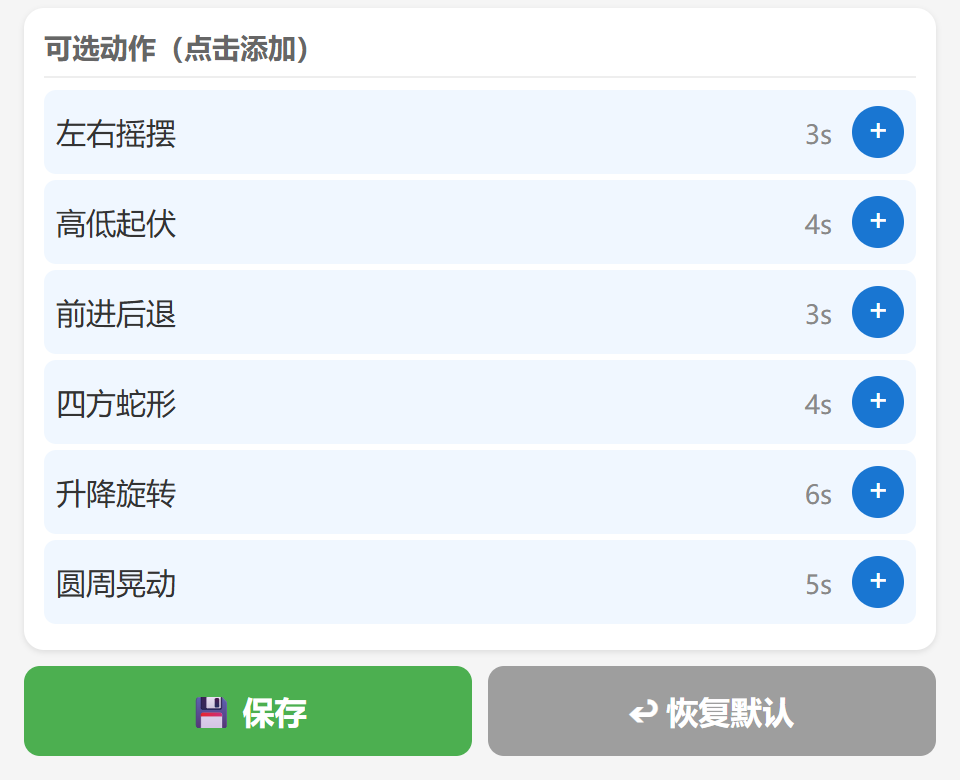
Sway left/right, bounce up/down, forward/backward, snake in four directions, lift and rotate, circular sway (6 actions in total)
💡 It is recommended to keep all robots close to the router to ensure a stable network. If time synchronization fails, the performance cannot start; try exiting and re-entering.
Ranger group editor
Ranger appears as model R in Group Show. Keep the robot in Group Show, press A to display the QR code, and open the displayed address (normally http://<robot-ip>:8090/) from a phone or computer on the same LAN.
Ranger action | Default duration |
|---|---|
Sway left/right | 3 s |
Bounce up/down | 4 s |
Forward/backward | 3 s |
Snake in four directions | 4 s |
Lift and rotate | 6 s |
Circular sway | 5 s |
Add actions with the action row or +, reorder with ▲/▼, and remove with ✕. Set each duration to a whole number from 1 to 30 seconds; keep at least one action. Repeated actions are allowed. Click Save and wait for confirmation. Restore Defaults also needs Save.
Close the QR page with A or D, wait for Synced, then press D on the initiating Ranger. Rangers in the same group follow that device’s sequence. Press D to stop. Stop the current show before editing and saving the next sequence.