 Wiki
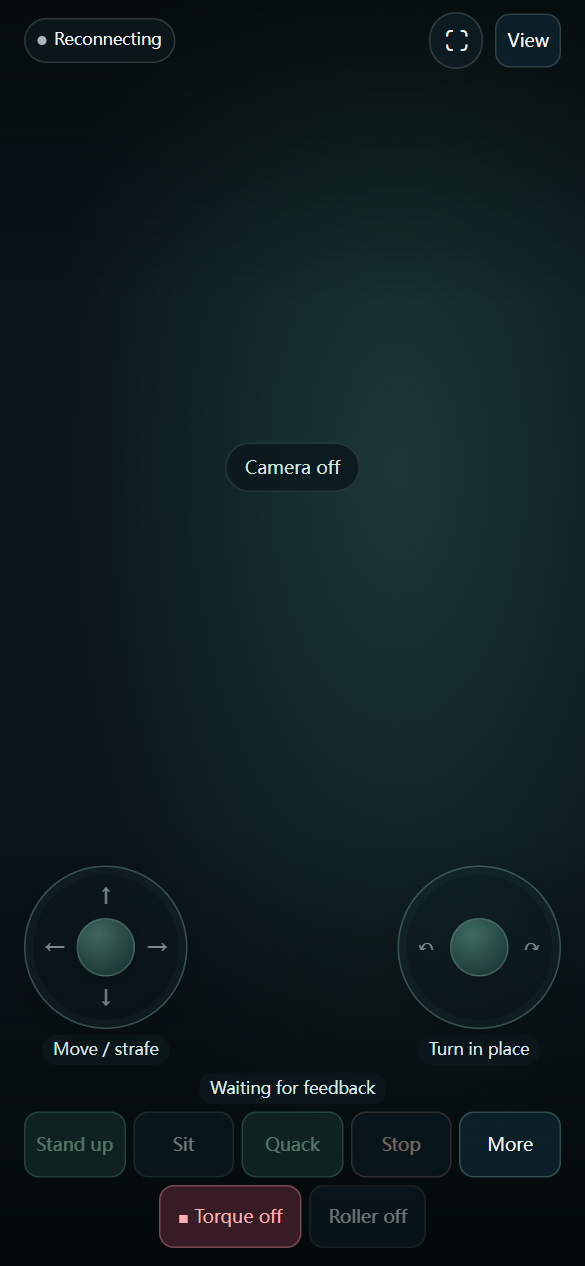
0.3.6 phone layout supports portrait and landscape. View → Show all reveals device tools; Hide some retains driving controls, and Hide all keeps the camera view and restore button. Rotating the phone releases joystick input.
The cockpit combines live video, photos, microphone monitoring, speaker tests and AI voice status. Check each component separately after assembly; a working web page does not prove that its USB hardware is connected.
Camera preview and photos
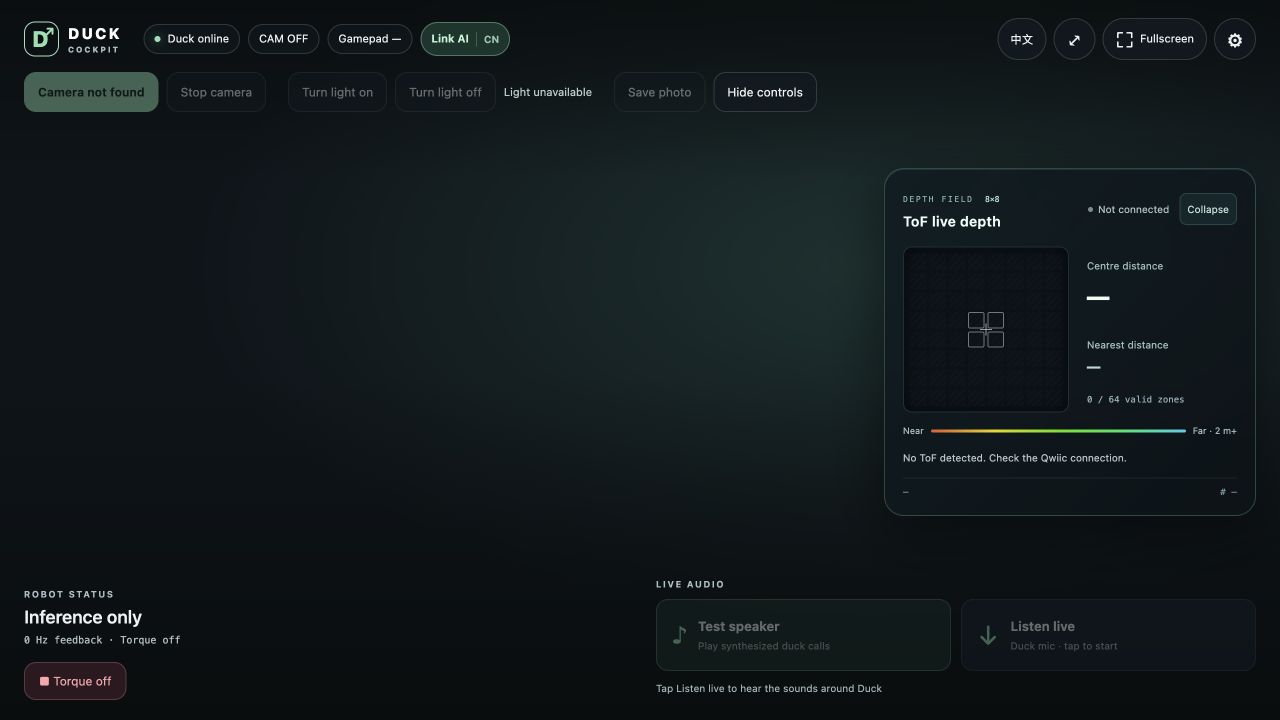
Open the camera preview and move an object in view. Use the fit option to see the whole frame; fill/crop can cut off its edges.
The complete kit has a 2 MP 1080P camera. The reviewed runtime captures at 640 × 480 and 30 fps, while browser streaming is capped at about 15 fps. The sensor specification is not the active preview resolution.
A saved JPEG uses the full captured frame, rather than only the portion cropped by the display.
When all viewers disconnect or leave the page, the camera service can release the device after about 20 seconds. Open the preview again to resume.
Fill light
Start the supported camera and wait for the live picture before using Turn light on / Turn light off. Check the device readback. The last selection is reapplied at preview startup; a brief camera-firmware flash may still occur.
Listen and record
Microphone monitoring listens to the microphone on the robot. It does not use your phone or computer microphone, so granting local browser microphone access will not fix an offline robot microphone.
For an isolated recording test, open http://<board-ip>:9527/audio.html and select a 5, 10 or 30 second recording. Play it back and confirm sound near the robot is present.
Stop monitoring or recording before testing voice chat. Audio devices are shared: a test can temporarily take them from the chat service, which should resume after the test ends.
Test the speakers
Select a moderate volume and play the speaker test. Check both connectors if only one side is audible.
A busy-device message usually means another audio test or voice session holds the device. End that operation first.
If recordings work but chat does not, check binding, region and network in Binding and voice chat.
For physical connectors, use the complete-kit wiring table.