 Wiki
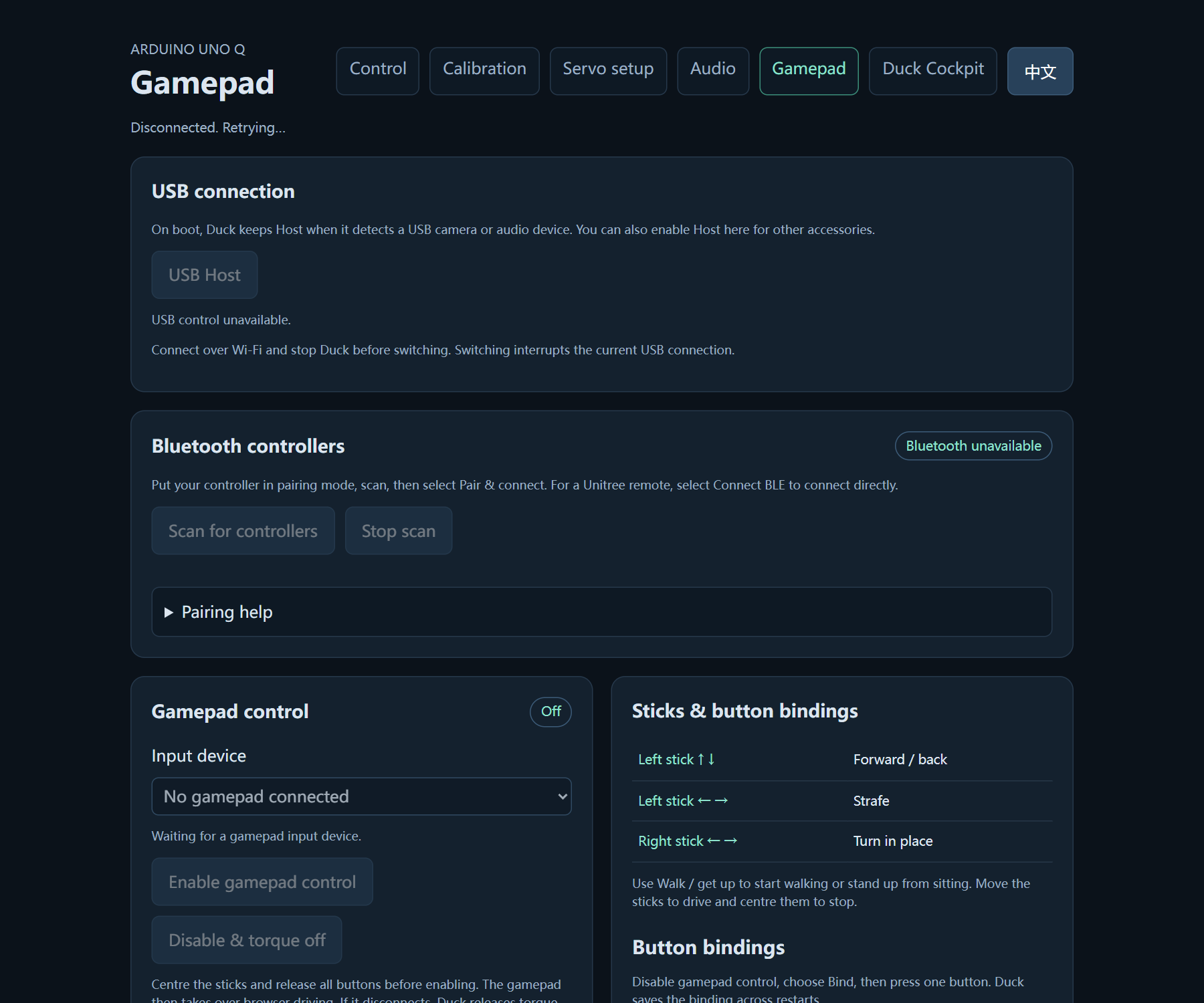
The gamepad connects directly to Duck. Complete calibration and a standing/walking check first. Open Settings → Gamepad in the cockpit (on phones, View → Show all), or http://<board-ip>:9527/gamepad.html. The embedded panel follows the cockpit language; the standalone page follows the browser language and has a language switch.
Pair and enable
- Put a Bluetooth-capable Xbox or Switch Pro controller into pairing mode. Switch Pro requires a driver matching the board kernel.
- Select Scan for controllers, then Pair & connect beside the intended device. Scanning ends after 30 seconds; existing pairings offer Connect.
- Wait for Input ready, center both sticks and release every button.
- Select Enable gamepad control. Pairing and enabling input do not engage torque.
| Default input | Action |
|---|---|
| Menu / Start | Walk / get up; also stands up from sitting |
| Bottom face button (Xbox A) | Default pose |
| Right face button (Xbox B) | Torque off; support Duck first |
| Left stick | Forward/back and strafe |
| Right stick horizontal | Turn |
No LB modifier is needed. Centering the sticks clears movement. Roller mode has no strafe. Nintendo mappings follow physical button positions, not the printed A/B letters.
Bind actions and Duck calls
Disable gamepad control, choose Bind beside an action, release held buttons, then press one button within 15 seconds. Learning does not perform actions. Duplicate assignments, multiple presses, timeout or disconnect leave the mapping unchanged. Use Clear, Cancel binding or Restore defaults as needed, and keep a Torque off button assigned.
Sit, Roller mode, Left kick, Right kick and all seven Duck calls are initially unassigned. Existing custom mappings are retained. Press a bound call once to play it on Duck's speaker. After switching Roller mode, center the sticks before moving. Settings persist in data/gamepad-bindings.json across restarts.
Ownership and connection loss
While enabled, the gamepad owns continuous motion input; browser movement messages are ignored. Explicit browser mode controls and Torque off remain available. Disable gamepad control before returning to screen joysticks. Disconnect, stale input or worker failure disarms and releases the source; reconnection requires explicit enabling again. Calibration and Servo setup also release gamepad ownership.
Compatibility
Xbox models must support Bluetooth; proprietary wireless models need an appropriate receiver and driver. Switch Pro requires hid-nintendo compiled for the actual kernel; never force-load a mismatched module. Separate Joy-Cons are not combined into a two-stick controller. For a supported Unitree-* remote, use Connect BLE, then enable control explicitly; compatibility with other firmware needs verification. Reconnecting never silently arms motors.