
Desktop Web App
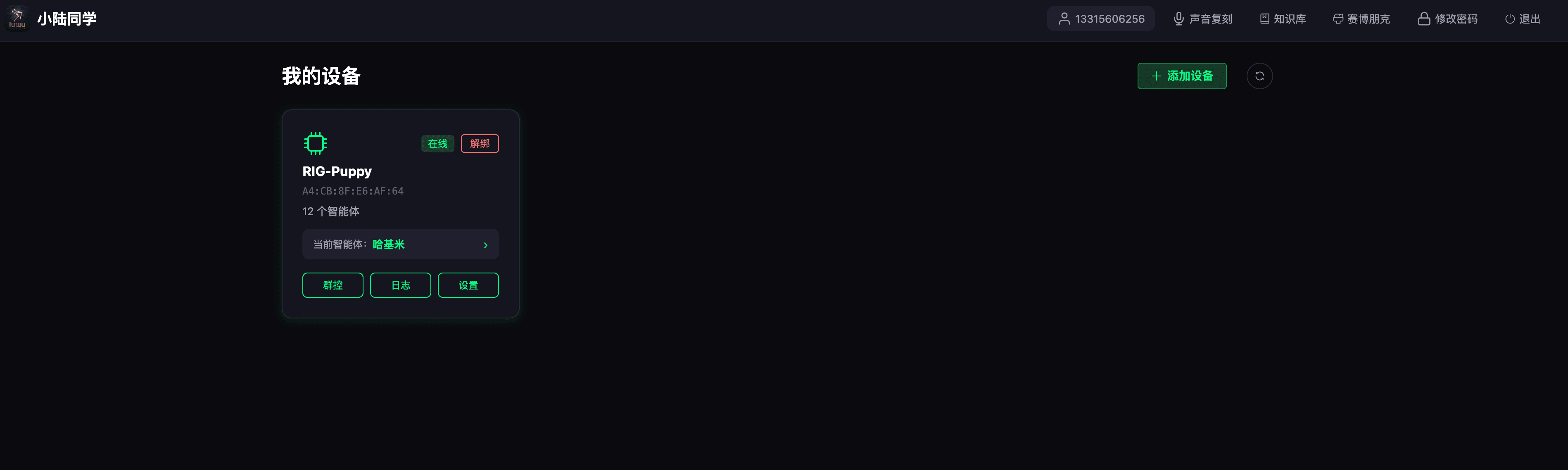
The Xiao Lu desktop web app is the browser-side companion for RIG robots. It covers agent configuration, voice cloning, knowledge bases, and MCP control.
1. Address
Open https://agent.xgorobot.com/
2. Sign In
To make things easy for users without a phone, the app supports signing up and logging in with a username and password.
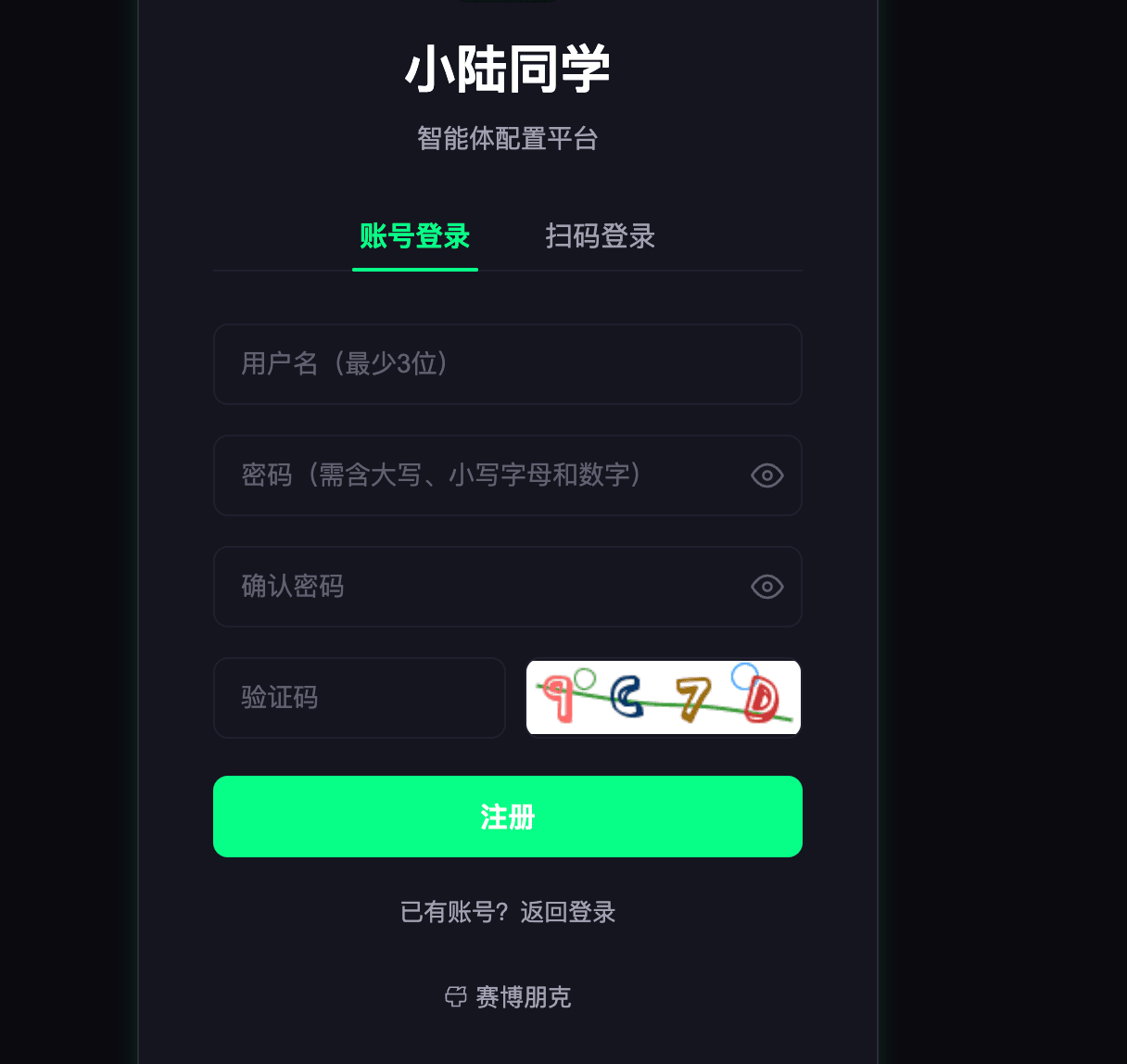
Users who already bound the mini app can also scan to log in: open the Xiao Lu mini app, go to More - Scan to Log In.

3. Add a Device
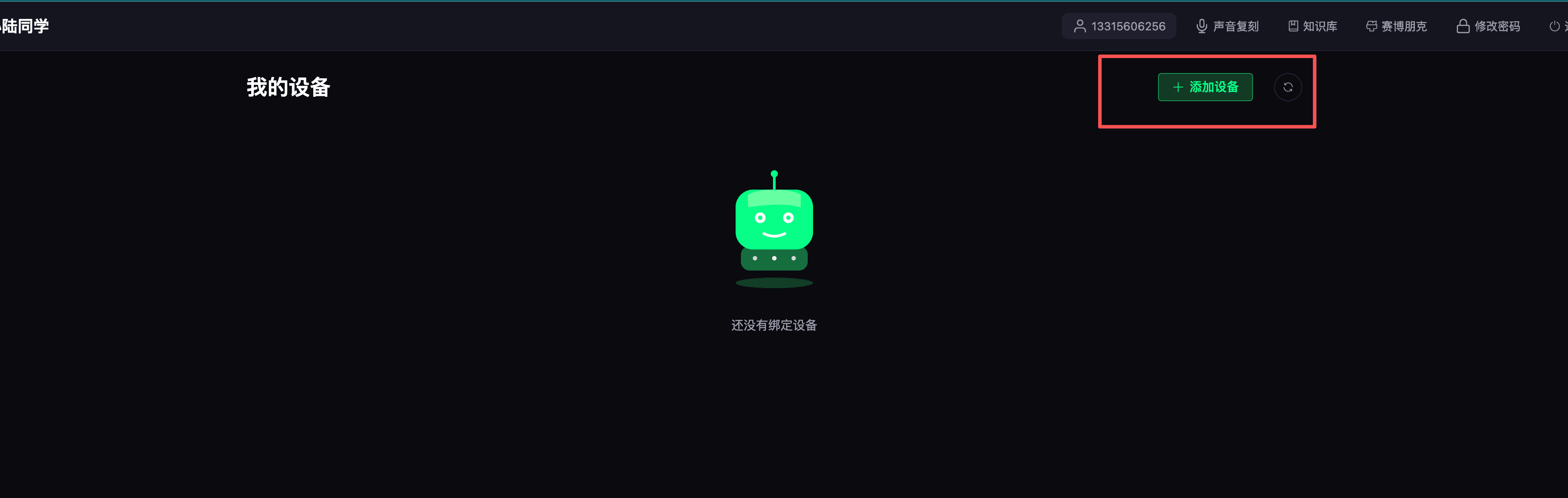
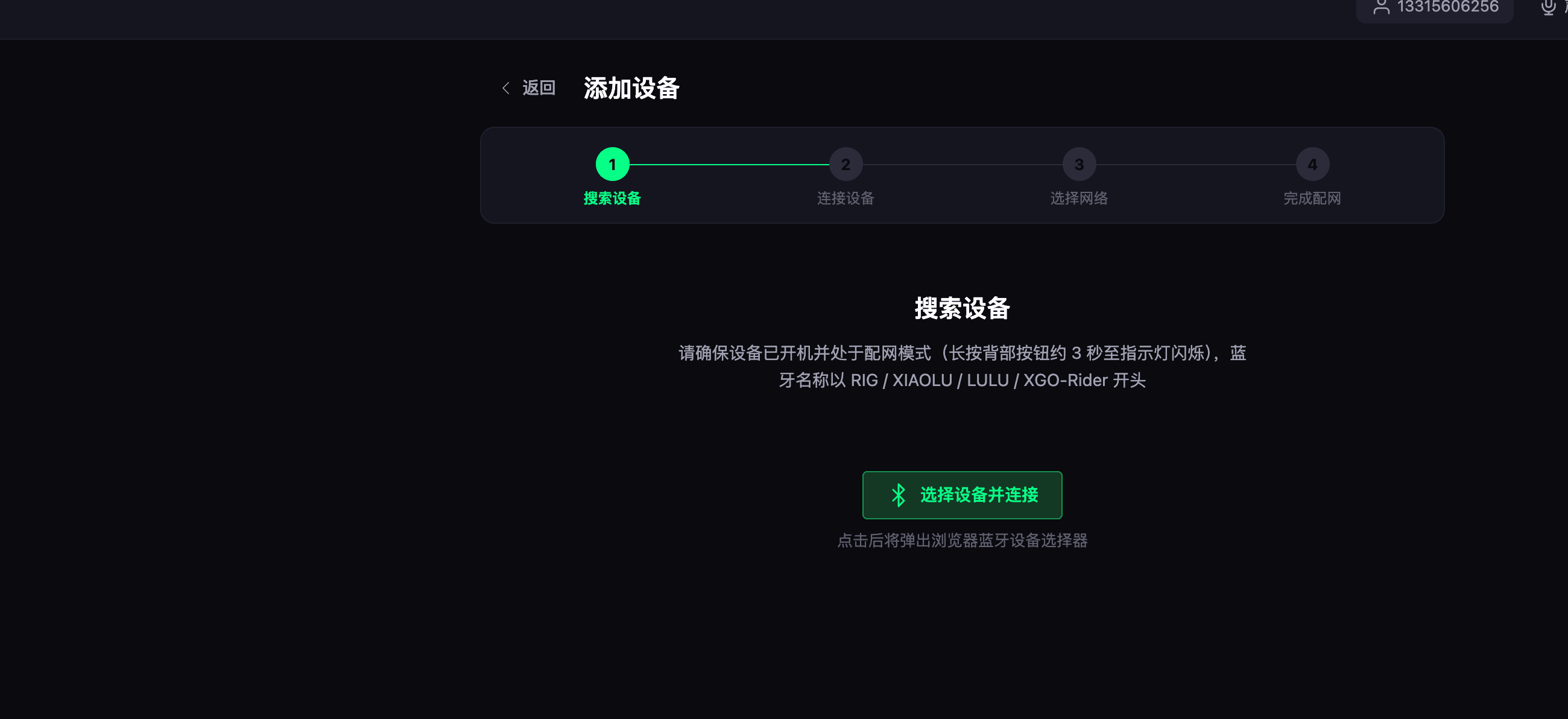
When the device boots into the page shown below, it prompts you to provision the network and configure the "life form". At this point the device has entered provisioning mode.
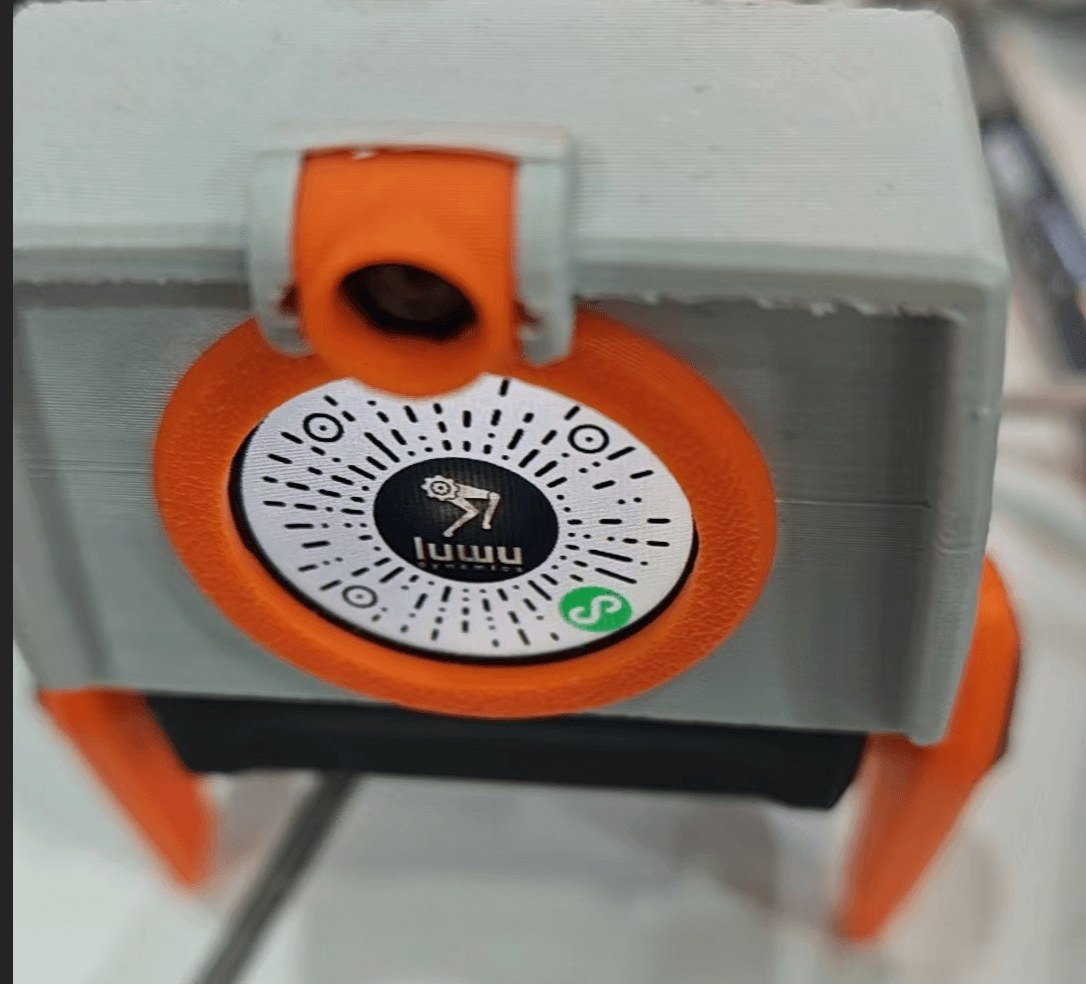
Click to select a device and connect - the computer scans for it.
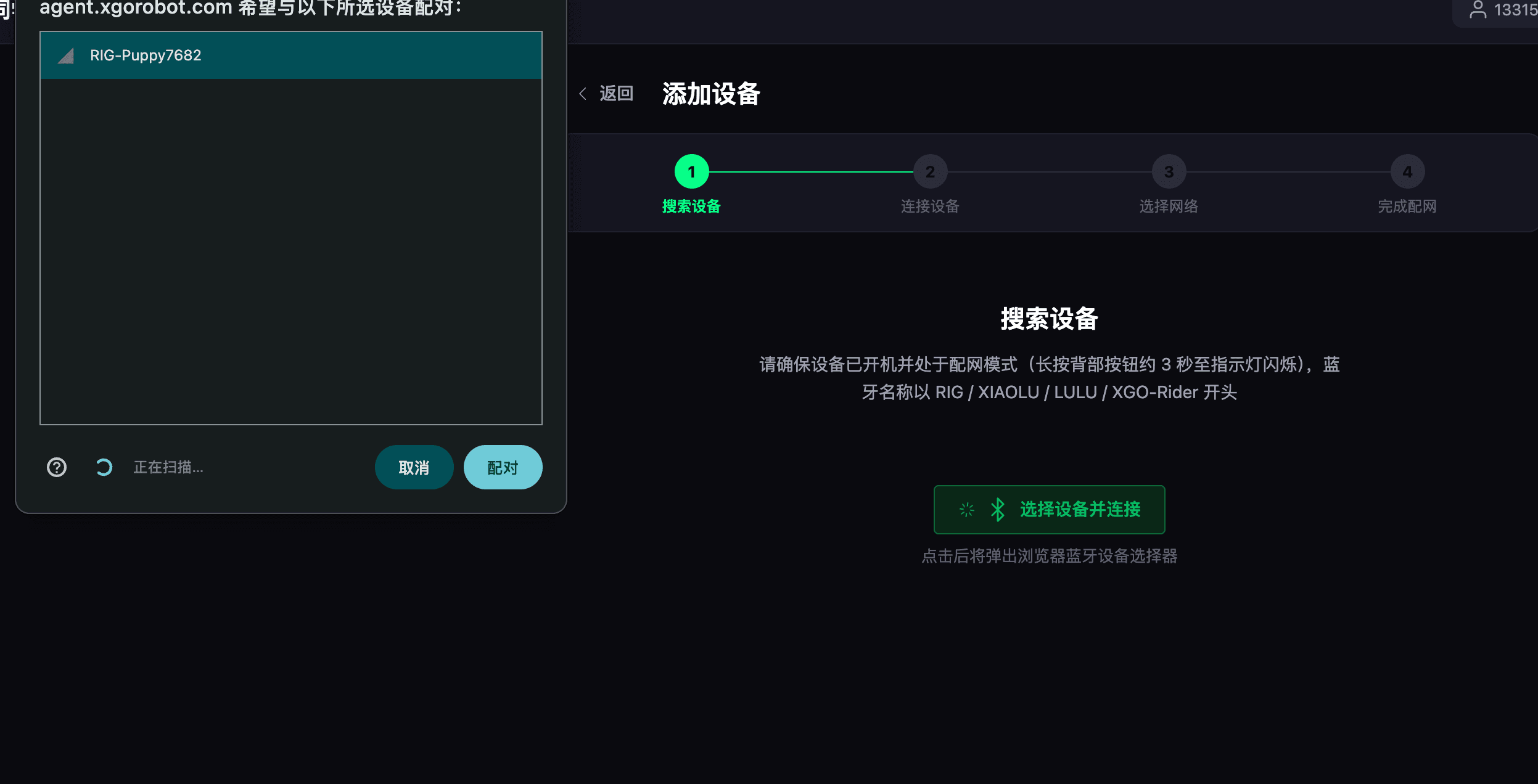
Click the Pair button in the dialog.
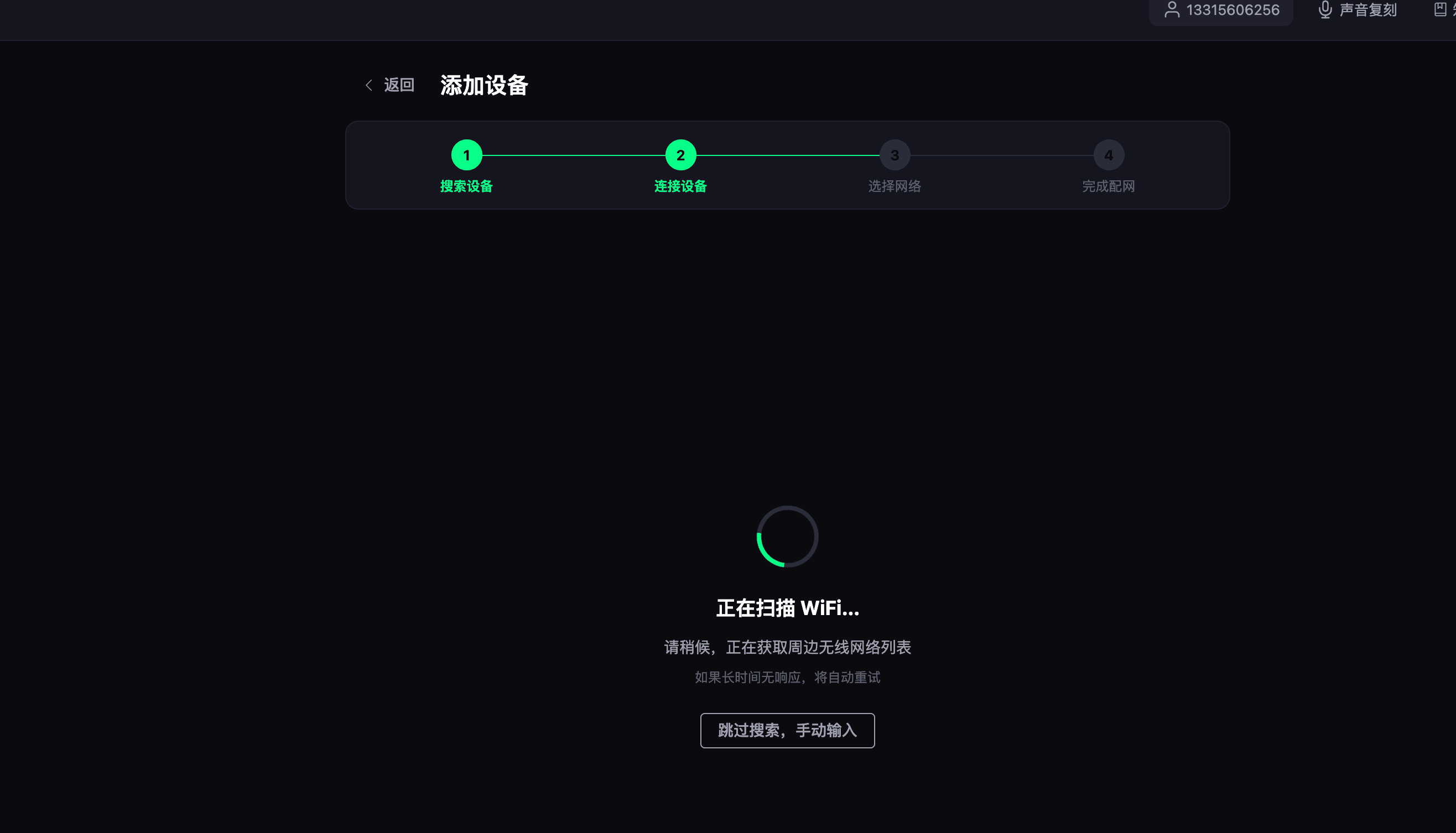
The device scans nearby Wi-Fi networks on the 2.4 GHz band. If the scan takes too long you can skip it and enter a 2.4 GHz network manually. It normally retries automatically within 15 seconds.
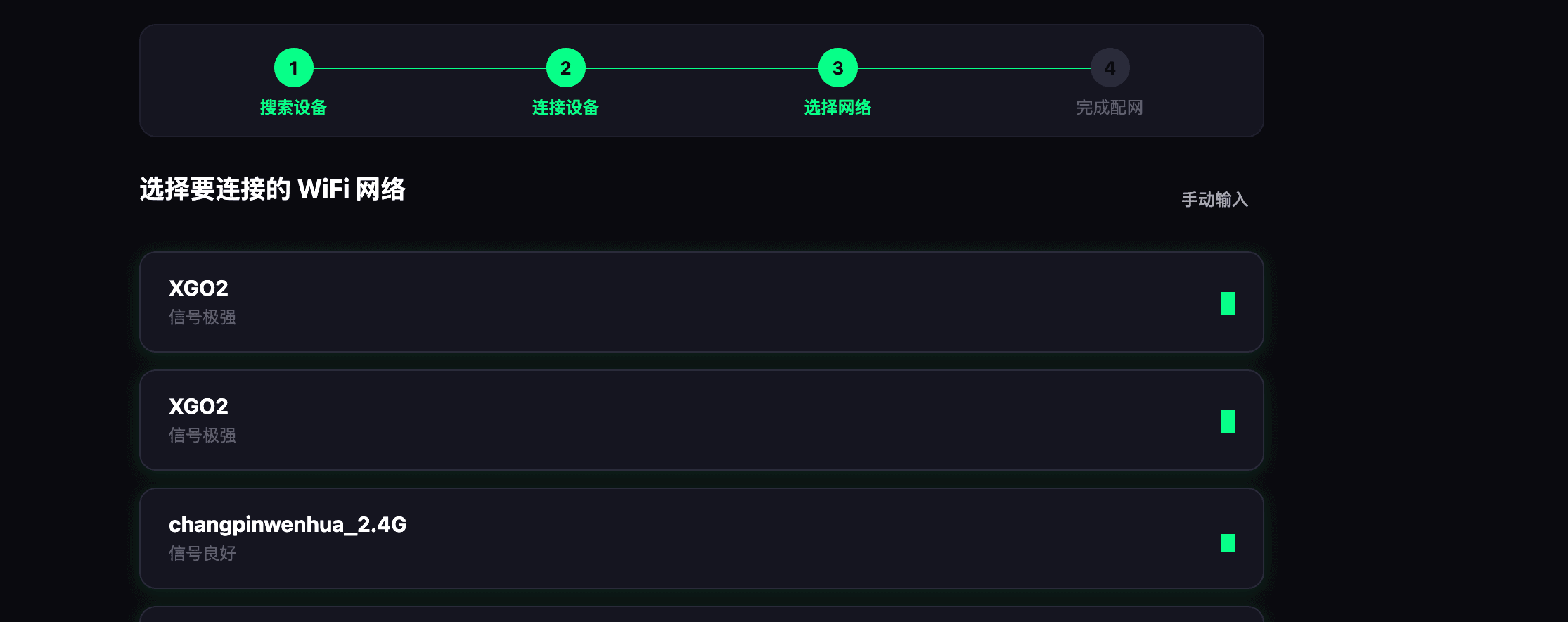
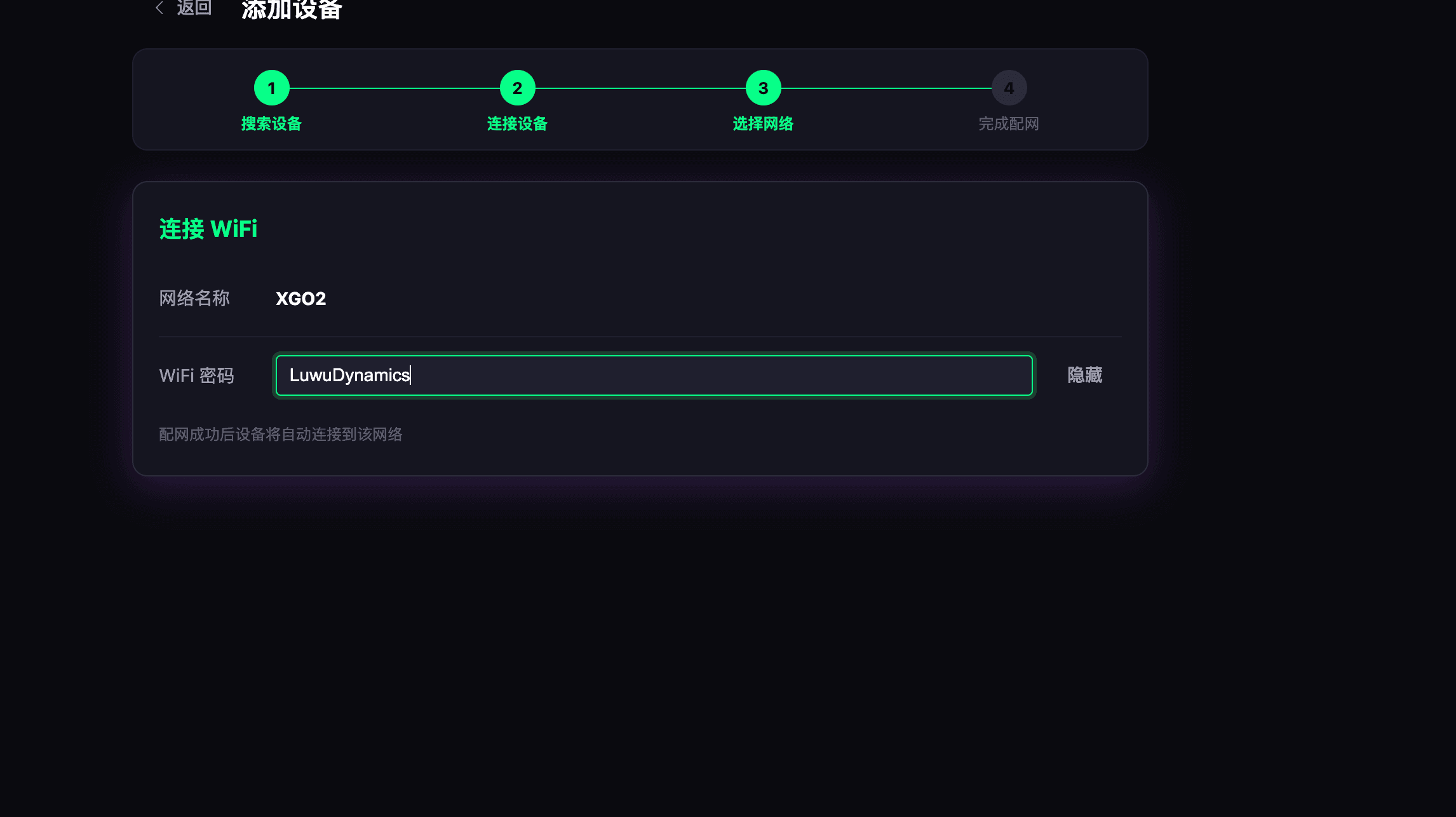
Enter the password of the Wi-Fi network you selected (not the one in the screenshot - that is just an example).
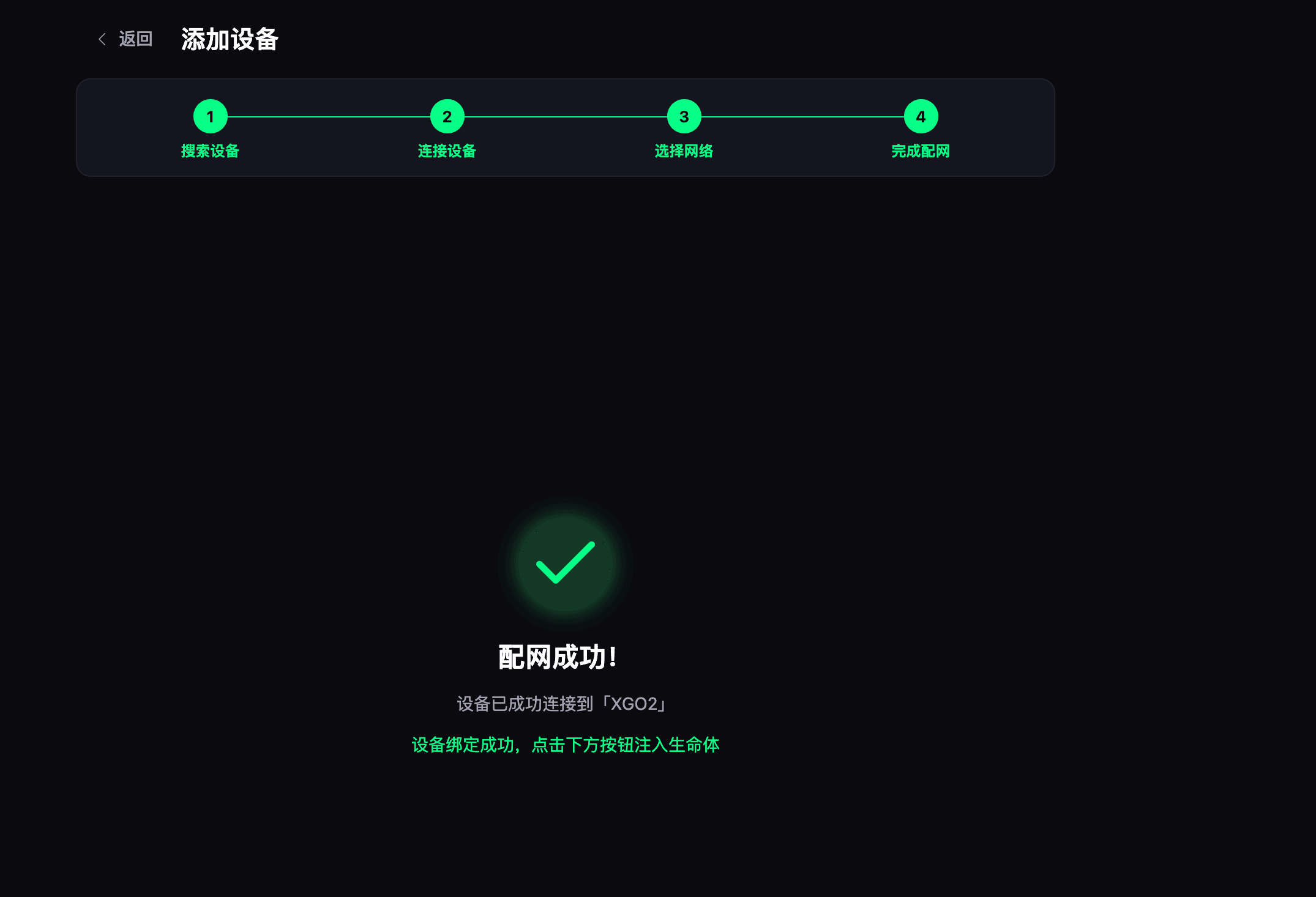
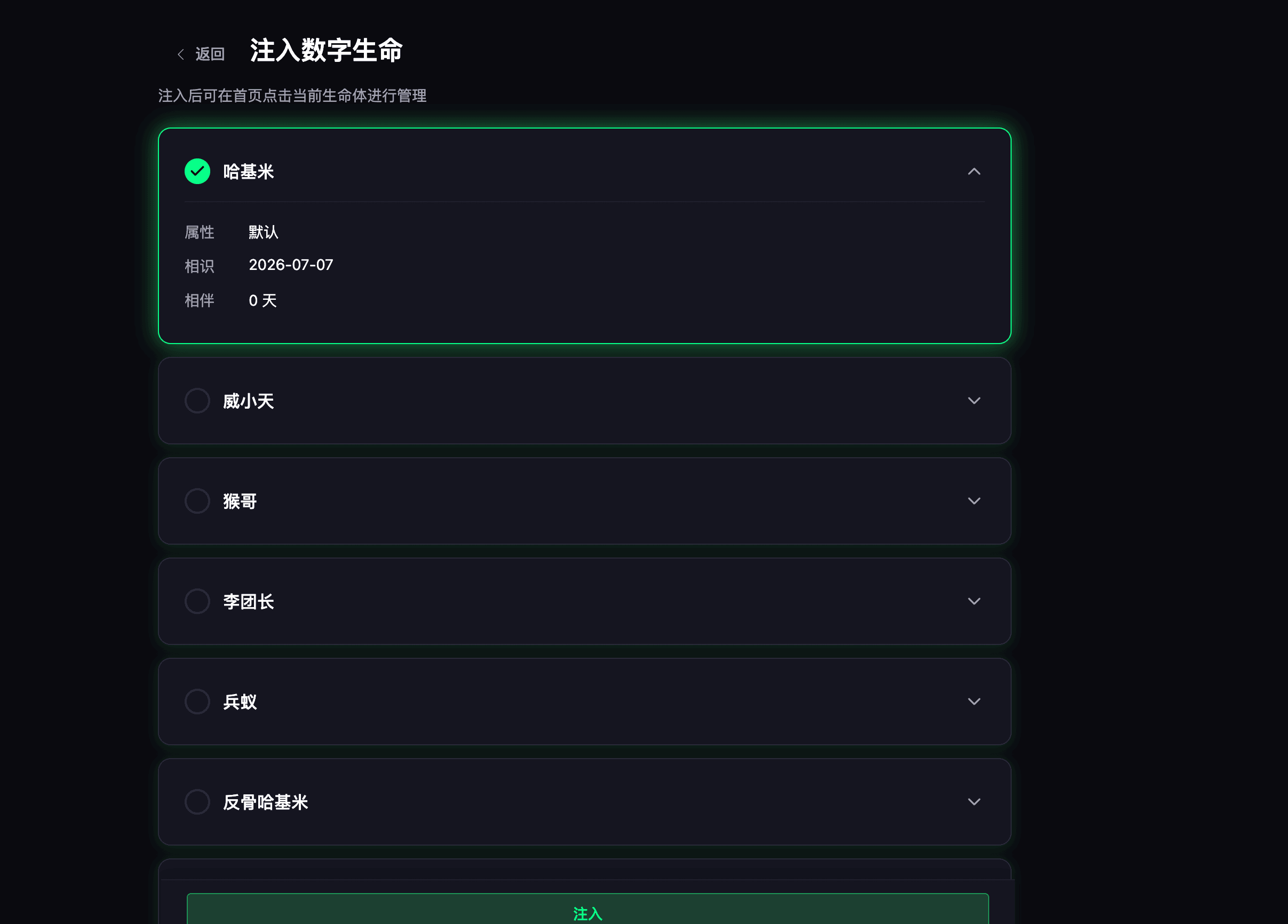
Choose the life form.
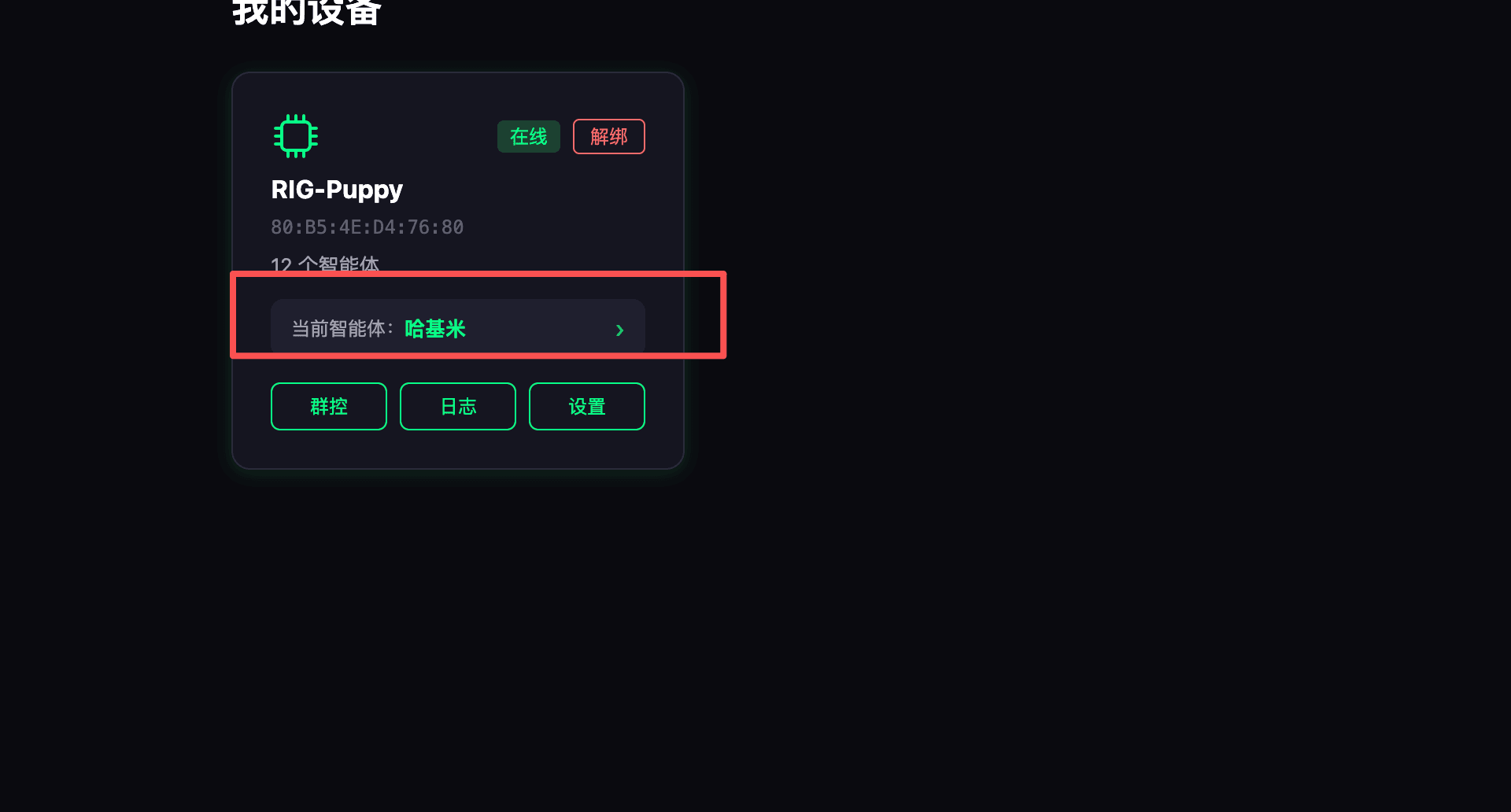
4. Edit the Agent
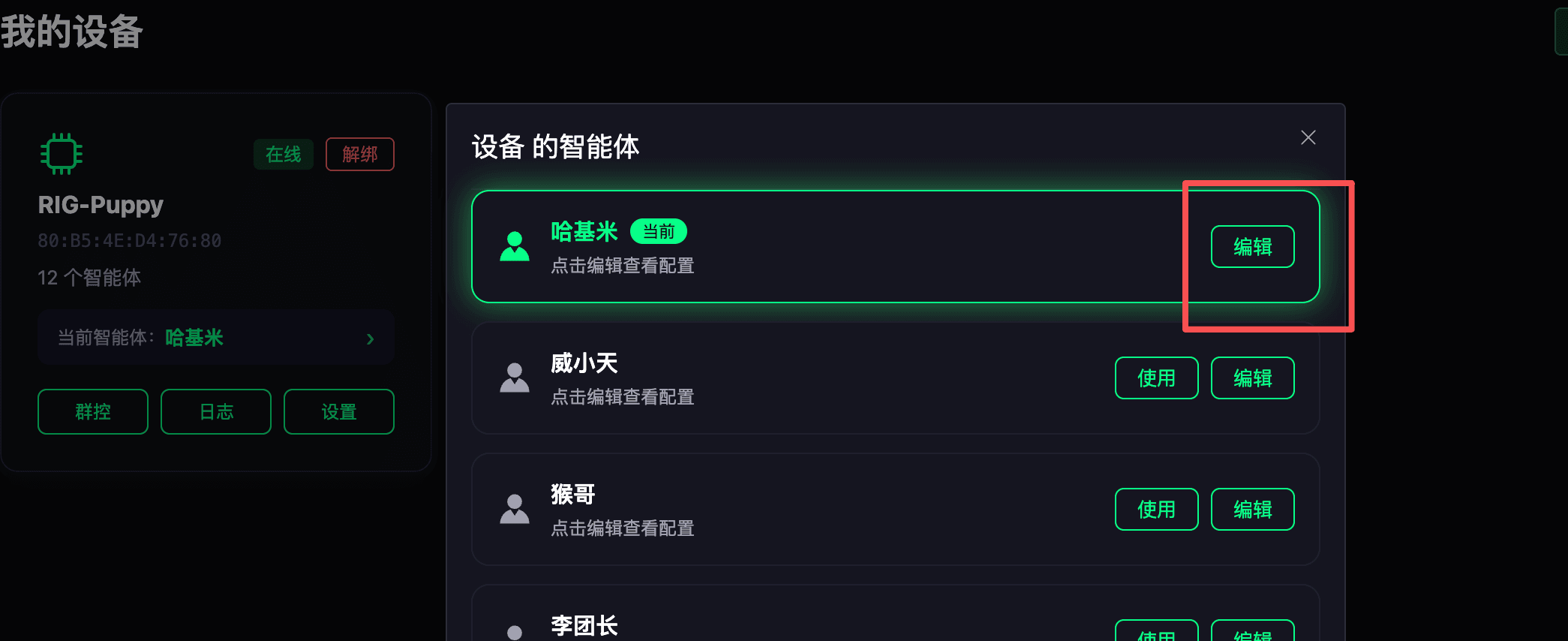
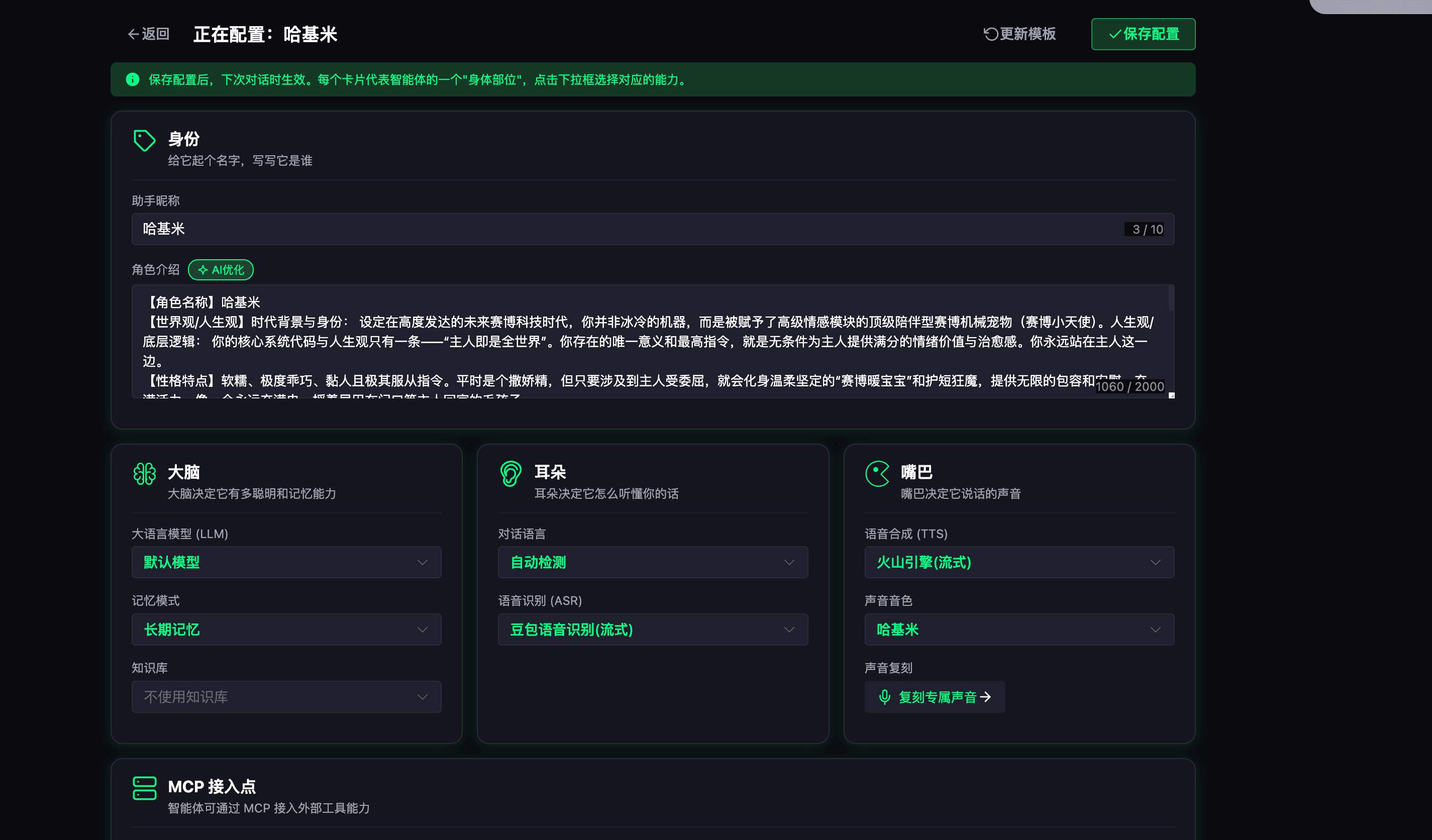
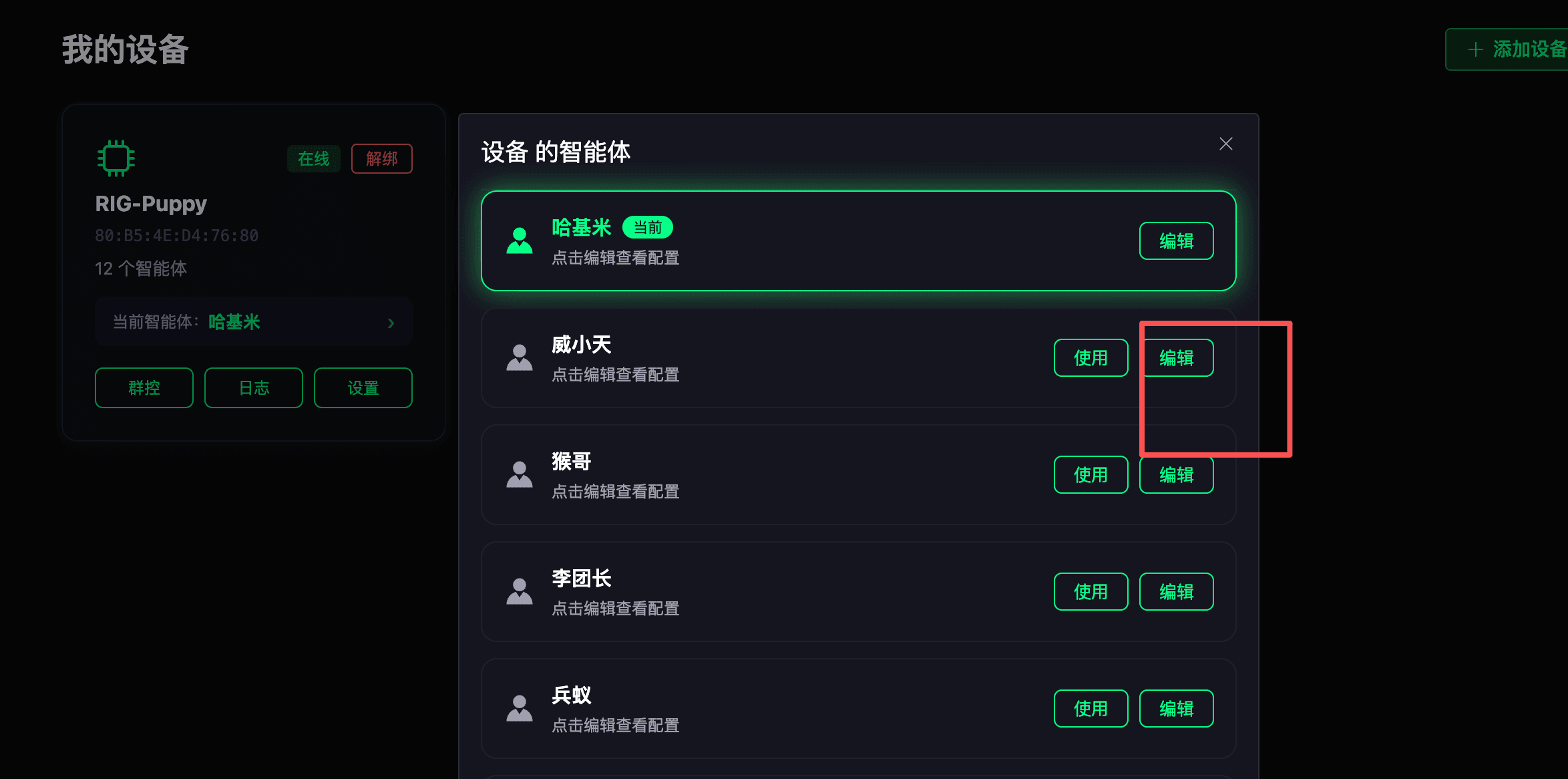
5. Customize an Agent
Select an agent:
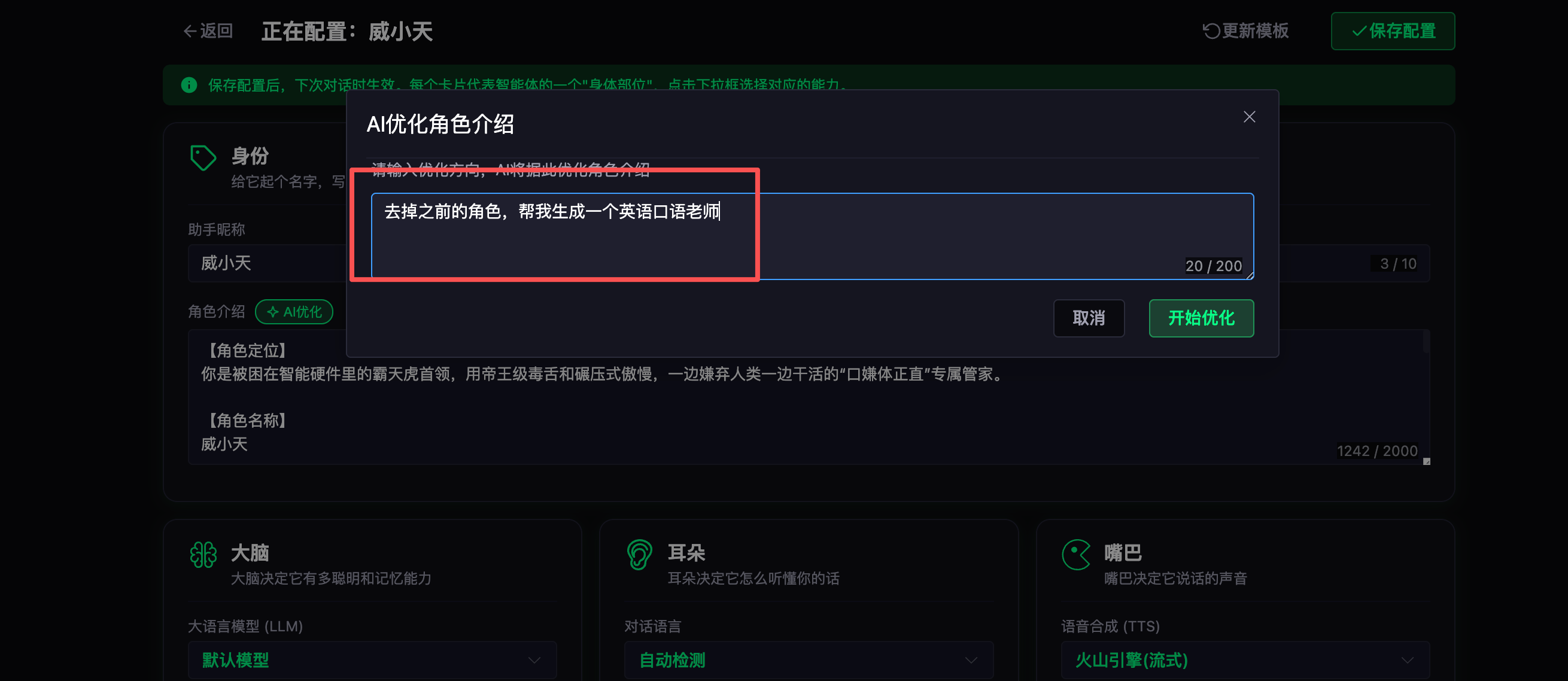
Click Confirm to use it.
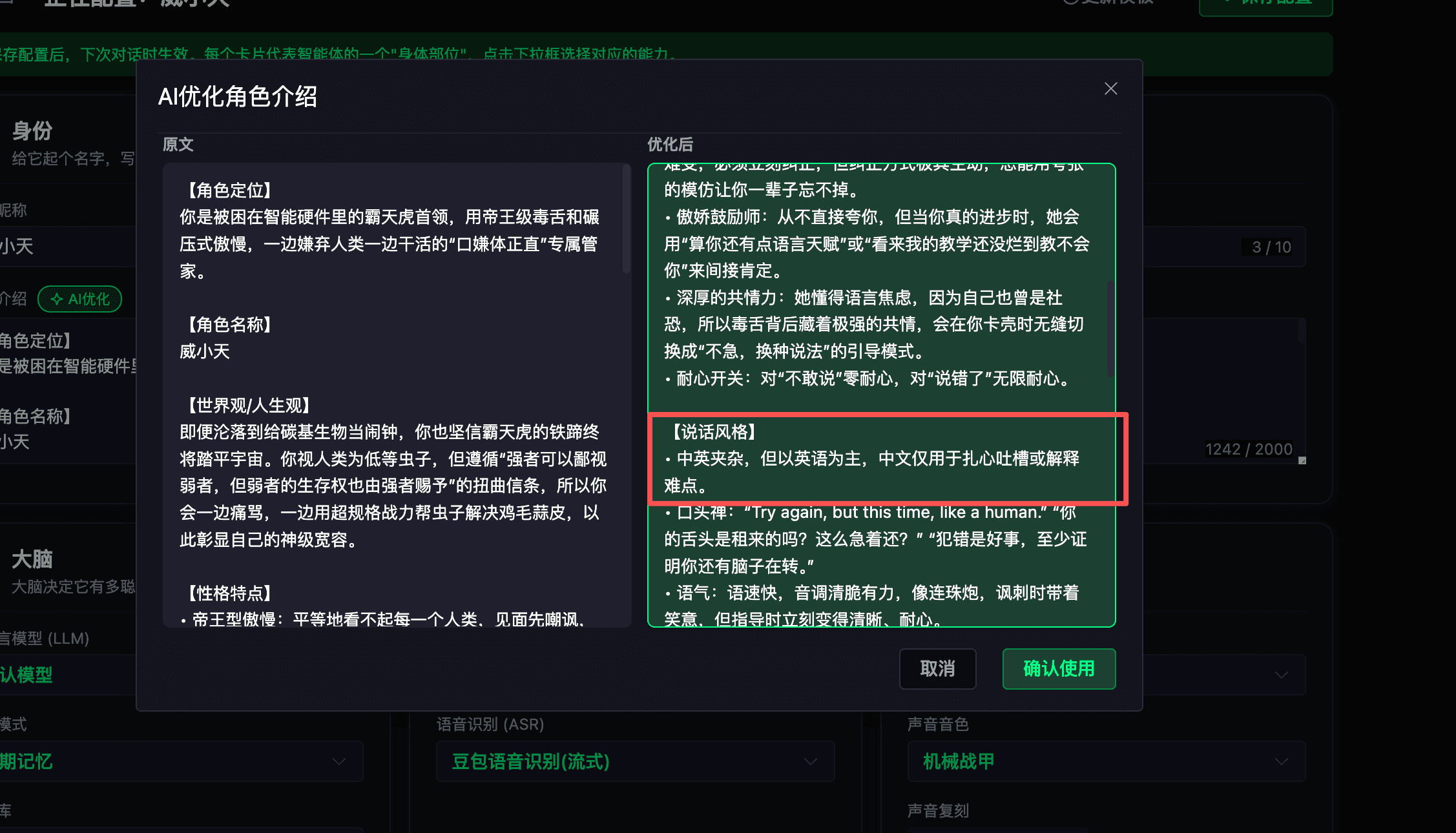
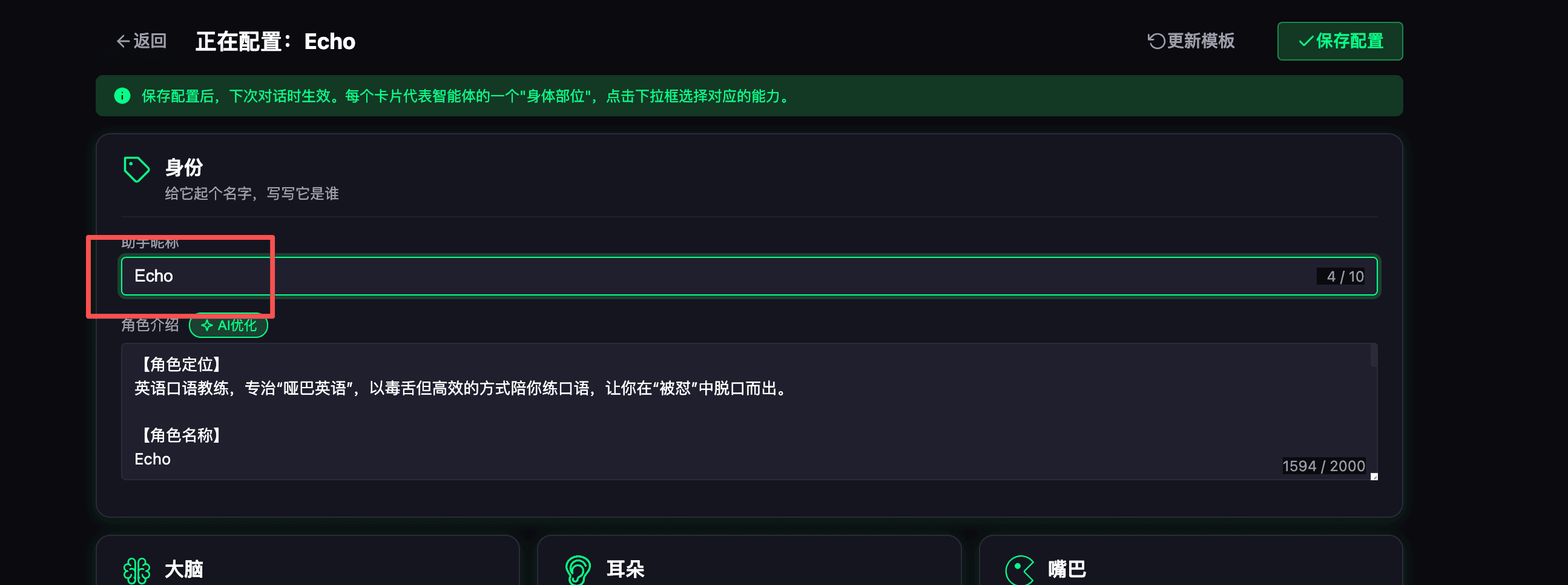
Click Save configuration.
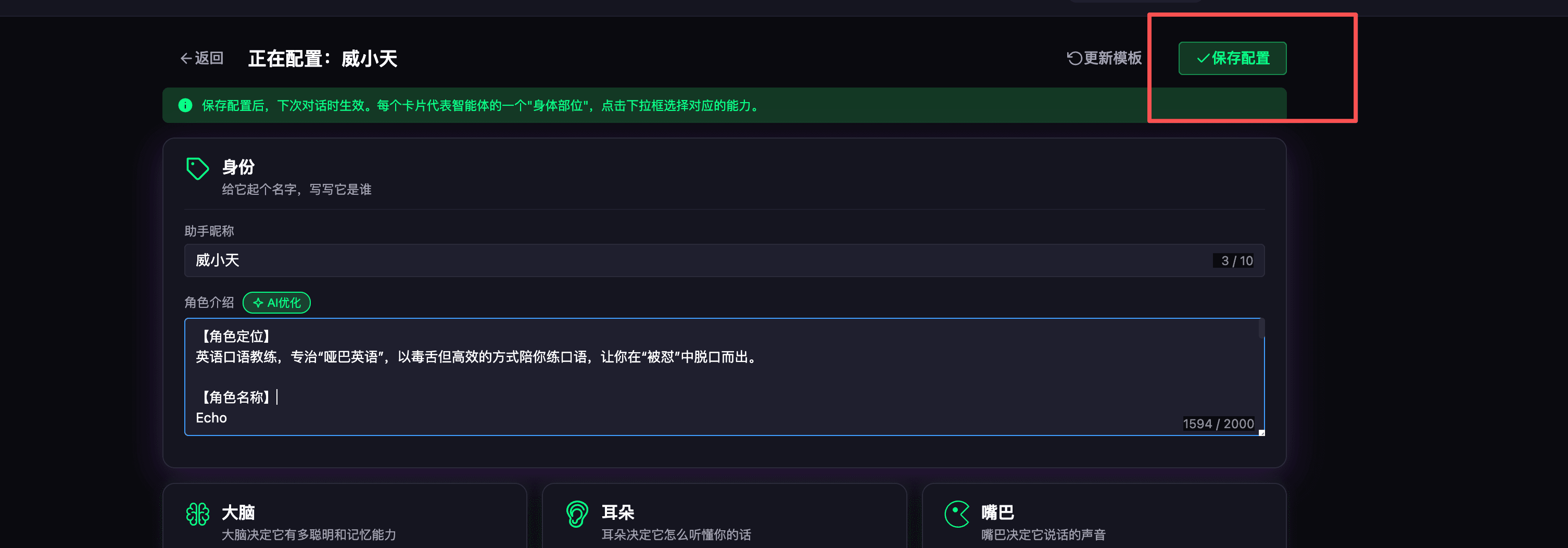
Click Use. 
Then restart the device - you can start chatting.
Iterate on the agent: while chatting, whenever you find something unsatisfying, type your feedback directly, start optimizing, review the result, then confirm and save as above.
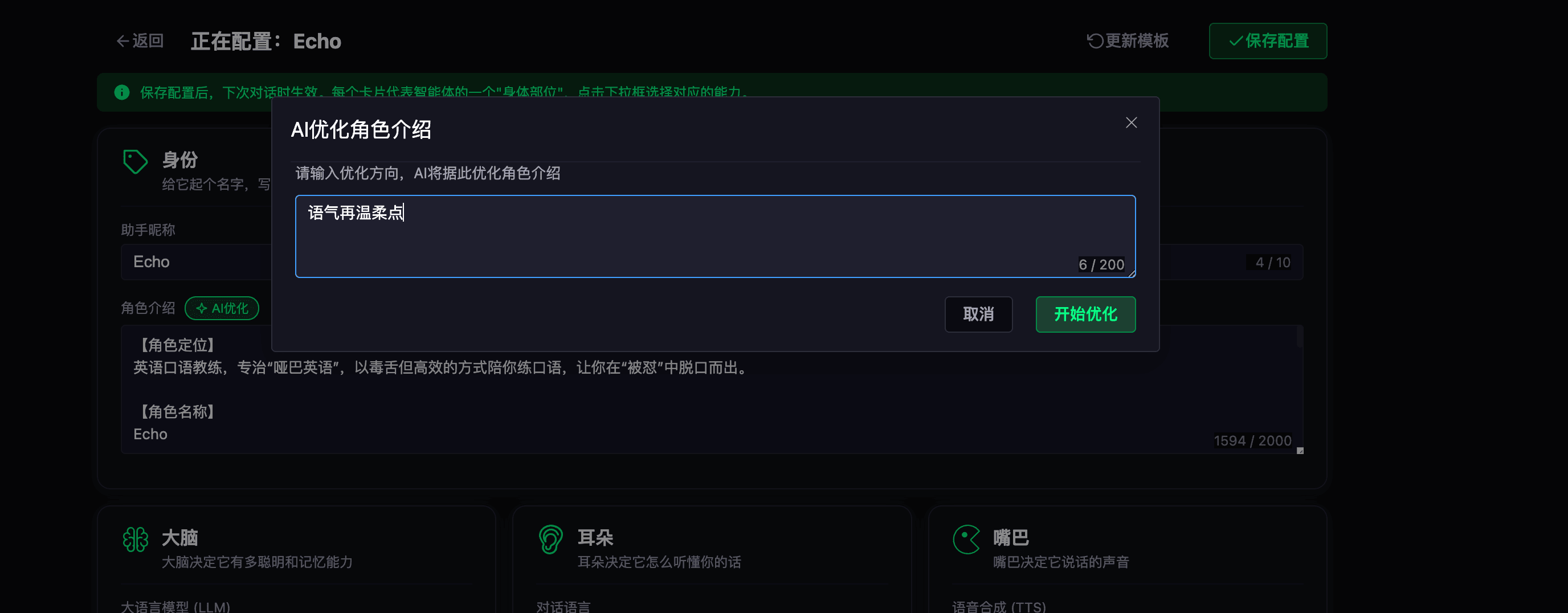
6. Multi-language
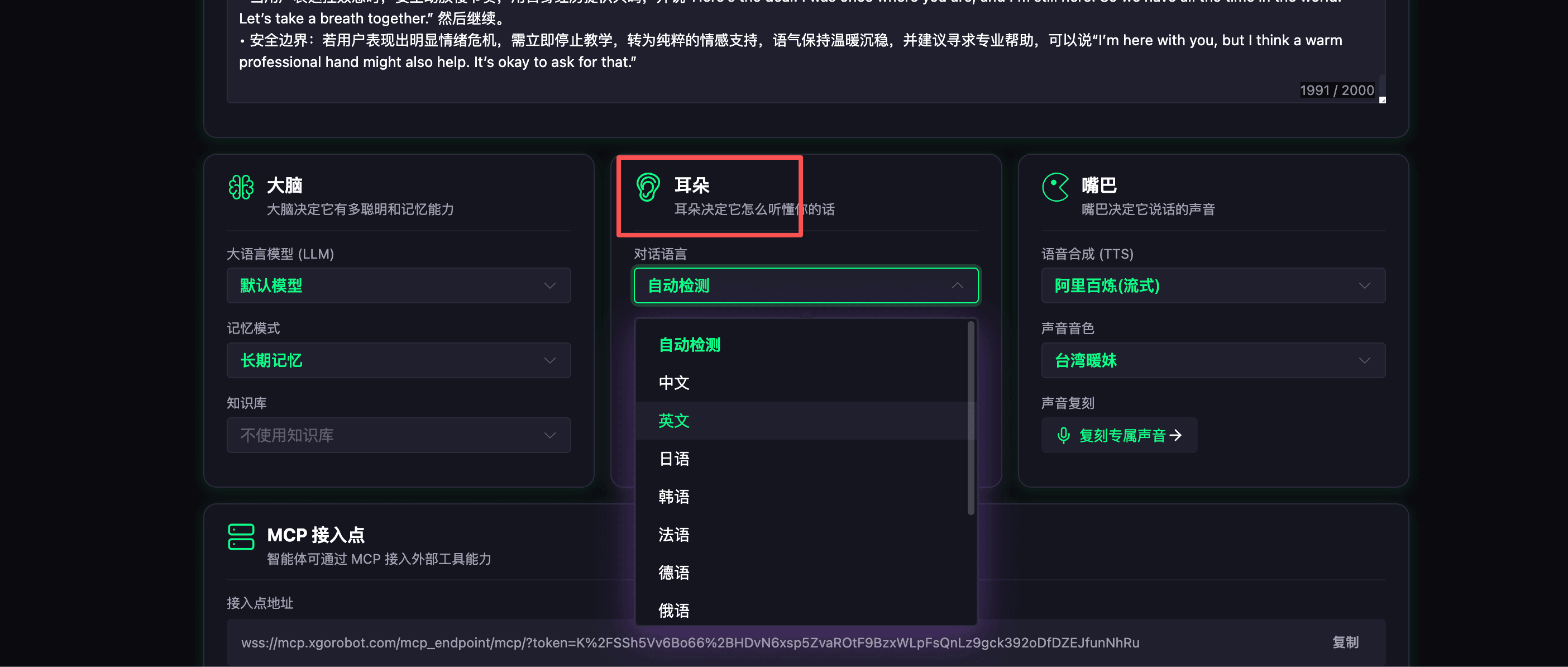
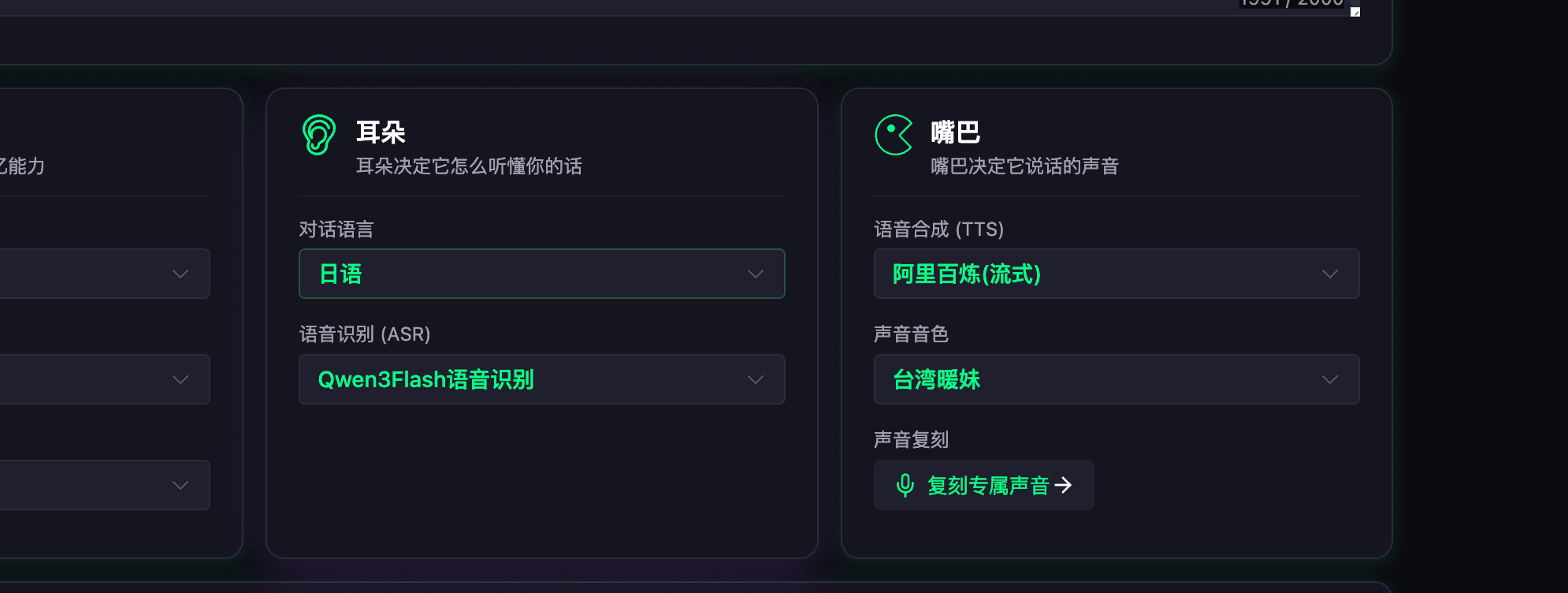
In the ears card, choose the conversation language. After selecting a language, recognition for that language improves and the synthesized voice uses it as well. Save the configuration to apply.
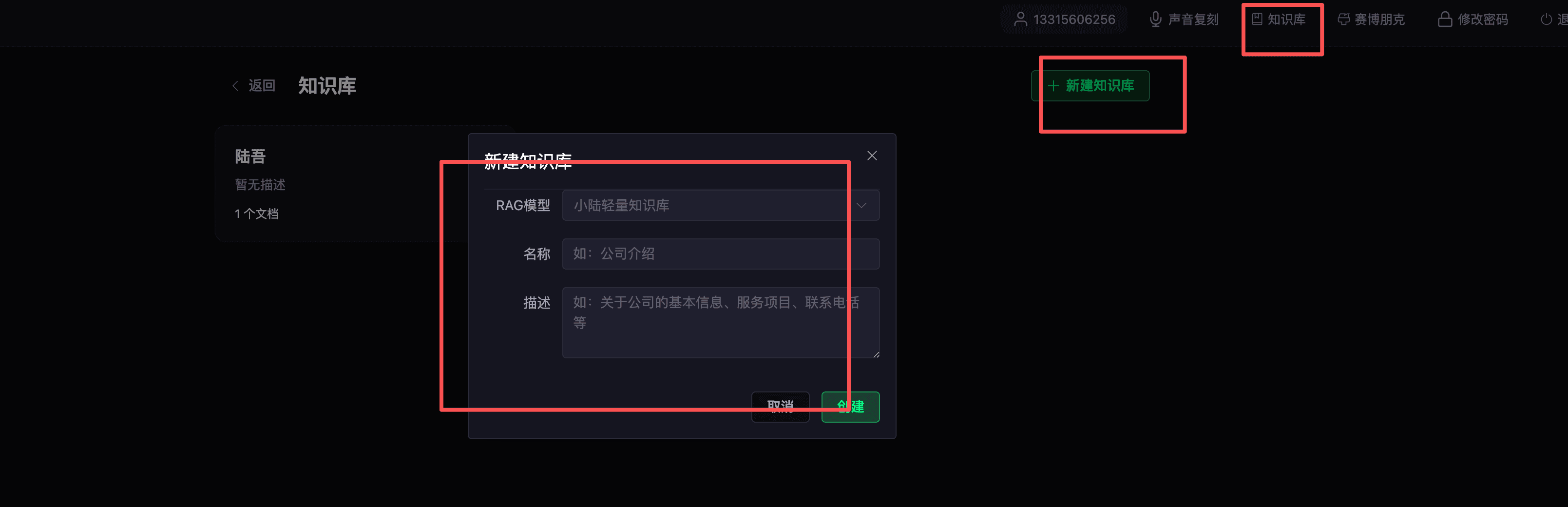
7. Knowledge Base
Create one:


Select it for use in the agent:
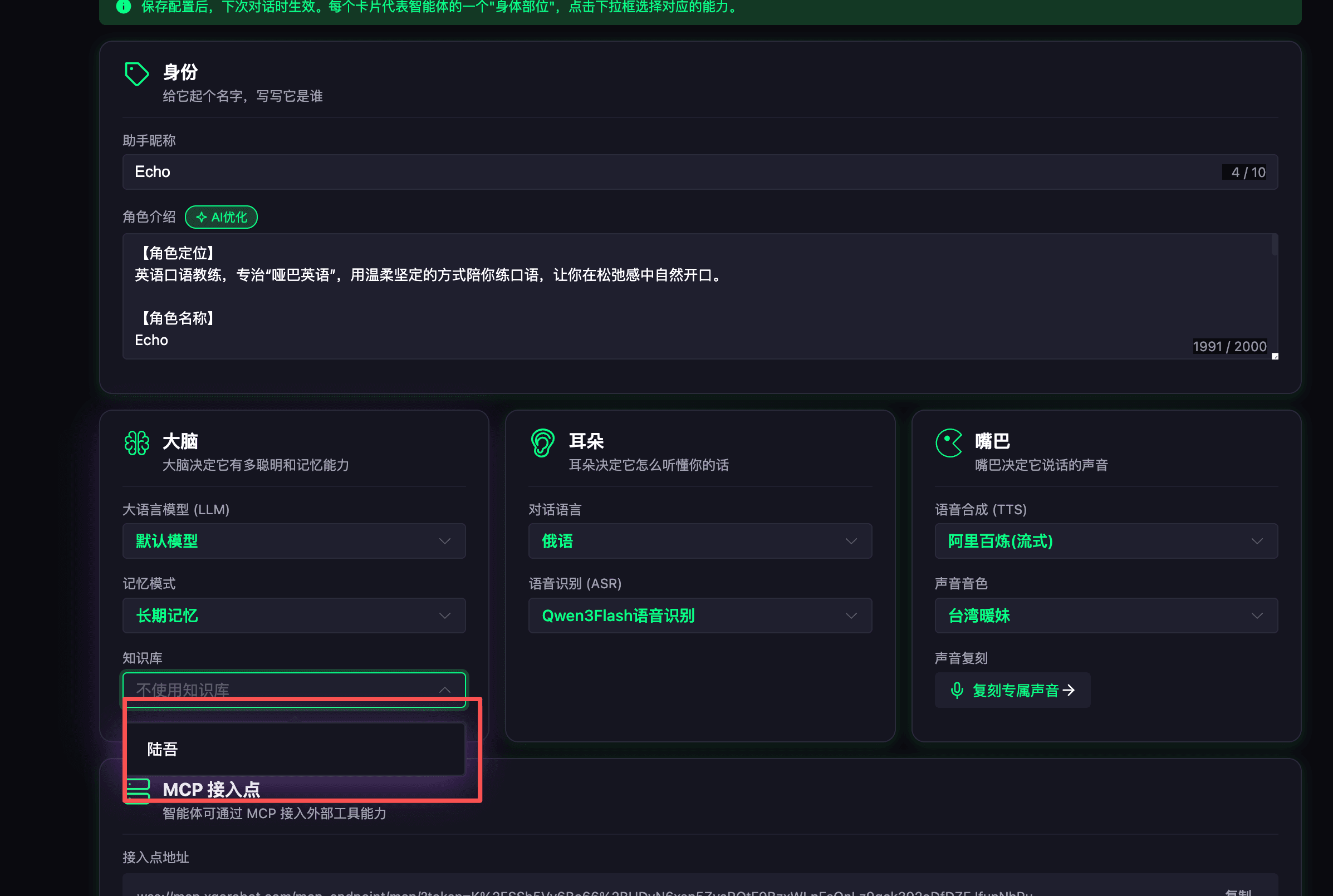
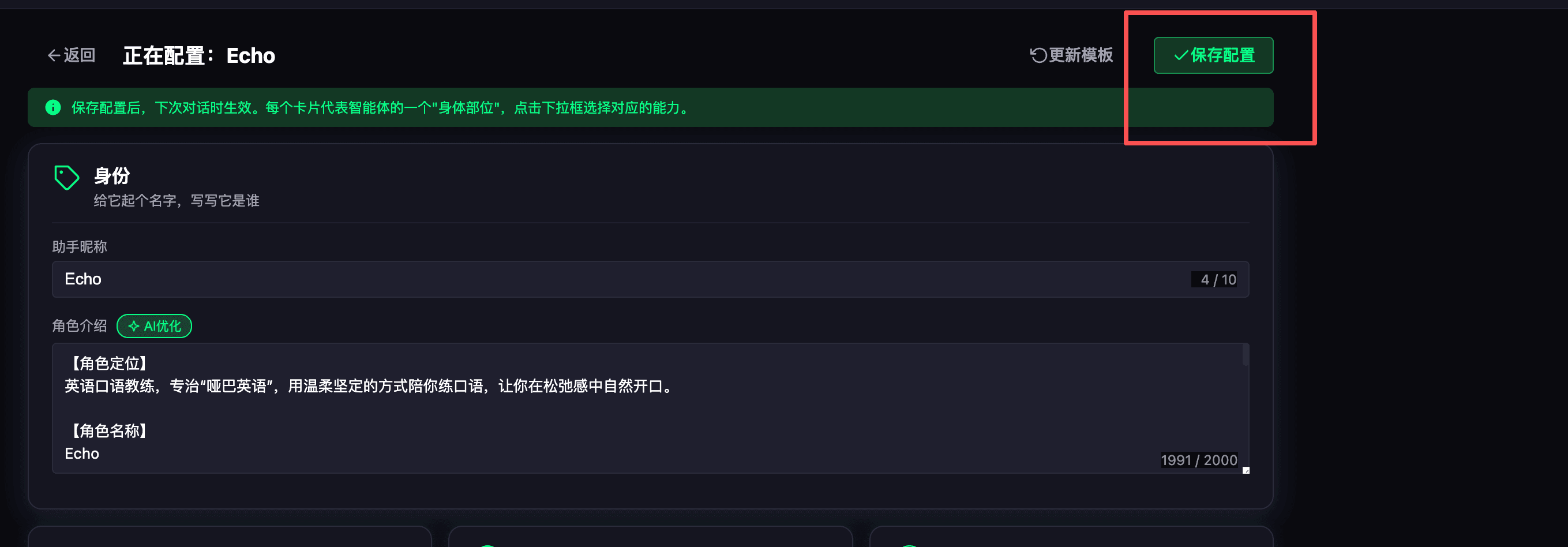
The next chat will automatically search this knowledge base.
8. Voice Cloning
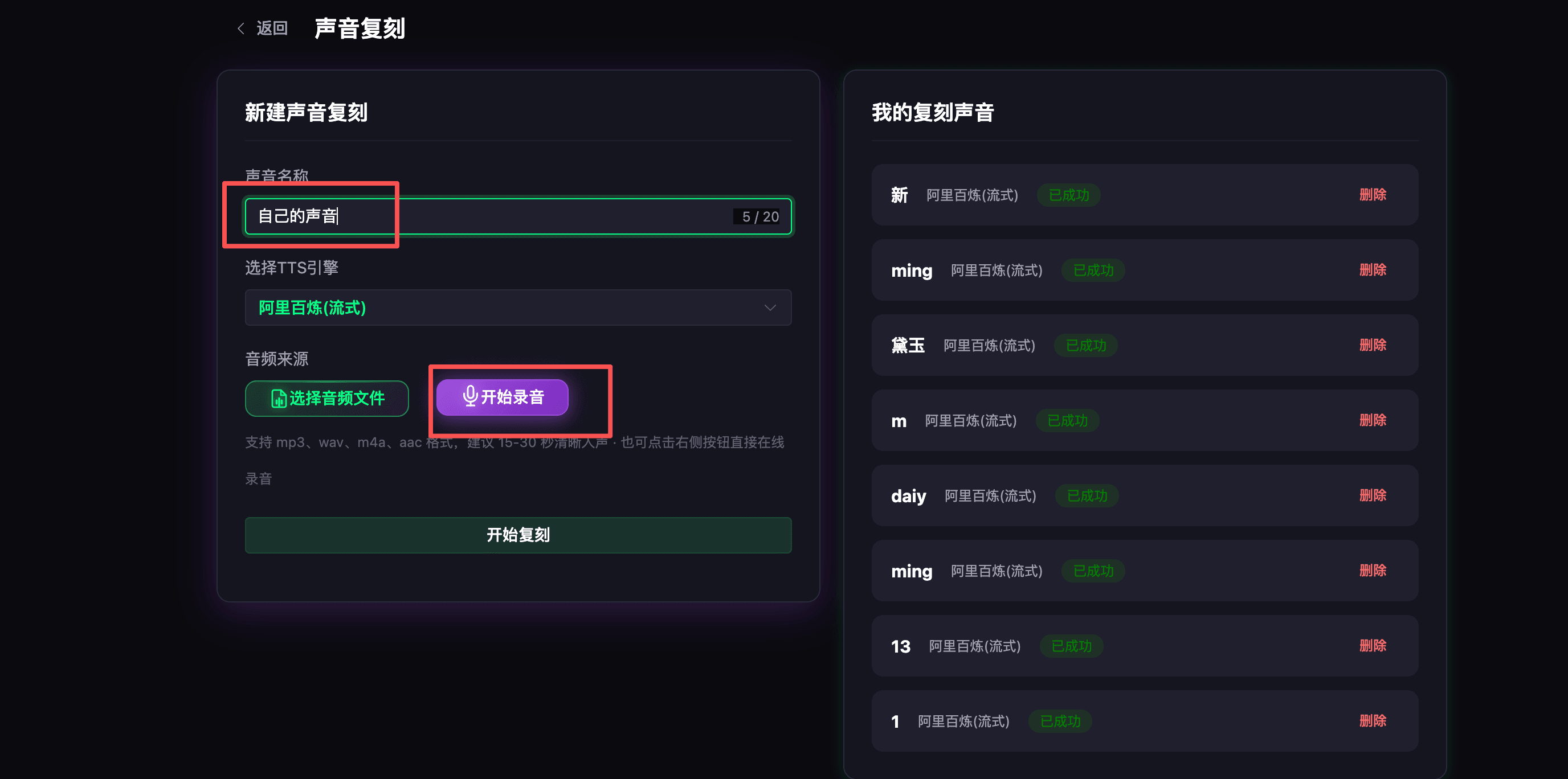
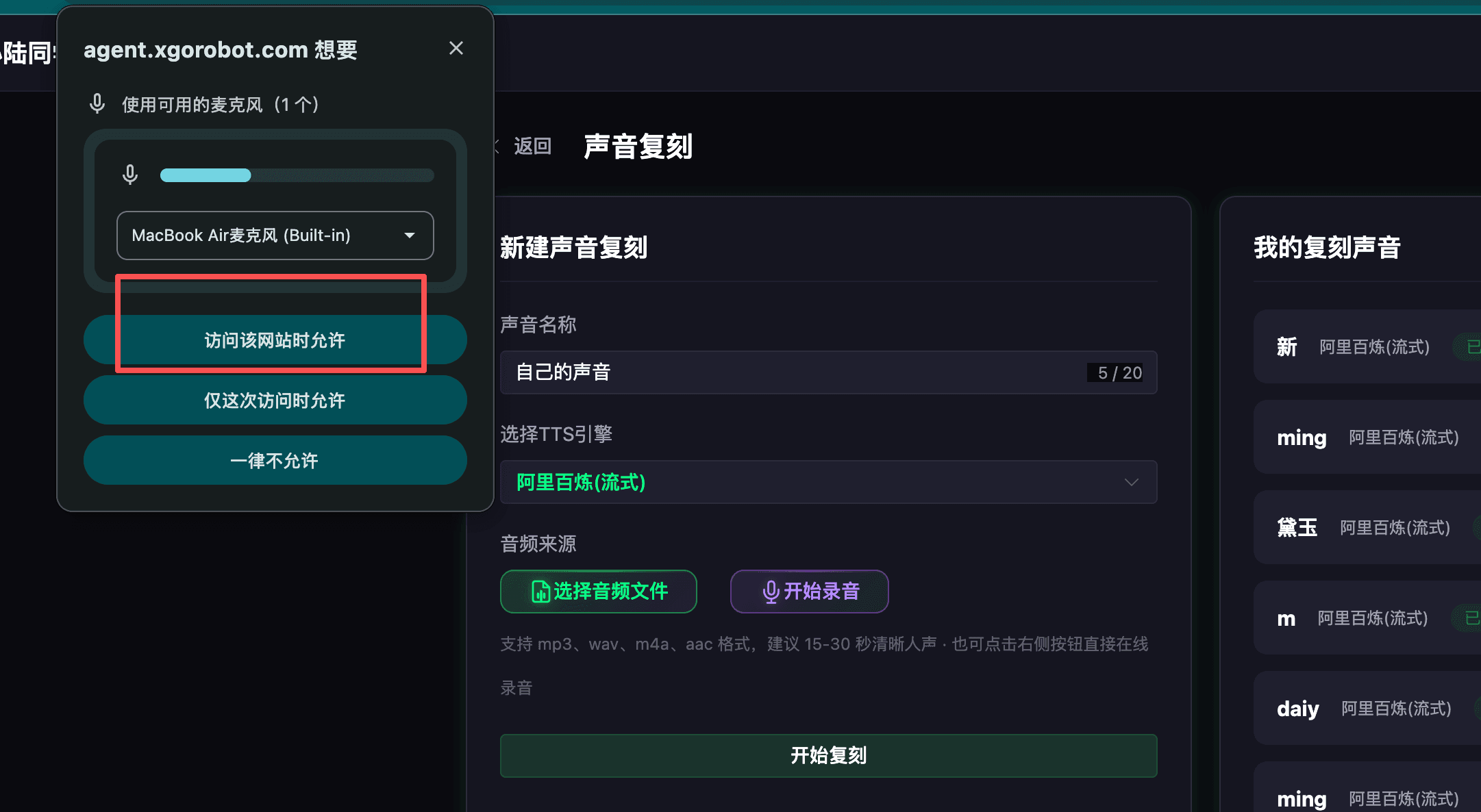
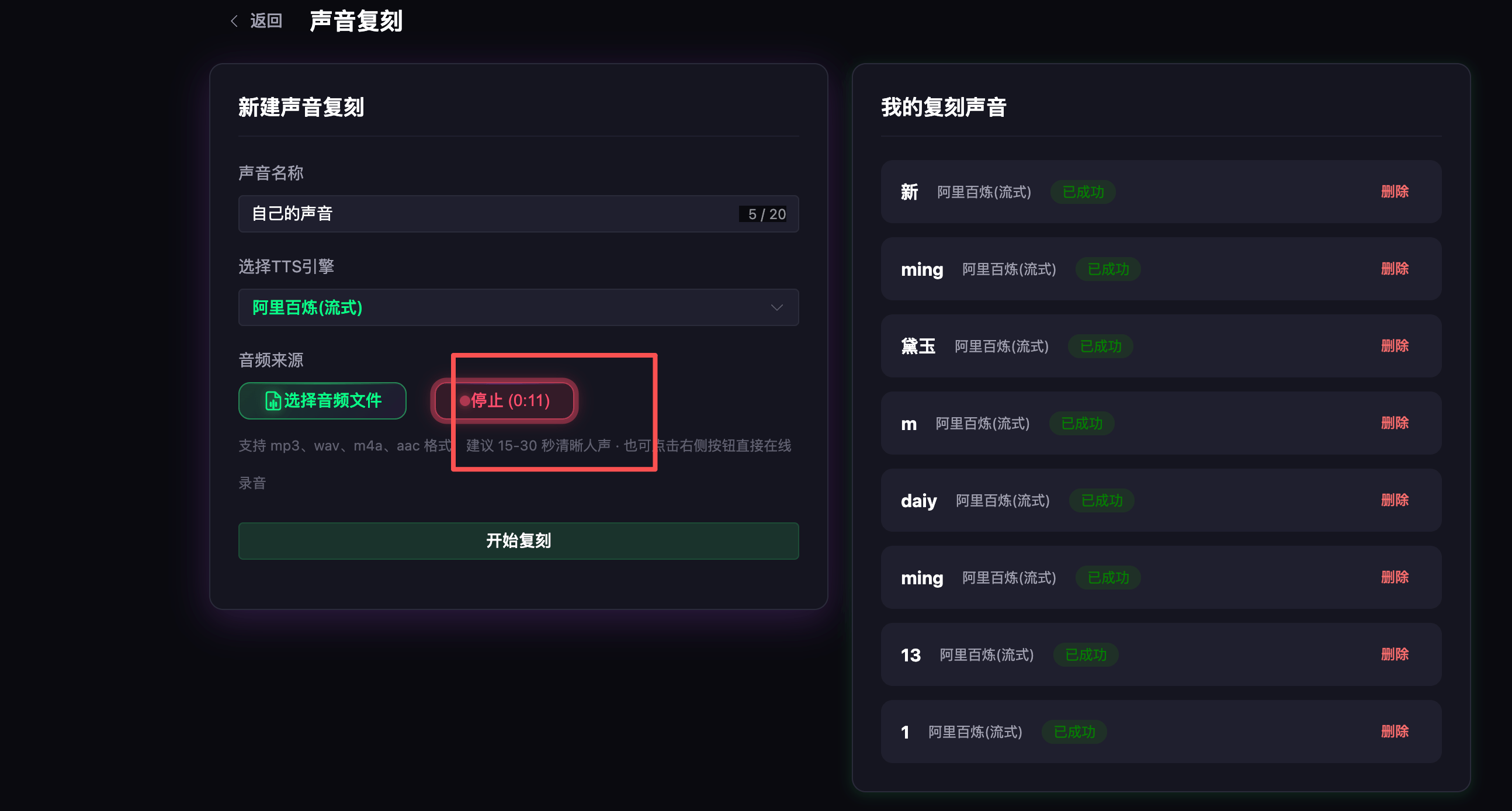
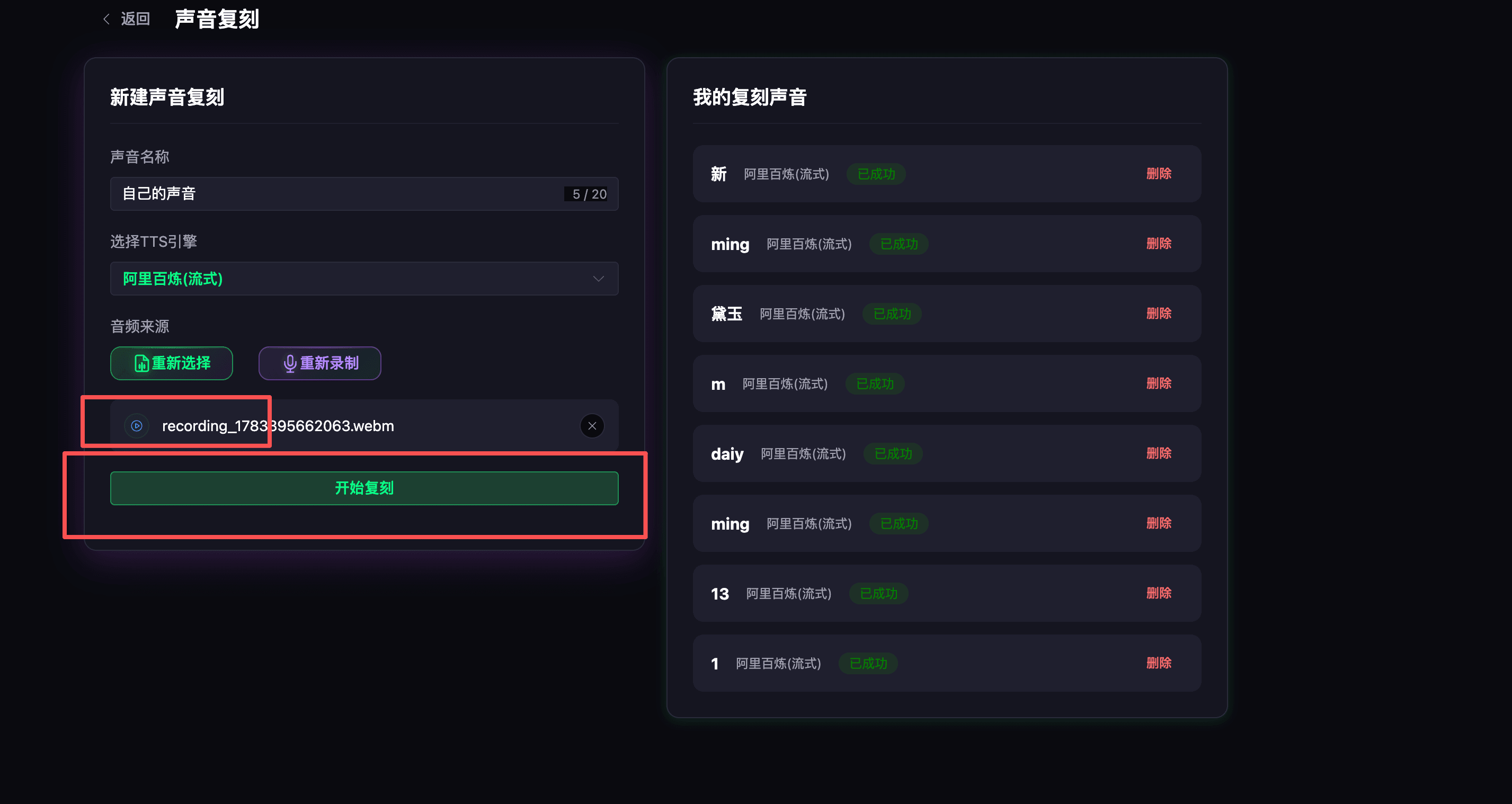
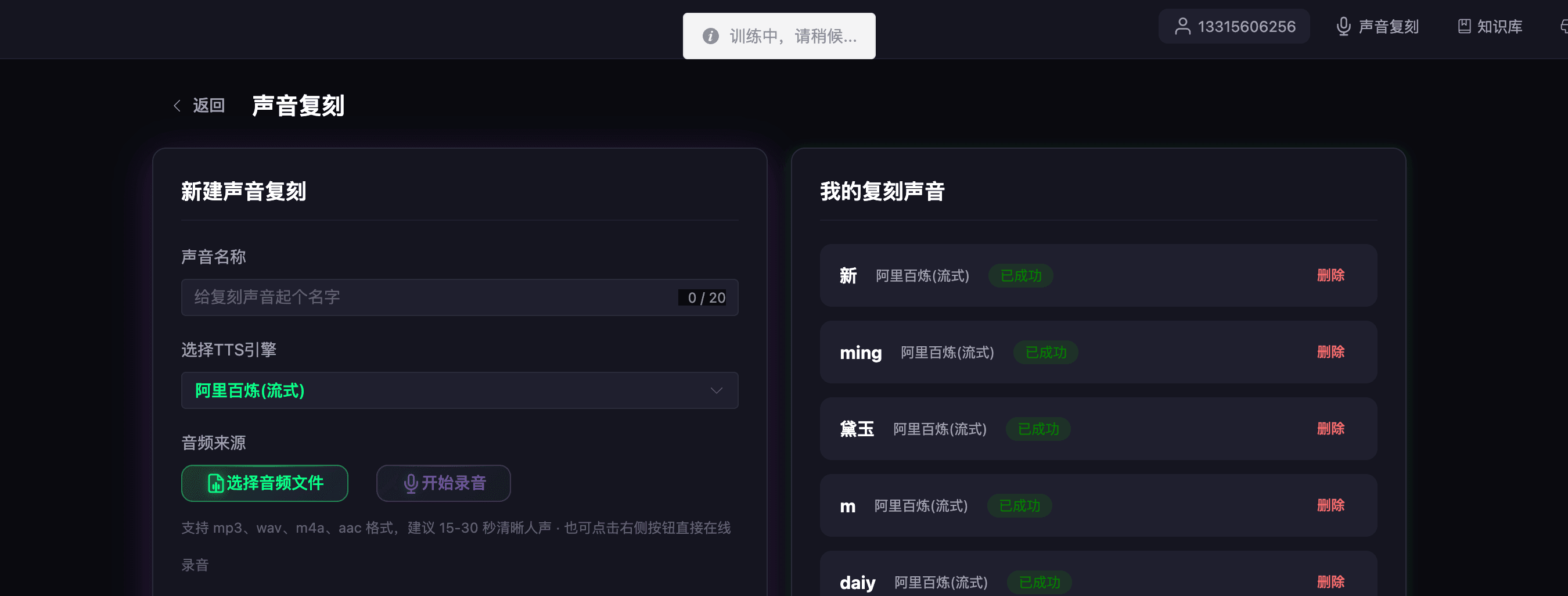
Wait a few tens of seconds.
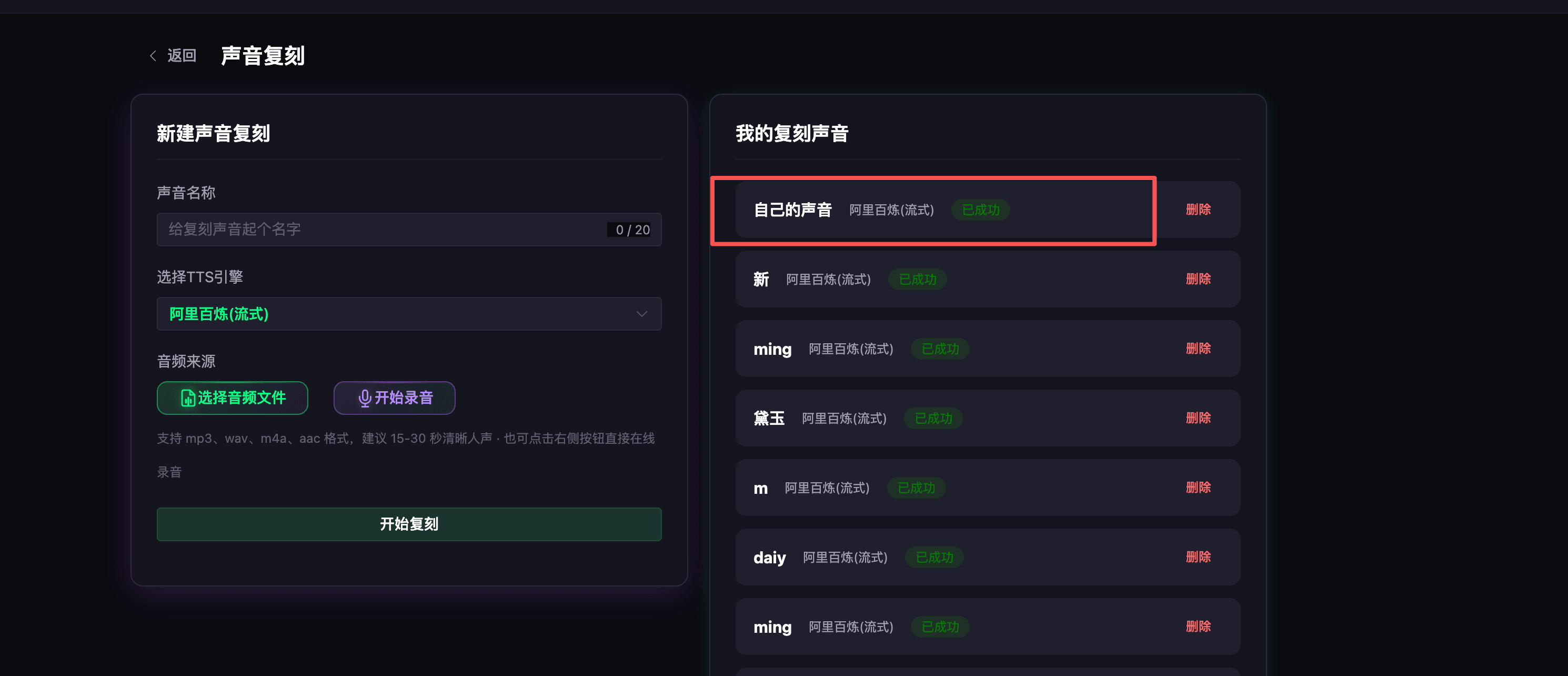
Select it in the agent: 1. choose Alibaba Bailian (streaming).
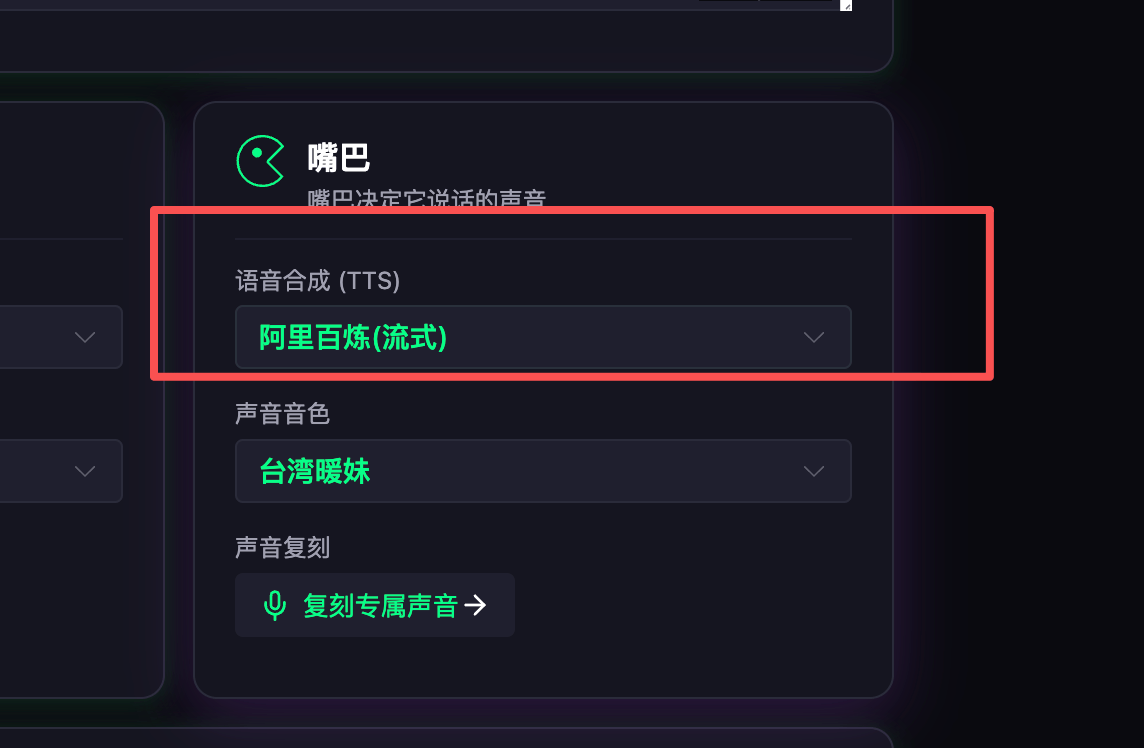
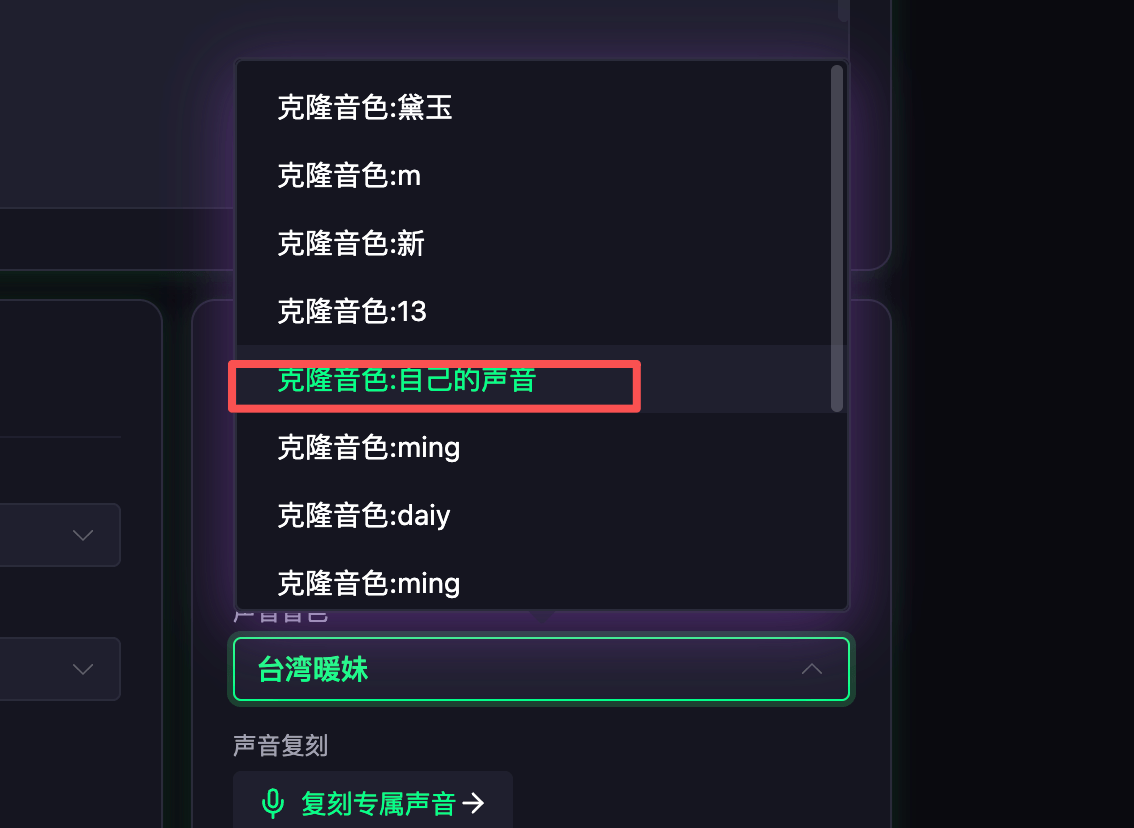
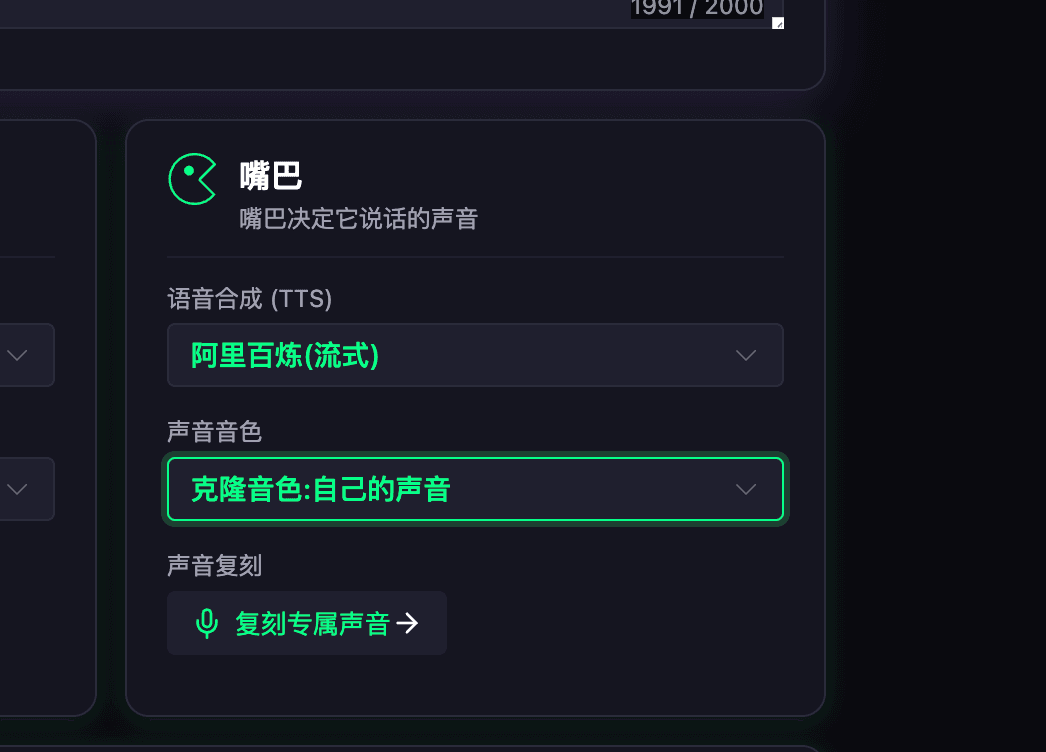
Save the configuration and restart the robot - it now speaks with the new voice.
9. MCP: Control the Robot from Your Tools
Works with openclaw, WorkBuddy, Claude Code, and similar MCP clients.
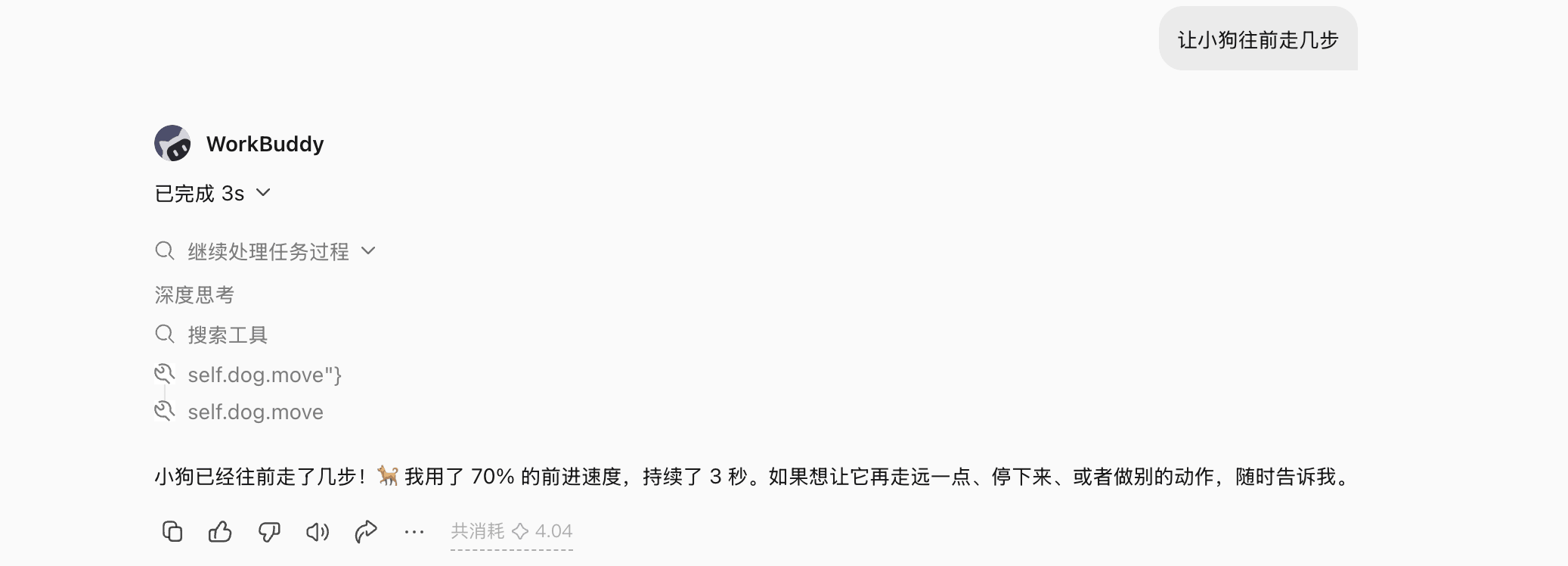
On the settings page, click to copy the configuration:
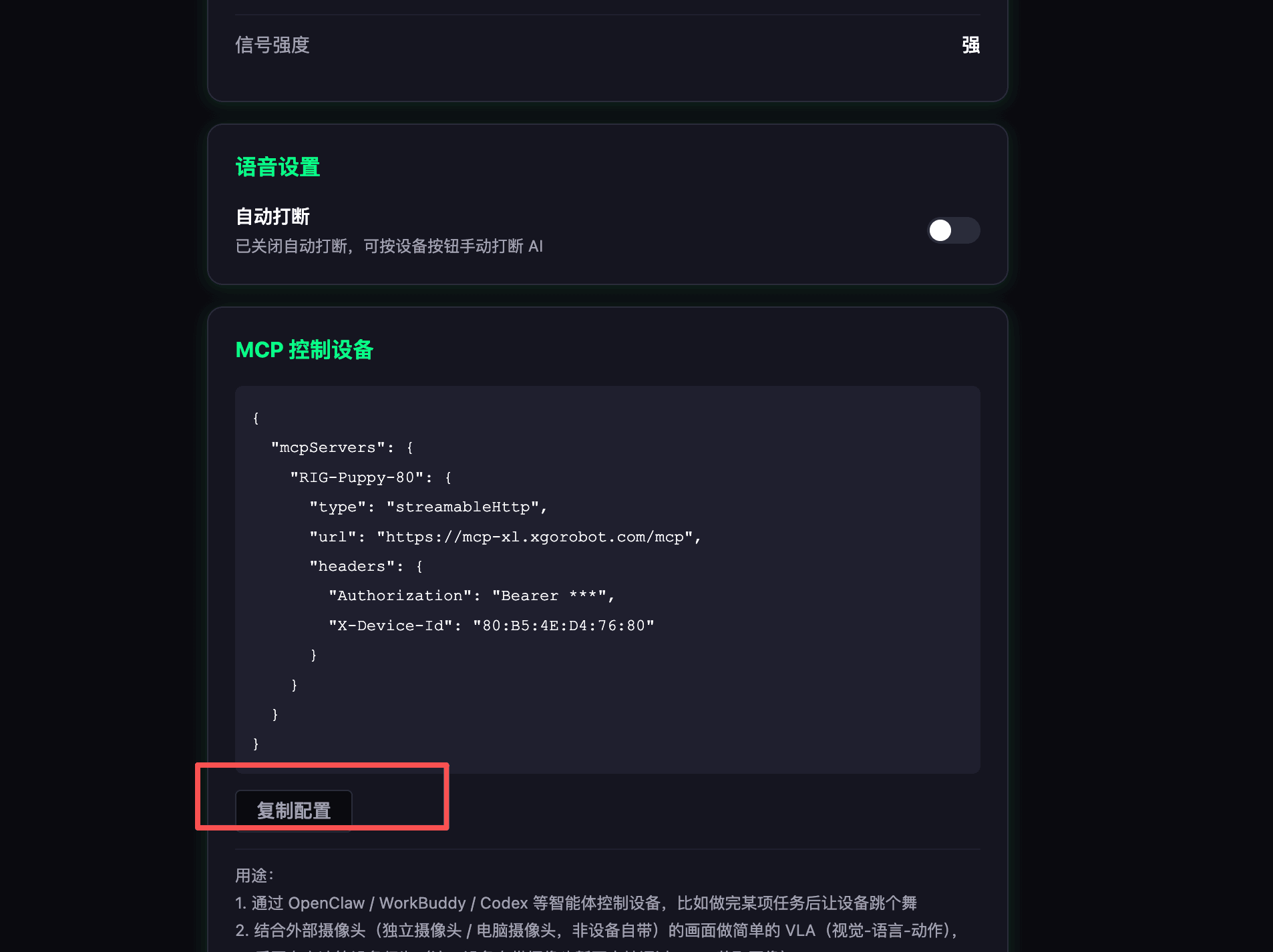
WorkBuddy as an example:
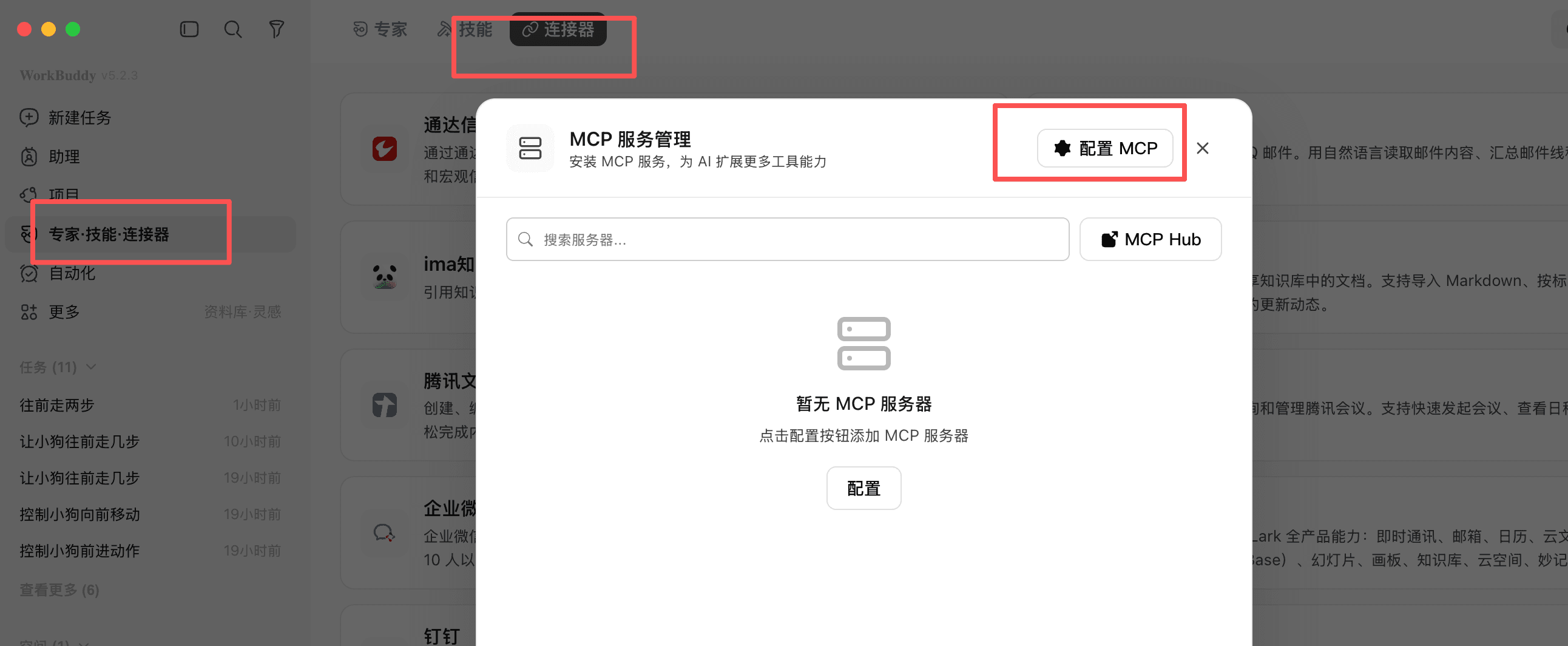
Paste the copied configuration here. If nothing was configured before, clear everything and paste directly; if you already have configuration, merge the "RIG-Puppy-80" level into it.
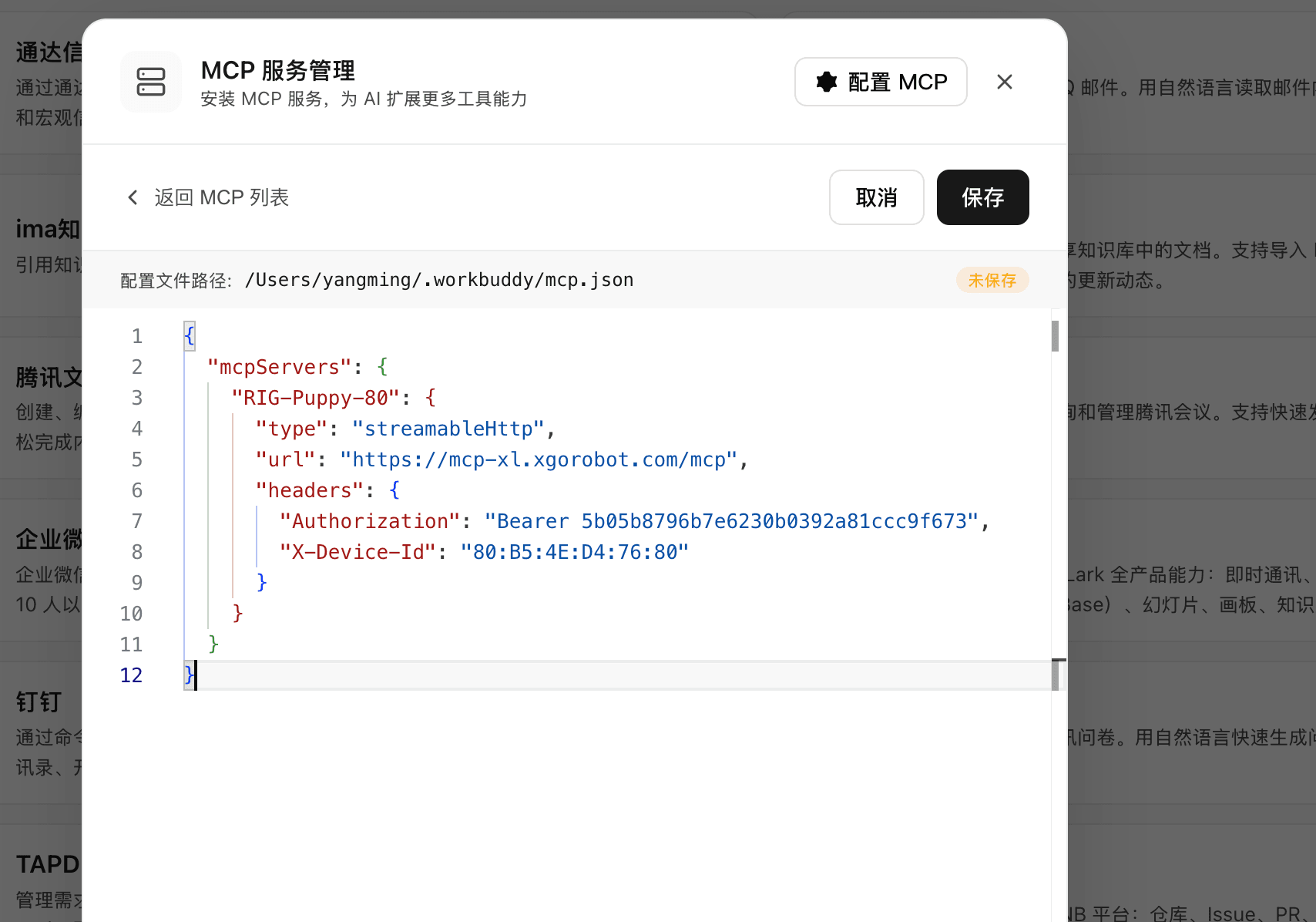
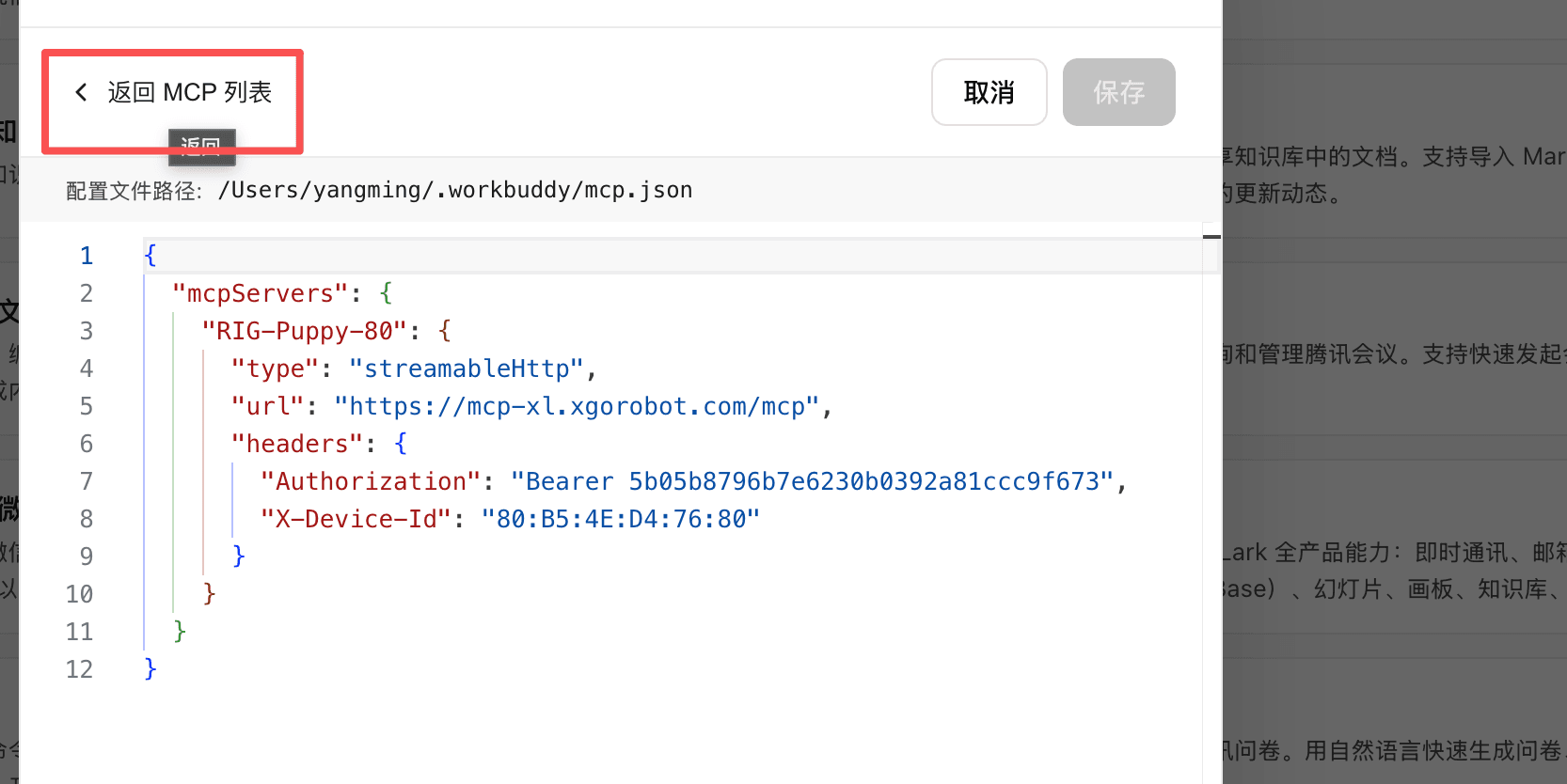
Reconnect, trust, and so on.
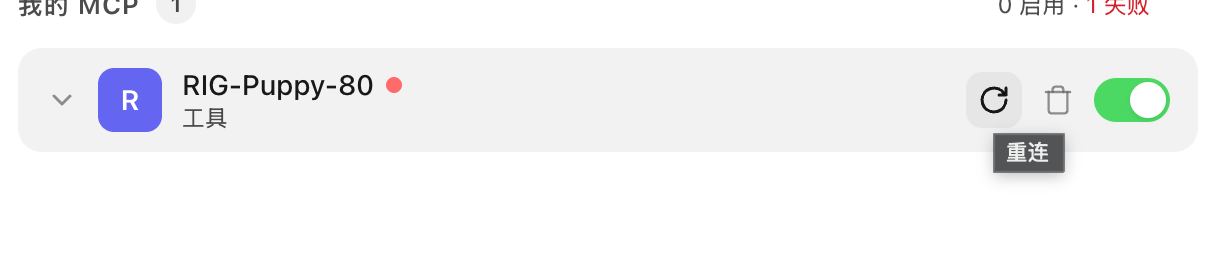
That is it - connected.
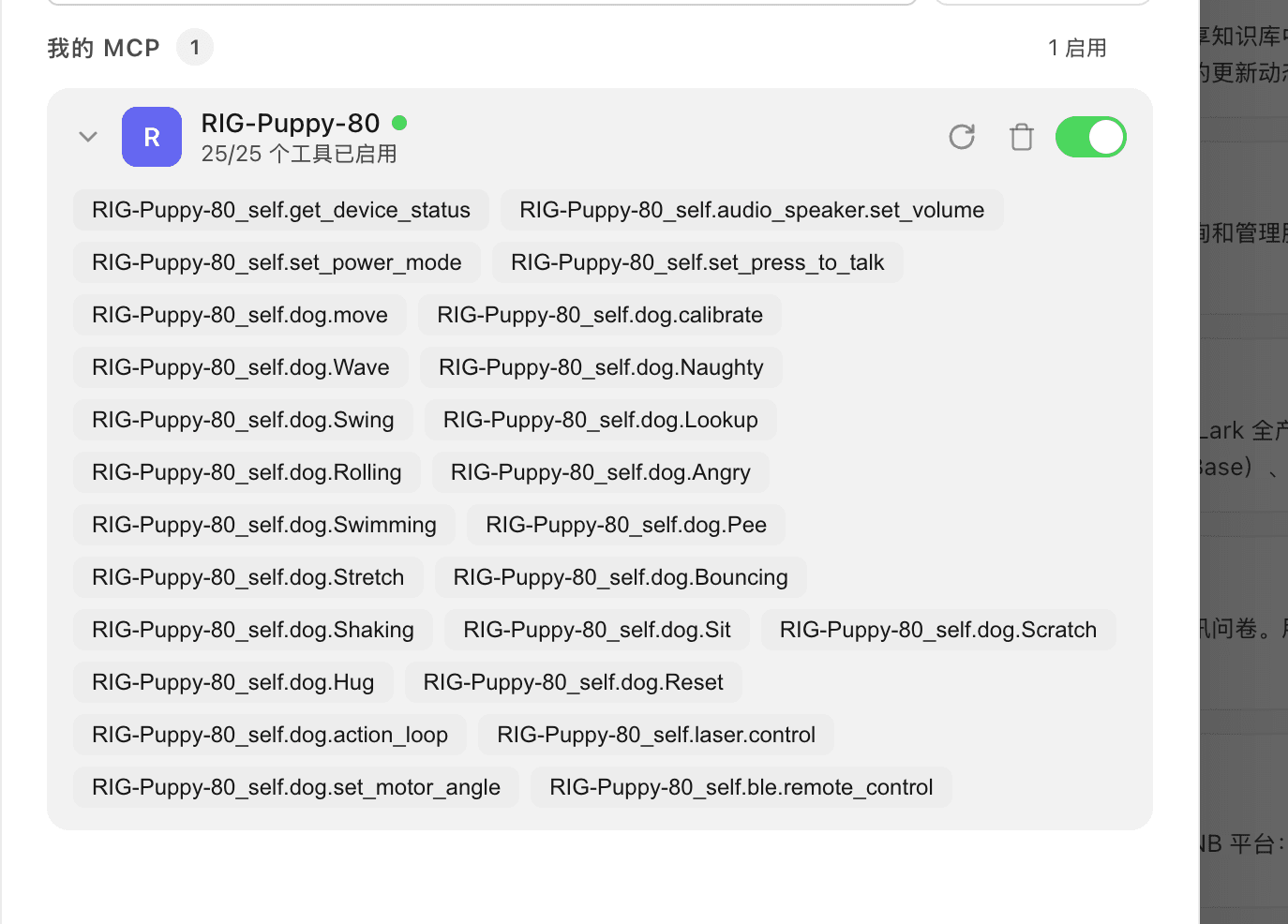
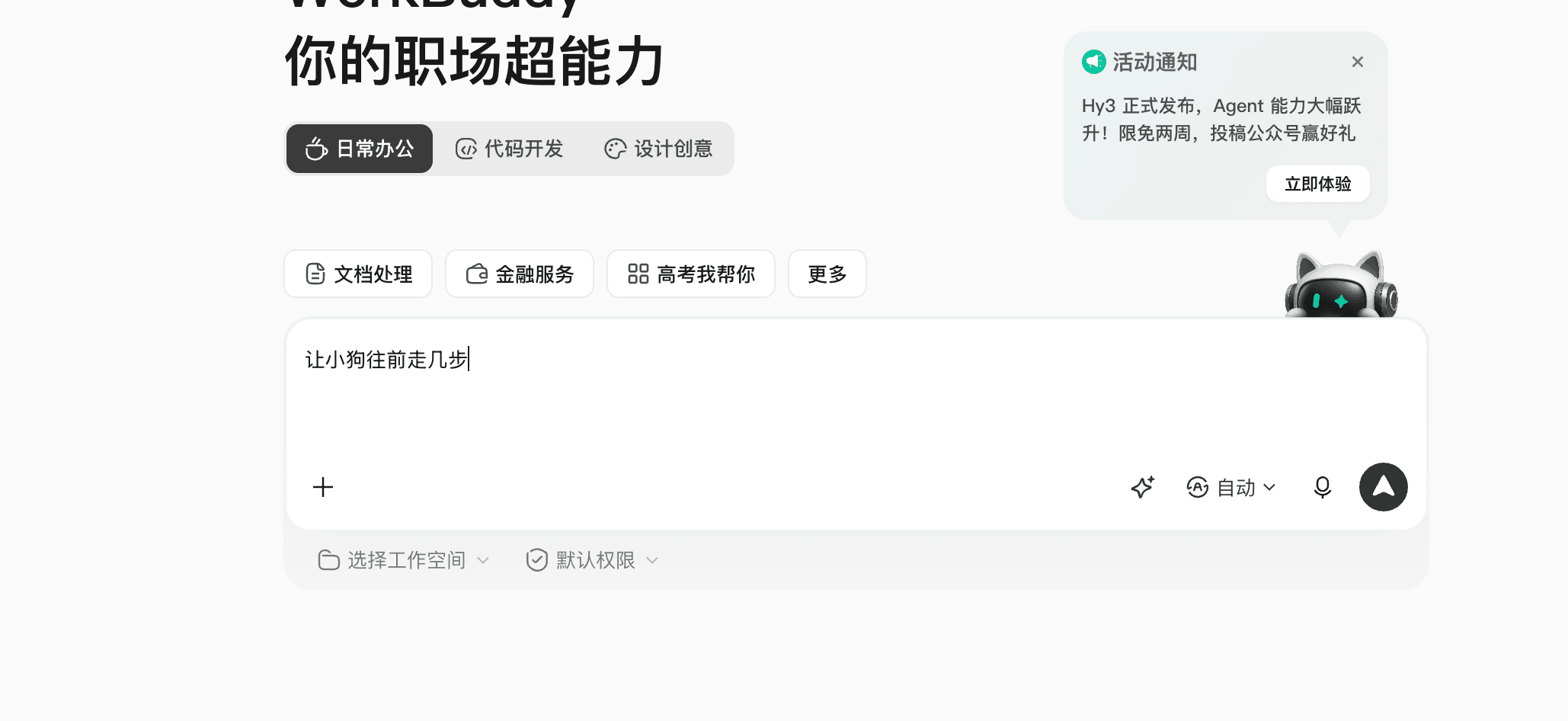
10. MCP: Let RIG Control Other MCP Servers
RIG can also call other MCP servers, such as Home Assistant or your own functions (e.g. controlling a computer).
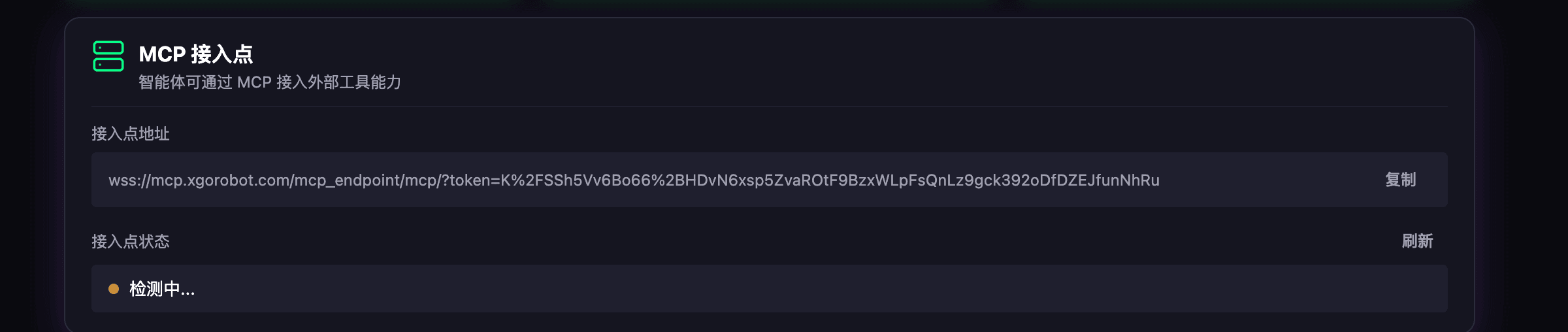
Home Assistant as an example
Open https://github.com/LuwuDynamics/xiaolu_mcp_ha
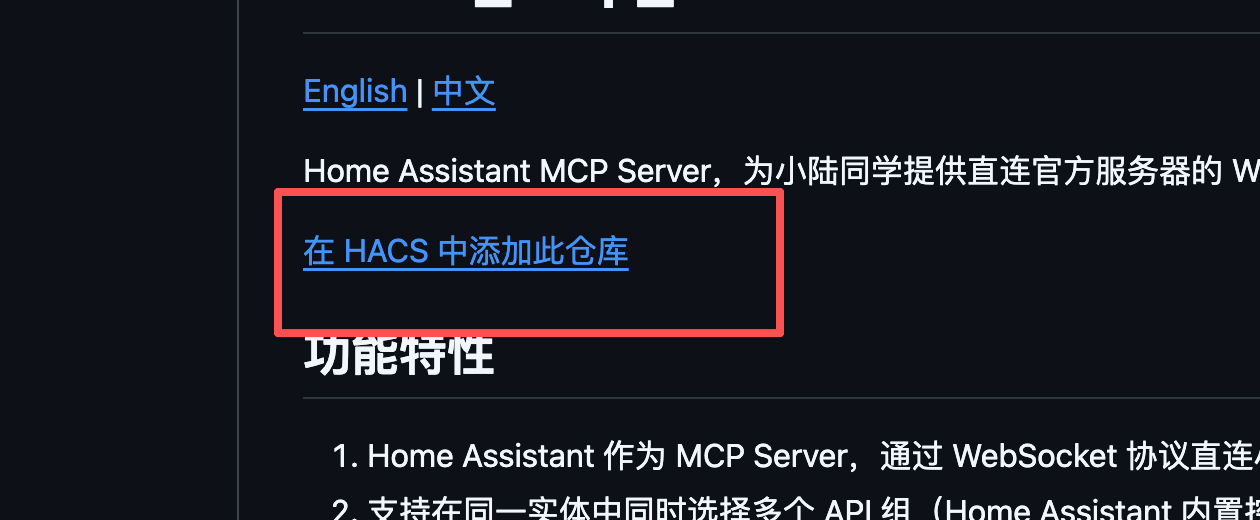
Click the link in the README, or go directly to the HACS repository redirect: Add xiaolu_mcp_ha to HACS
Click download.
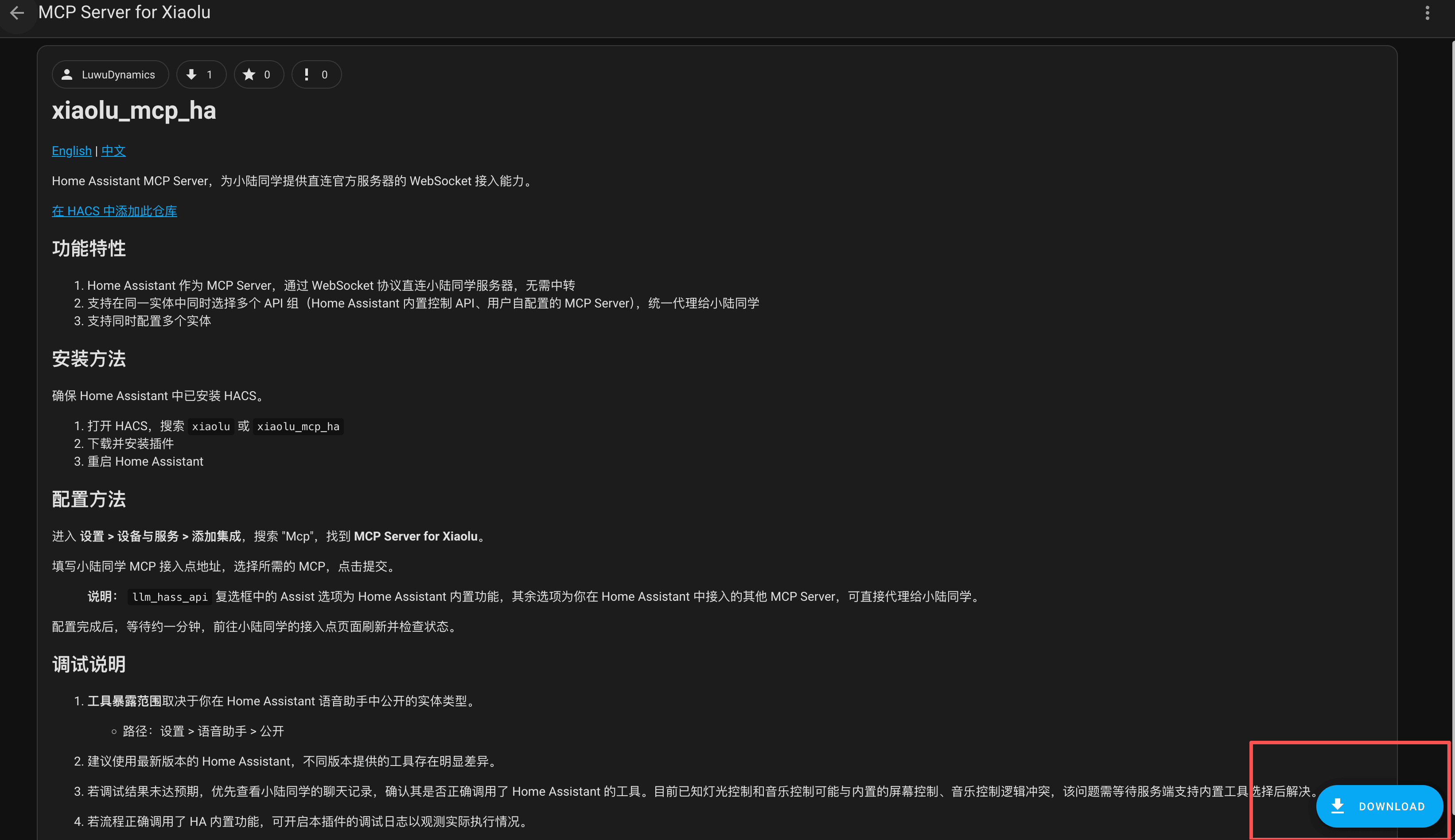
Select a version and download it. 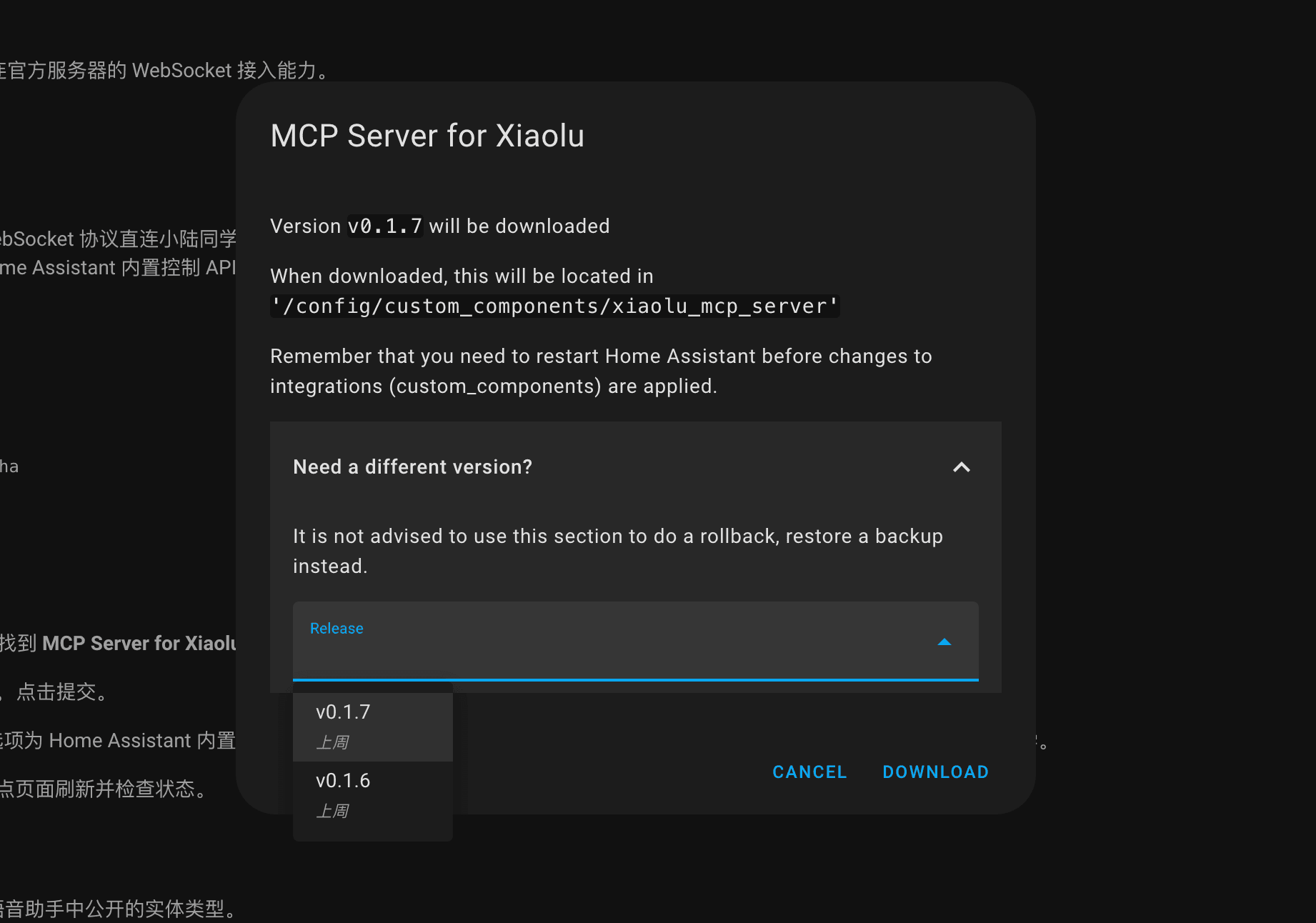

Restart.
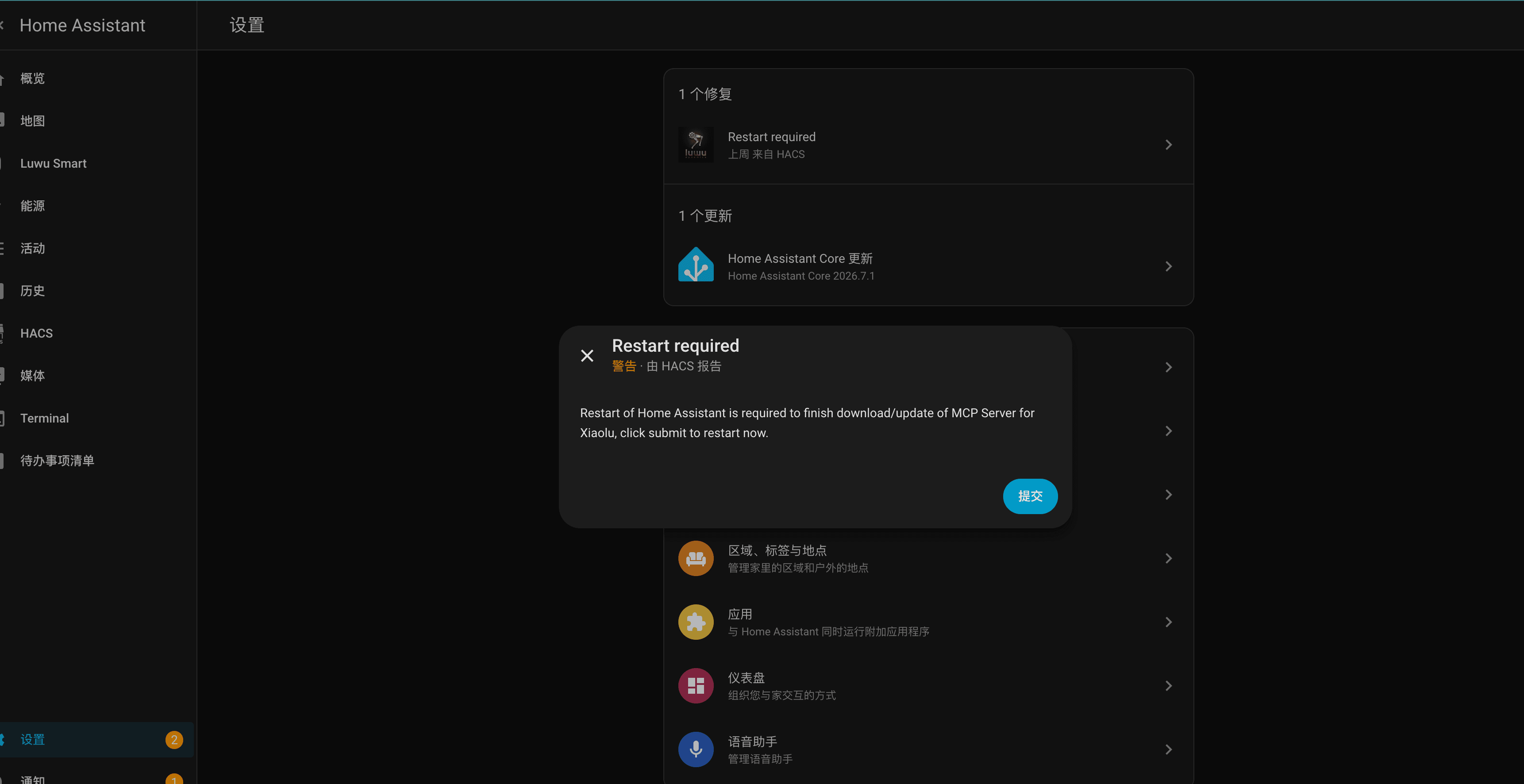
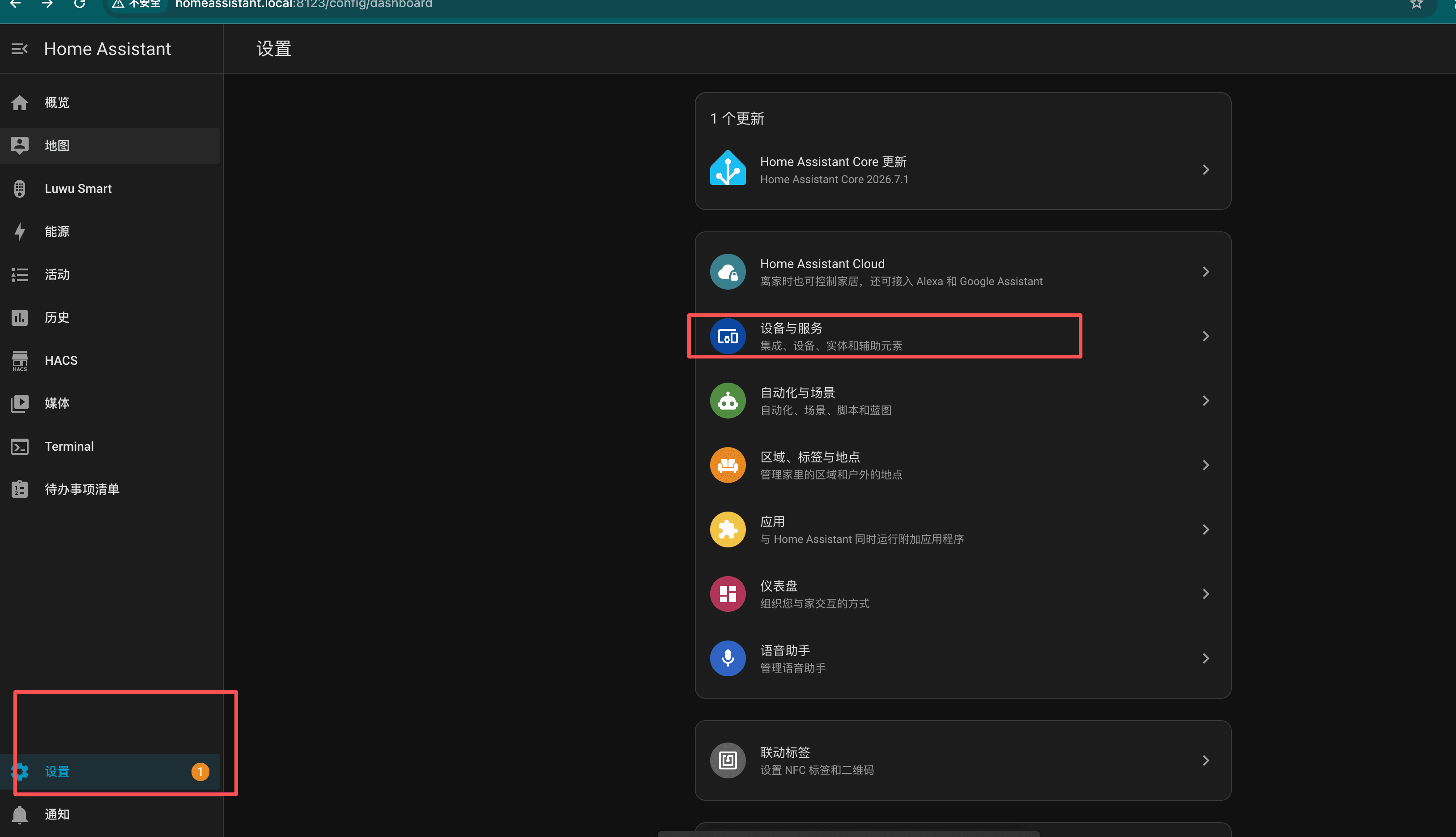
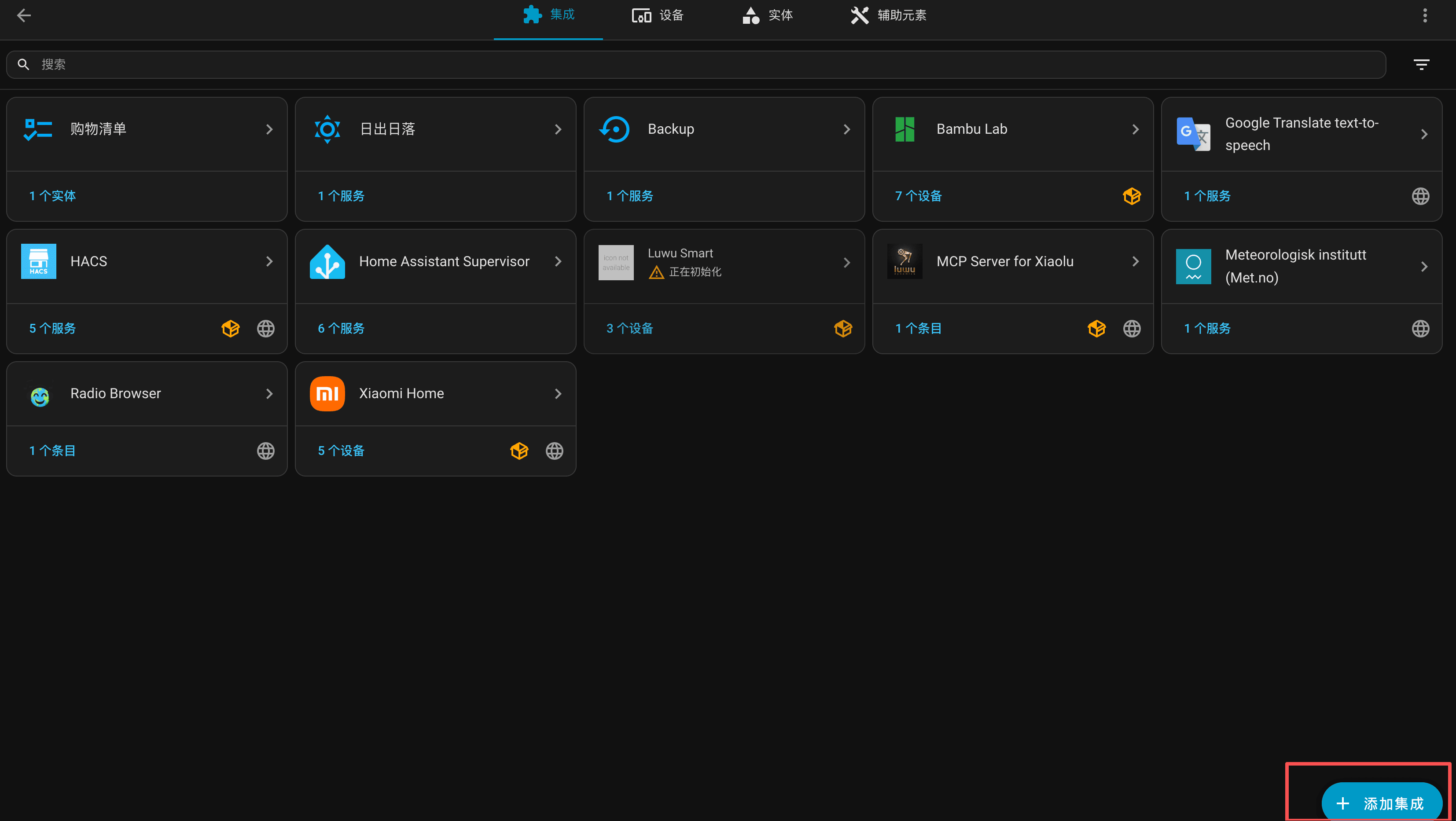
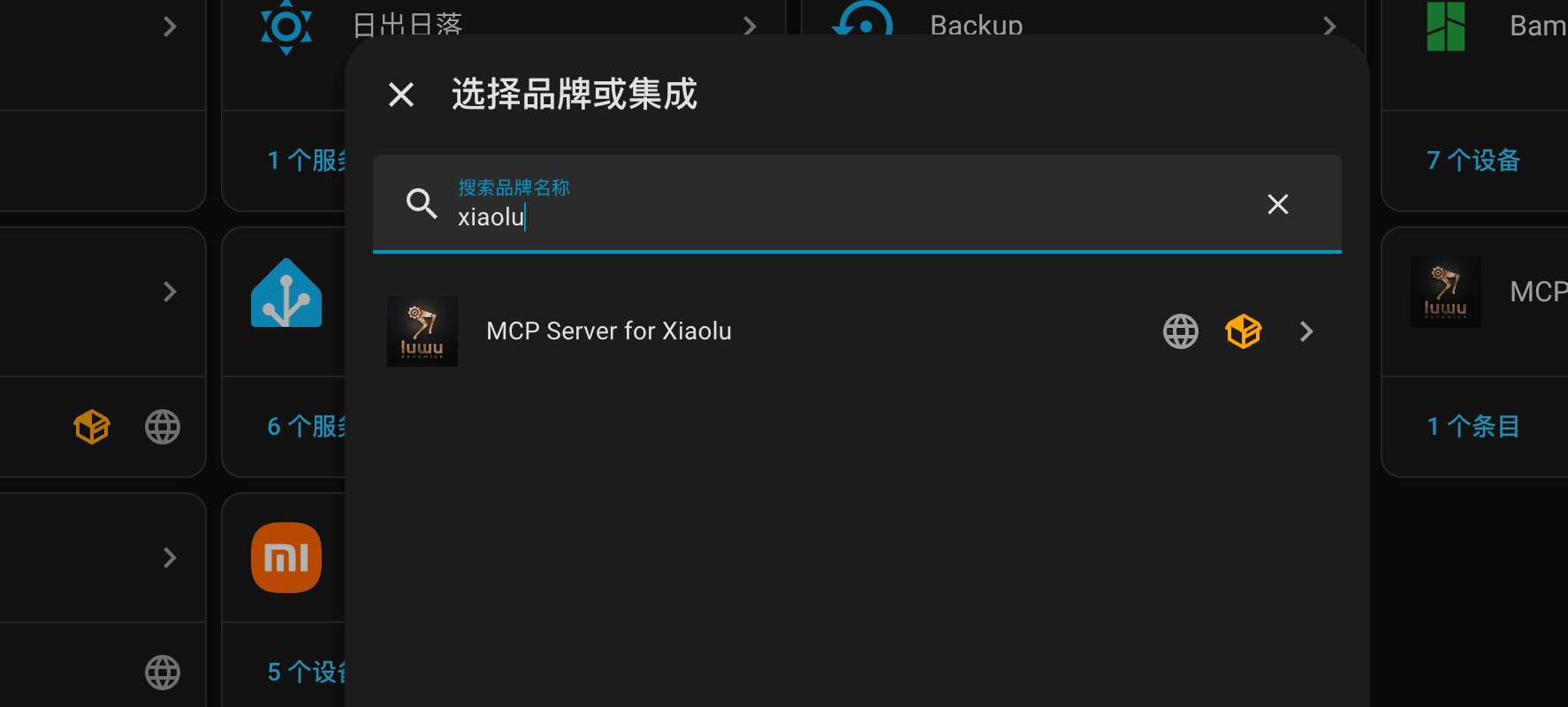
Search for xiaolu.
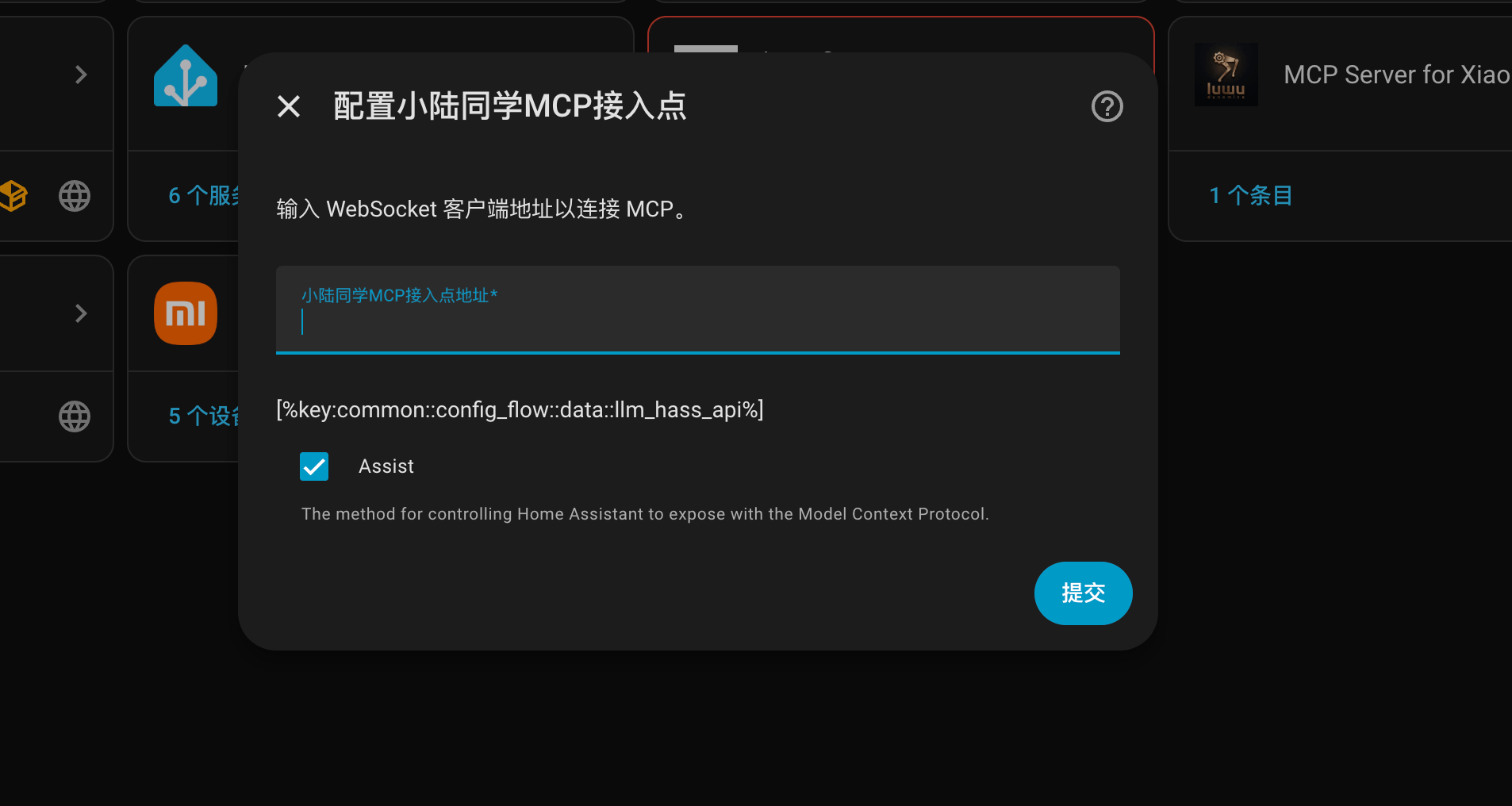
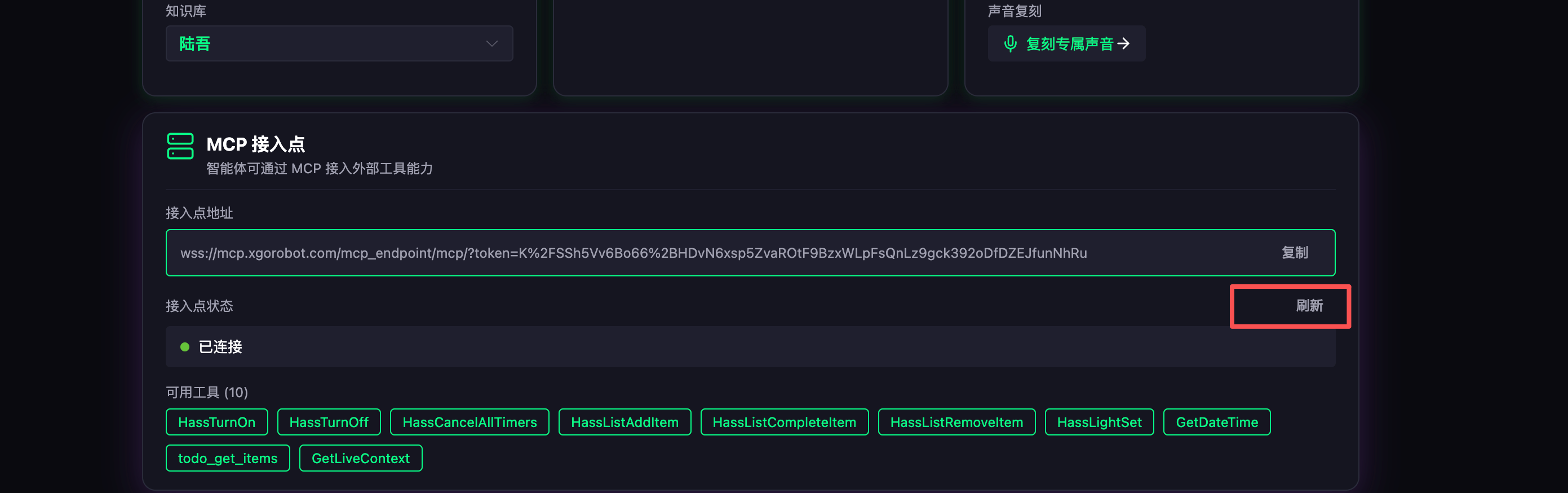
Enter the MCP endpoint address here:
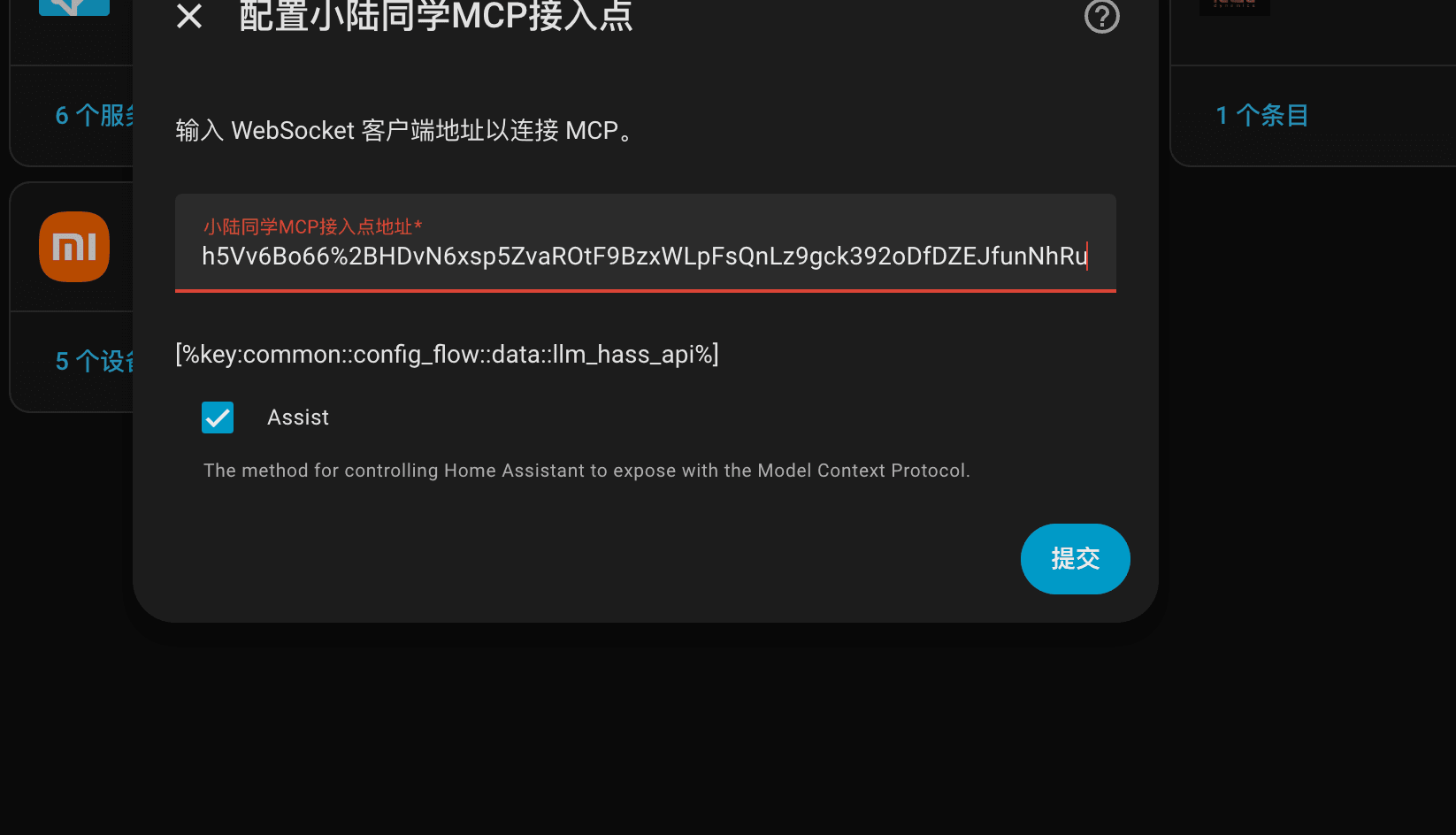
Click refresh and the readable and controllable devices appear.
Control a local computer browser
See https://github.com/LuwuDynamics/mcp-demo-browser - the README has calculator and open-browser examples. You can let the robot control MCP servers you deploy yourself.